Compress JPG photos without the quality drop you fear
JPG is a lossy format — and that's exactly why it compresses so well. ImageResizerly lets you compress JPEG files right in your browser, either by setting a target file size or by dragging a quality slider yourself. Photos that started as bulky multi-megabyte camera files come out a fraction of the weight, and at normal viewing size you'd be hard pressed to tell the difference.
Whether you want to compress one JPEG for an email or a folder of holiday shots for a website, everything happens locally. Nothing is uploaded, so even private photos never leave your device.
How to compress a JPG image
- Add your JPEGs — drag and drop, browse, or paste with
Ctrl+V. JPG, PNG, WebP and iPhone HEIC are all accepted. - Choose your approach — set a target size (the tool hits it automatically) or grab the quality slider and tune it by eye with a live preview.
- Keep it as JPG — JPG stays the most compatible choice for photos, or switch to WebP for even smaller files if the destination supports it.
- Compress and download — grab a single file or the whole batch as a ZIP.
No account is needed for up to 5 photos at once; a free account raises the batch to 20, and a paid plan goes up to 100. See the pricing page.
Quality vs file size: two ways to compress JPEG
Compressing a JPG is a trade between visual quality and file weight, and this tool gives you control over both ends of that trade.
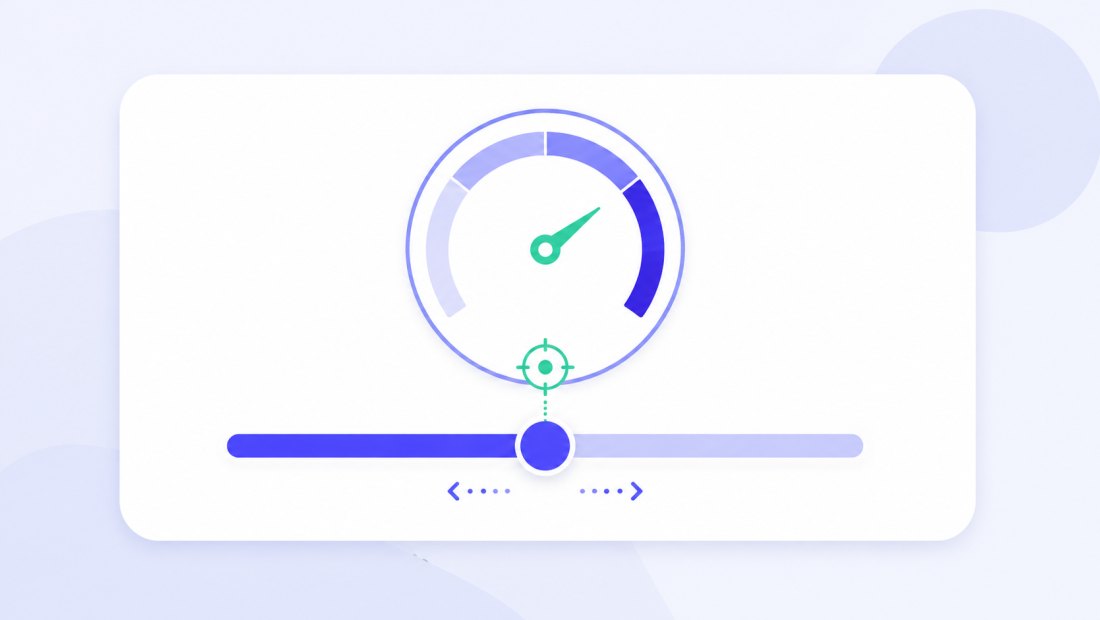
- Quality slider (manual) — drag from 100% down and watch the preview. Around 80–85% is the sweet spot for most photos: the file shrinks dramatically while the image stays visually clean.
- Target size (automatic) — type the size you need and the tool runs a fast binary search on JPEG quality, trying a handful of settings to find the highest quality that still fits. If even minimum quality can't reach your target at the original dimensions, it gently scales the photo down and tries again.
Use the slider when you care about looks; use a target when a form or CMS gives you a hard number. Either way the result is shown per photo before you download, so there are no surprises.
Why JPG compresses so well
JPEG was designed for photographs. It throws away detail the human eye barely notices — smooth gradients in skies, subtle colour shifts in skin tones — which is why a photo can lose most of its file weight and still look great.
| Content type | Compresses on JPG? | Better choice |
|---|---|---|
| Photographs, portraits | Excellent — huge savings | JPG |
| Screenshots with text | Poor — edges get fuzzy | PNG or WebP |
| Logos, flat graphics | Poor — visible artifacts | PNG |
| Web hero images | Very good | JPG or WebP |
If your image is a screenshot, a logo or line art, JPG is the wrong tool — its compression smears sharp edges. For real photos, though, it's hard to beat.
When 80–85% quality is enough
You rarely need 100% JPEG quality. The jump from 85% to 100% can double or triple the file size for a difference almost nobody can see on a screen.

- For the web — 75–85% is standard; pages load faster and visitors see no difference.
- For email and chat — 70–80% is plenty and slips easily under attachment limits.
- For archiving originals — keep higher quality, or don't recompress an already-compressed JPG repeatedly, since each save discards a little more detail.
Recompressing the same JPEG over and over slowly degrades it — compress from your best source once rather than re-saving an already-shrunk file. If you have the original camera file, start from that for the cleanest result.
Compress a batch of JPEGs at once
Got a phone or camera folder full of JPGs? Drop them all in and each is compressed independently — by your chosen quality or to a shared target size — then bundled into a single ZIP.
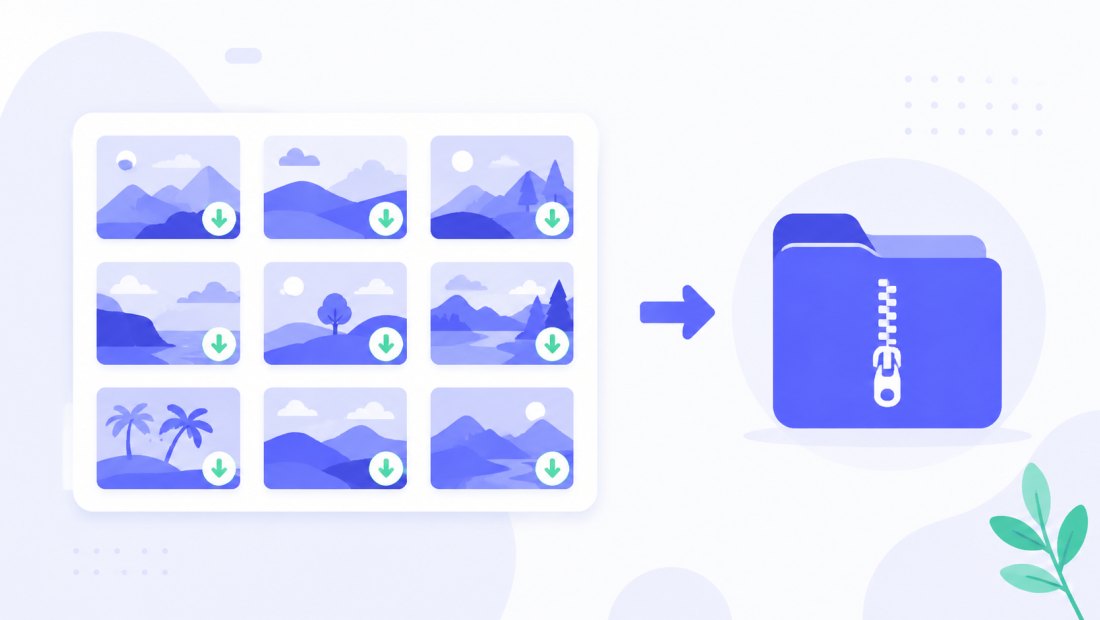
You can fold compression into the same pass as bulk resizing or a watermark, so a whole shoot is web-ready in one step. Limits are 5 photos with no account, 20 on a free account and 100 on a paid plan.
EXIF and metadata are stripped
Every JPEG straight from a phone or camera carries hidden EXIF metadata — GPS coordinates, camera model, date and time. When you compress here, that data is removed by default.
That's good for two reasons: it protects your privacy when you share photos publicly, and it shaves a few more kilobytes off the file. Because compression runs entirely in your browser via the Canvas API, the photo itself is never uploaded either.
JPG, or convert it?
JPG is the safe default for photos, but it isn't always the best fit:
- Keep it as JPG — maximum compatibility; every device, browser and portal opens it.
- Convert to WebP — typically 25–35% smaller than JPG at the same quality, ideal for your own website.
- Starting from a PNG? — if it's actually a photo saved as PNG, convert PNG to JPG first to unlock proper photo compression.
Need a specific file size instead?
If your destination demands an exact cap rather than a quality level, switch to a target-size tool — same engine, fixed goal:
- Compress to 100 KB — the most common web and CMS limit.
- Compress to 200 KB — comfortable quality for sites and marketplaces.
FAQ
Does compressing a JPG lower its quality?
A little — JPG is lossy, so some detail is always discarded. But at 80–85% quality the loss is invisible at normal viewing size, while the file gets dramatically smaller. Use the live preview to find a level you're happy with.
Should I use the quality slider or a target size?
Use the slider when you care most about how the photo looks and want to judge it by eye. Use a target size when a form, email or CMS gives you a hard kilobyte limit and the exact look matters less.
Why doesn't my screenshot or logo compress well as JPG?
JPEG is built for photographs, not sharp edges. On text, logos and line art it produces fuzzy halos, so those images stay smaller and crisper as PNG or WebP.
Will compressing remove my photo's GPS location?
Yes. EXIF metadata, including GPS coordinates and camera details, is stripped by default — a privacy win that also trims a few kilobytes.
Can I compress many JPGs at once?
Yes — up to 5 at a time with no account, 20 with a free account and 100 on a paid plan. Each photo is compressed independently and downloaded together as a ZIP.
Is it safe to compress private JPEGs here?
Yes. Compression happens locally in your browser through the Canvas API — your files are never uploaded to a server, which is safer than typical online compressors.
How small can a JPG get?
That depends on the photo and the quality you accept. Most camera JPEGs drop to a small fraction of their original weight at 80% quality; pushing lower shrinks them further at the cost of visible artifacts.