Resize an image to 1600×900 for banners and hero sections
1600×900 (HD+) is a 16:9 widescreen size that hits a practical sweet spot: large enough to look sharp as a full-width web banner, blog header or hero section, yet light enough to load fast and avoid bloating a page. It's also a clean choice for a moderate widescreen wallpaper or a slide in a panoramic deck. Sizing your artwork to exactly 1600×900 keeps it crisp where it sits and predictable across layouts. ImageResizerly does it entirely in your browser — your images are never uploaded.
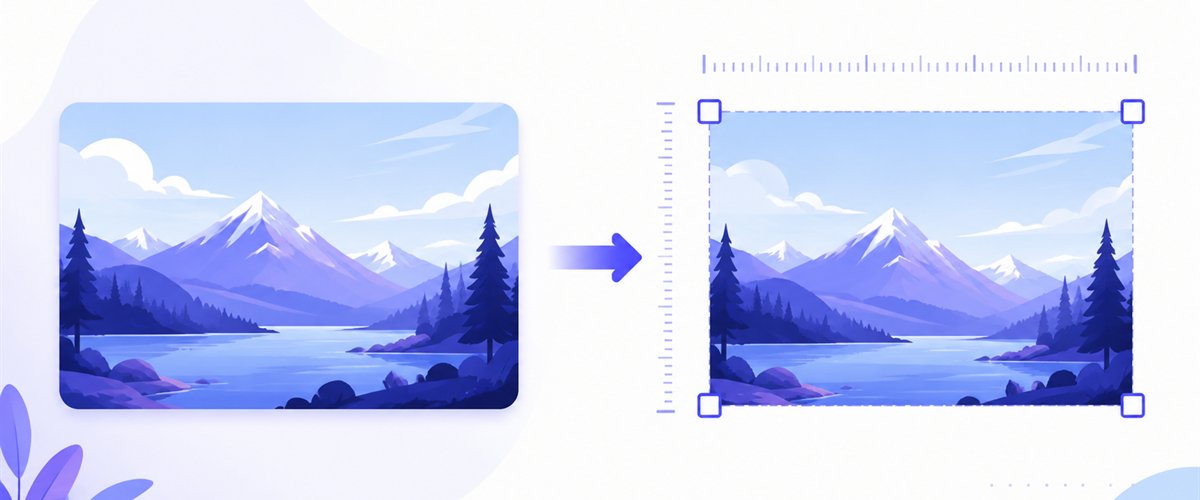
Drop one image or a folder, set the dimensions to 1600×900, choose how it fills the frame, and download.
How to resize an image to 1600×900
- Add your images — drag and drop, click to browse, or paste with
Ctrl+V. Single images or a whole folder; HEIC files from an iPhone read directly. - Set width 1600 and height 900 — type the exact pixel values into the width and height fields.
- Choose a mode — Fit to keep the whole image inside the banner, Crop to fill the 16:9 frame completely, or Stretch for an exact match. Turn on don't enlarge so a smaller source isn't blown up.
- Download — get one 1600×900 image or the whole batch as a ZIP.
No account is needed for up to 5 images at a time; a free account raises the batch to 20 and Premium to 100. See the pricing page.
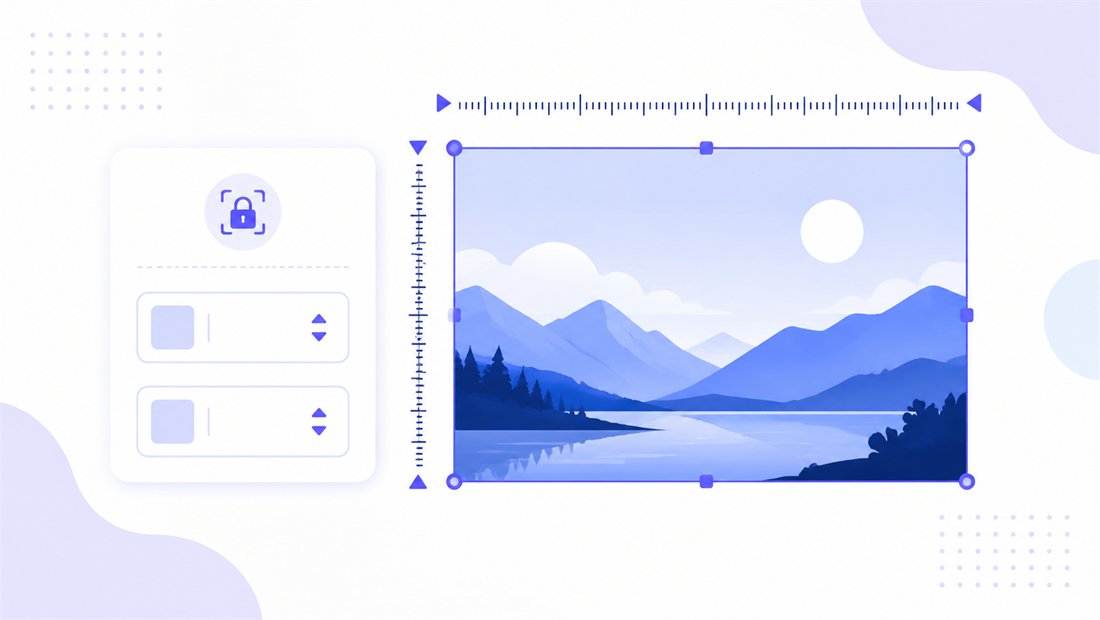
16:9 proportions for clean, consistent banners
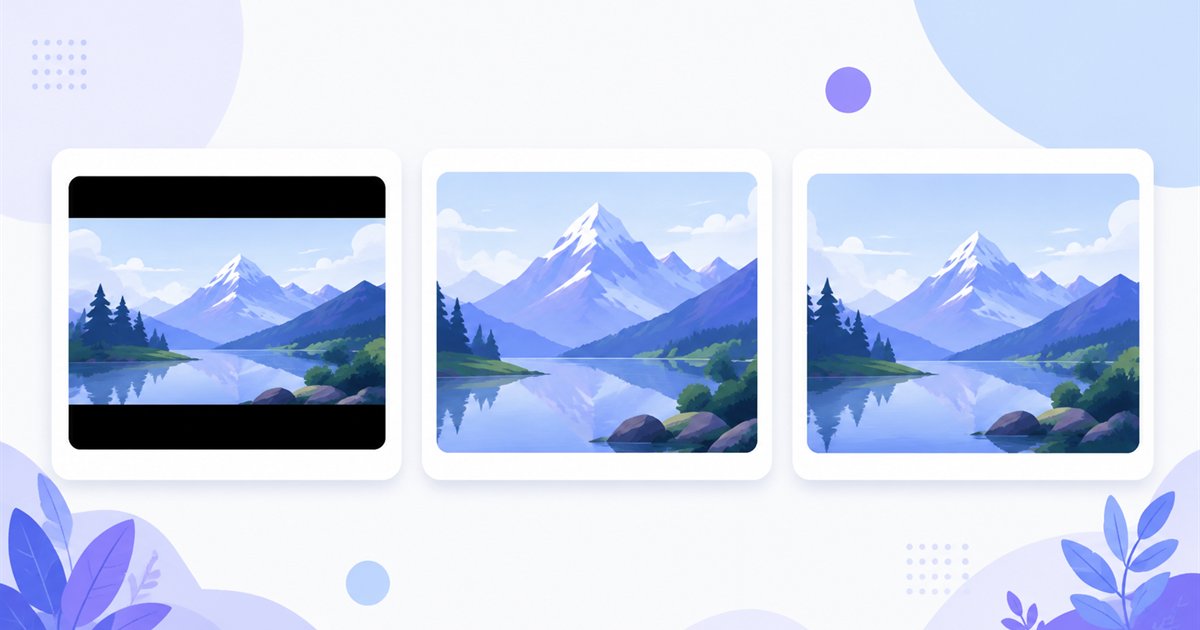
1600×900 is an exact 16:9 ratio, the same widescreen shape as 1920×1080 and 2560×1440 — so a banner designed at one of those sizes scales here without distortion, and vice versa. For headers and heroes, the mode decides where a photo's focus lands inside that wide strip:
| Mode | What it does | Best for |
|---|---|---|
| Fit | Scales the whole image inside 1600×900, may add bars | Logos or graphics where nothing can be cut |
| Crop | Fills the entire 16:9 banner, trimming top/bottom or sides (drag the crop box per thumbnail) | Hero sections and headers from tall photos |
| Stretch | Forces the image to 1600×900 exactly, may distort | Abstract textures where distortion won't show |
For a blog header from a portrait or square photo, Crop lets you drag the focal area into the wide strip so the subject stays centred. Keep don't enlarge on so a small source image isn't upscaled into a soft banner.
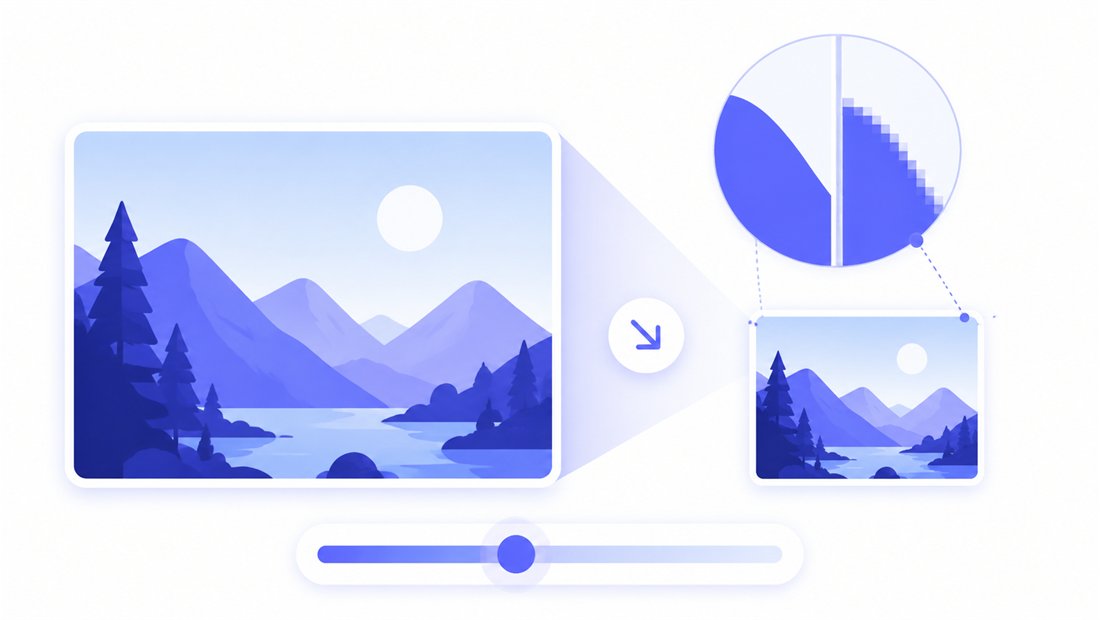
Sharp banners that still load fast
A header is the first thing a visitor sees, and a soft or heavy one hurts both looks and load time. ImageResizerly uses Lanczos resampling (via Pica) so a large photo scaled down to 1600×900 keeps crisp edges and clean text — no jagged staircase on diagonal lines or logos. The quality slider shows a live size estimate, which matters for web performance, and you can export as JPG, PNG, WebP or AVIF. For a fast-loading hero, WebP or AVIF at around 80% typically beats JPG at the same sharpness; use PNG when the banner has flat colour or sharp UI elements.
Resize a batch of banners to 1600×900 at once
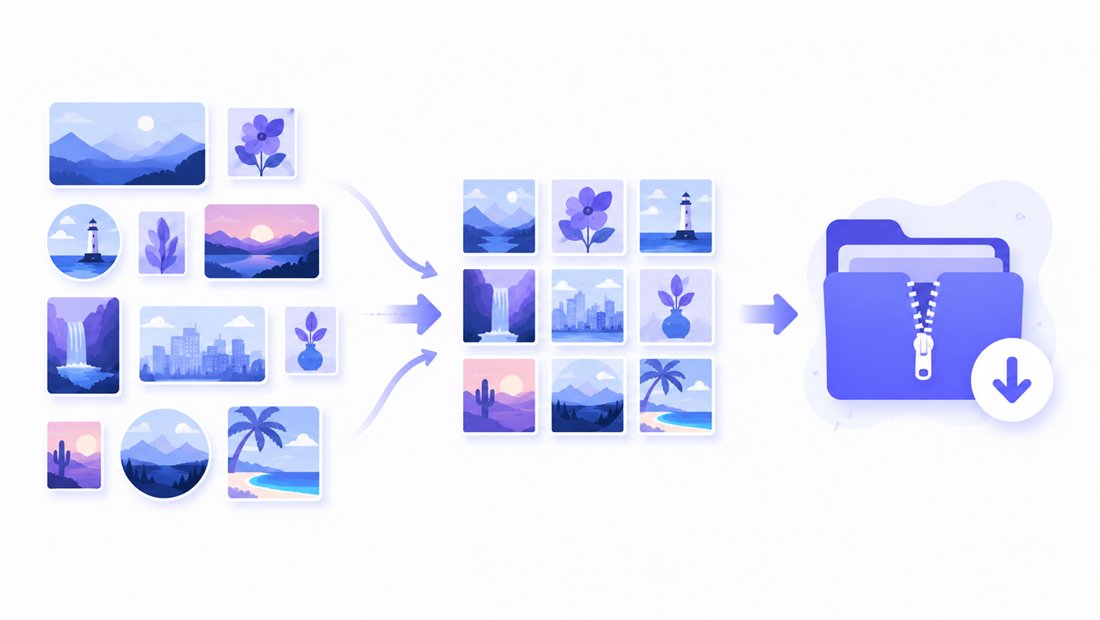
Refreshing every blog post header, or building a set of hero images for a site? Drop the whole folder and each image is scaled to 1600×900 independently, then returned as a single ZIP. Use the naming patterns (prefix, suffix or a counter) so files land as header-01, header-02, ready to drop into a CMS. To also generate thumbnail or social sizes from the same source, use the bulk resizer, or crop a tall photo to landscape before scaling.
Private — nothing is uploaded
Resizing runs entirely in your browser via the Canvas API:
- No upload, no wait — even a folder of banners starts instantly.
- Private by design — your images never reach a server.
- EXIF removed by default — location and camera data are stripped on export.
- Works offline — once the page has loaded you can disconnect.
Related tools
- Resize to 1920×1080 — the Full HD step up in the same 16:9 family.
- Resize to 1366×768 — a smaller 16:9 size for common laptop screens.
- Bulk resizer — output banner, thumbnail and social sizes from one folder.
- Crop — set the focal point and ratio before scaling to 1600×900.
FAQ
What is 1600×900 used for?
1600×900 (HD+) is a 16:9 widescreen size well suited to web banners, blog headers, hero sections and panoramic slides. It's large enough to look sharp full-width yet light enough to load quickly, which is why it's a common web image size.
Will resizing to 1600×900 lose quality?
Downscaling a larger photo to 1600×900 with Lanczos resampling looks crisp with no visible loss. Avoid enlarging a small source — turn on "don't enlarge" so it isn't upscaled into a soft banner.
How do I keep the subject centred in a banner?
Use Crop mode and drag the crop box over the focal area on each thumbnail. Because 1600×900 is a wide 16:9 strip, cropping a portrait or square photo lets you choose exactly which part fills the header.
Can I resize many banners to 1600×900 at once?
Yes — 5 at a time for free, 20 with a free account and 100 with Premium. Each image is scaled to 1600×900 and you download them all as one ZIP, with optional name patterns for a CMS.
Are my images uploaded to a server?
No. Everything runs in your browser via the Canvas API, so files never leave your device — you can even work offline after the page loads.
Is it free?
Yes, resizing to 1600×900 is completely free with no watermark. Optional accounts only raise the batch size and unlock AI features.