Resize Image to 400×400 — the standard profile-picture square
A 400×400 square is the classic size for a profile picture. Forums, chat apps, messengers and community platforms commonly ask for a square avatar around this size, and many display it inside a circular mask — so the subject needs to sit centered. It is also a handy source square for app icons, where a clean 400×400 master can be down-scaled to the smaller sizes a store or launcher needs. Small enough to upload anywhere, large enough to stay sharp when cropped to a circle, 400×400 is the dependable avatar standard. ImageResizerly resizes to 400×400 entirely in your browser, so your photos are never uploaded.
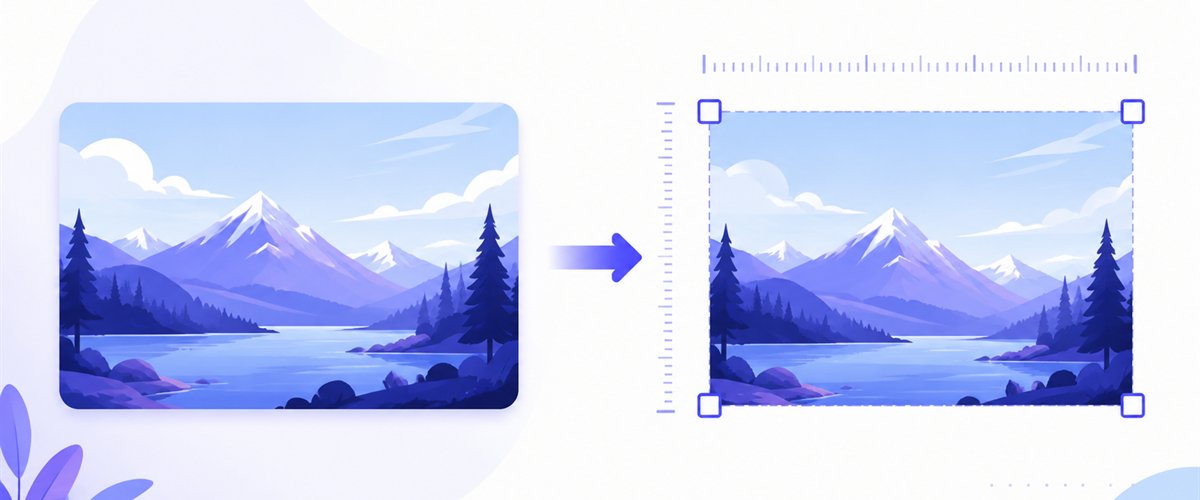
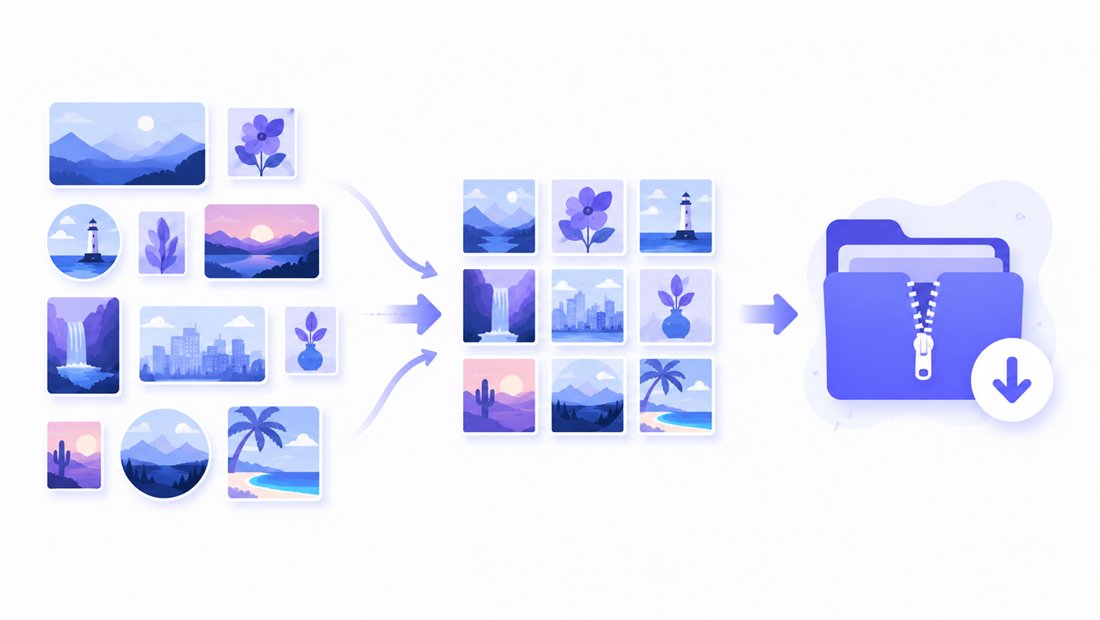
Drop one photo or a folder of headshots, lock the square, and download a single file or the whole batch as a ZIP.
How to resize an image to 400×400
- Add your images — drag and drop, click to browse, or paste with
Ctrl+V. One photo or a whole folder of headshots at once. iPhone HEIC files are read automatically. - Set width and height to 400 × 400 — type the numbers once or pick the 1:1 square preset.
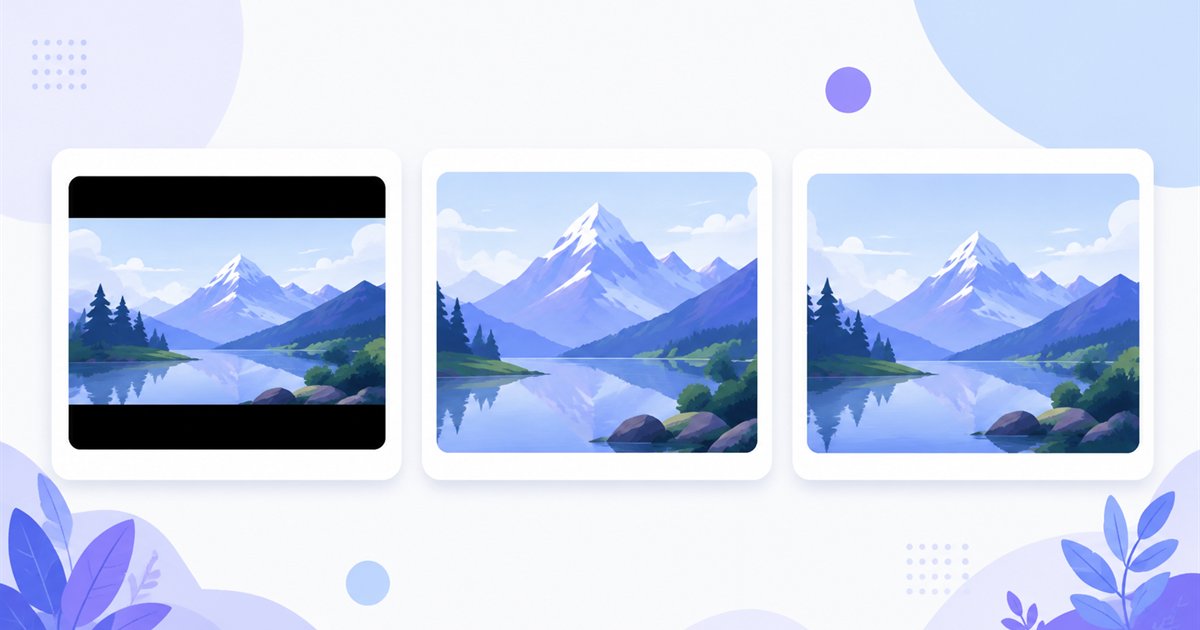
- Choose a mode — Fit, Crop or Stretch — Crop with the draggable area is ideal here: center the face so it stays in frame even when the platform shows the avatar as a circle.
- Download — get one 400×400 file or the whole batch as a ZIP.
No account is needed for up to 5 images at a time; a free account raises the batch to 20 and Premium to 100. See the pricing page.
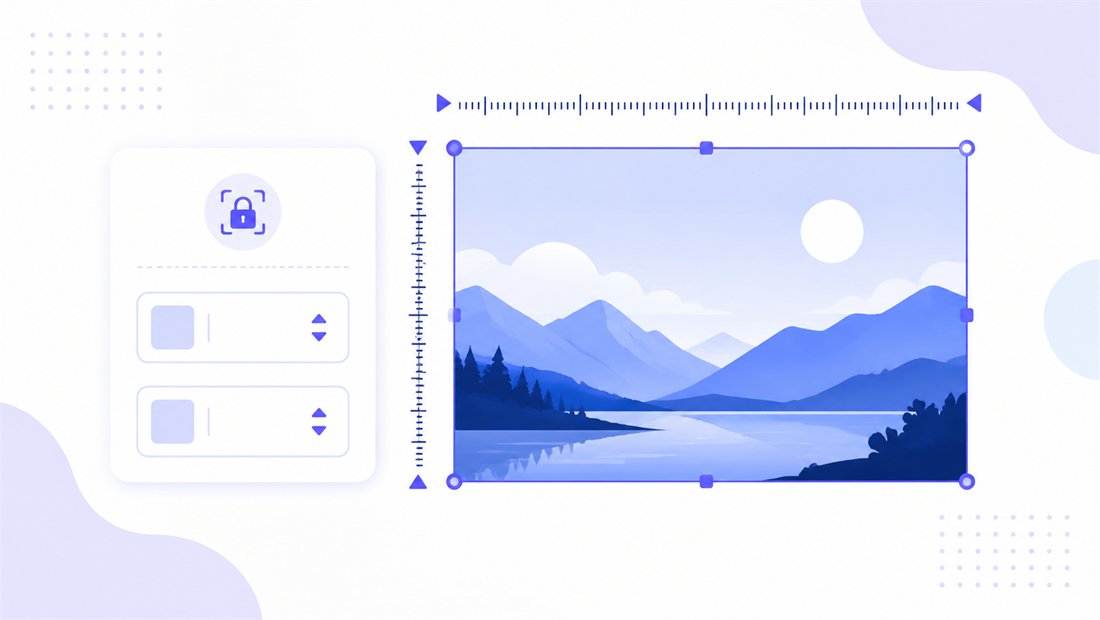
A 1:1 square that survives the circle crop
400×400 is a 1:1 square (aspect ratio 1.0). Most avatar platforms apply a circular mask on top of the square, so framing matters — and the mode controls it:
| Mode | What it does | Best for 400×400 |
|---|---|---|
| Crop | Fills the square and trims overflow — draggable region per image | Profile pictures: center the face so it survives a circular mask |
| Fit | Scales the whole image inside the square with padding | App-icon source art you want fully visible |
| Stretch | Forces to 400×400, distorting a non-square source | Rarely — only when the source is already square |
For a profile picture, use Crop and drag the region so the face is centered with a little headroom; that way it looks right whether the app shows a square or a circle. For an app-icon master, Fit keeps the whole artwork inside the square so nothing is clipped. Keep "don't enlarge" on so a small selfie isn't blown up and softened.
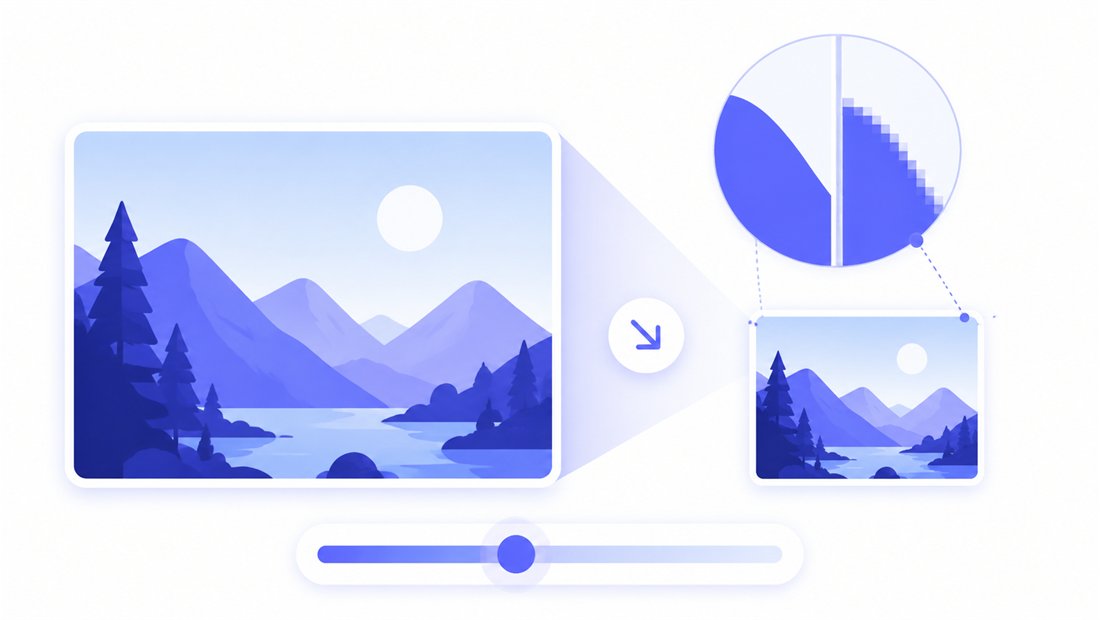
Sharp at 400×400 and ready to scale down
A profile picture has to look crisp at small sizes, and an app-icon source must stay clean when down-scaled to 192, 128 or 48 px. ImageResizerly uses high-quality Lanczos/Pica resampling, so faces and icon detail stay smooth with no jagged staircase. Pick the output format for the job: PNG for icons and graphics with transparency, JPG for photographic avatars, or WebP/AVIF for the lightest upload where supported. The quality slider shows a live size estimate so the avatar stays under any platform's upload limit.
Batch a folder of headshots or icons to 400×400
Setting up avatars for a whole team, a member directory, or a set of app-icon sources? Batch resizing normalizes every image to 400×400 in one pass and downloads them together as a ZIP. Use the bulk resizer with naming patterns (a prefix or counter like avatar-01, avatar-02) so the files import cleanly into your app, forum or admin panel. Need an even smaller variant for inline mentions? Re-export the same set at 200×200 in a second pass.
Private — nothing is uploaded
Resizing runs entirely in your browser via the Canvas API:
- No upload, no wait — even a large batch of headshots starts instantly.
- Private by design — your photos never reach a server.
- EXIF removed by default — camera and location data are stripped on export.
- Works offline — once the page has loaded you can disconnect.
Related tools
- Resize to 500×500 — a slightly larger square for blog images and thumbnails.
- Resize to 300×300 — a smaller avatar square for compact lists and comment threads.
- Bulk resizer — normalize a whole folder of headshots in one pass.
- Crop tool — center a face by hand before exporting a single profile picture.
FAQ
Why resize images to 400×400?
400×400 is the standard square for profile pictures and avatars on forums, apps and messengers, and a convenient source size for app icons. It uploads anywhere yet stays sharp, even when a platform crops it to a circle.
Will resizing to 400×400 lose quality?
Downscaling with high-quality Lanczos resampling stays crisp. The main thing is the mode: Crop fills the square (best for faces), while Fit shows the whole image with padding (best for icon art). Keep "don't enlarge" on so small selfies aren't blown up.
How do I keep my face centered for a round avatar?
Use Crop and drag the region so the face sits in the middle with a little headroom. Because most platforms mask the square to a circle, centering ensures the avatar looks right in both square and round displays.
Can I resize many photos to 400×400 at once?
Yes — 5 at a time for free, 20 with a free account and 100 with Premium. Use the bulk resizer with a naming pattern and download everything as one ZIP.
Are my images uploaded to a server?
No. Resizing uses your browser's Canvas API, so files never leave your device — you can even work offline once the page has loaded.
Is it free?
Yes, resizing to 400×400 is completely free with no watermark. Optional accounts only raise the batch size and unlock AI features.