Convert JPG to PNG — a lossless copy ready to edit
PNG is a lossless format, so once your image is a PNG every later save keeps it pixel-perfect. That makes converting JPG to PNG the right move when you are about to edit, composite or annotate an image: each pass through a JPG re-compresses and degrades it, while a PNG stays exactly as you left it. PNG is also the format you reach for when you need transparency or razor-sharp edges on graphics and screenshots. ImageResizerly converts entirely in your browser — your images are never uploaded.
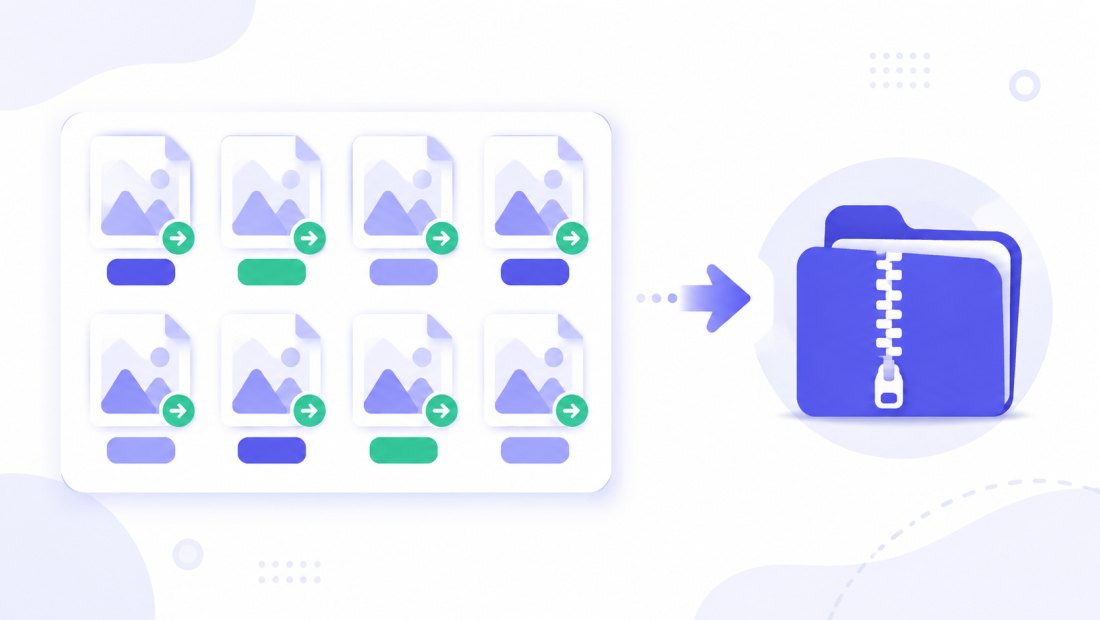
Drop one image or a whole folder, convert, and download a single PNG or the whole batch as a ZIP.
How to convert JPG to PNG
- Add your JPG files — drag and drop, click to browse, or paste with
Ctrl+V. Single images or a whole folder at once. - PNG is the target format — the tool decodes each JPG and re-encodes it as a lossless PNG.
- No quality slider needed — PNG is lossless, so there is nothing to lose; the slider only matters when your output is a lossy format like JPG or WebP.
- Convert and download — get one PNG or the whole batch as a ZIP. Resize in the same pass if you like.
No account is needed for up to 5 images at a time; a free account raises the batch to 20 and Premium to 100. See the pricing page.
Why convert JPG to PNG
People reach for a PNG copy of a JPG for a few concrete reasons:
- Editing without generation loss — every time you re-save a JPG it is compressed again and detail erodes. Convert to PNG once and edit freely; the file no longer degrades on each save.
- Preparing for transparency — JPG cannot store an alpha channel. Converting to PNG gives you a canvas where a designer (or you) can knock out a background and keep it transparent.
- Cleaner edges on graphics and screenshots — JPG smears sharp edges, text and flat color with compression artifacts. PNG keeps logos, UI screenshots and line art crisp.
- A reliable master for further work — pasting a PNG into a document, slide or design tool avoids re-running it through lossy compression.
In short, JPG is a great way to deliver a photo, but a poor way to keep working on one. The moment an image becomes source material rather than a final export, a PNG copy protects it from the slow quality drain of repeated JPG saves.
JPG vs PNG: which one for the job
They are both universal, but built for opposite priorities:
| JPG | PNG | |
|---|---|---|
| Compression | Lossy | Lossless |
| Best for | Photos, small files, sharing | Editing, graphics, screenshots |
| Transparency | No | Yes |
| Re-saves | Degrade each time | Stay identical |
| File size for photos | Small | Large |
If you are shipping a finished photo for the web or email, JPG is smaller — see PNG to JPG. If you are about to edit, layer or cut out an image, PNG is the safer working copy.
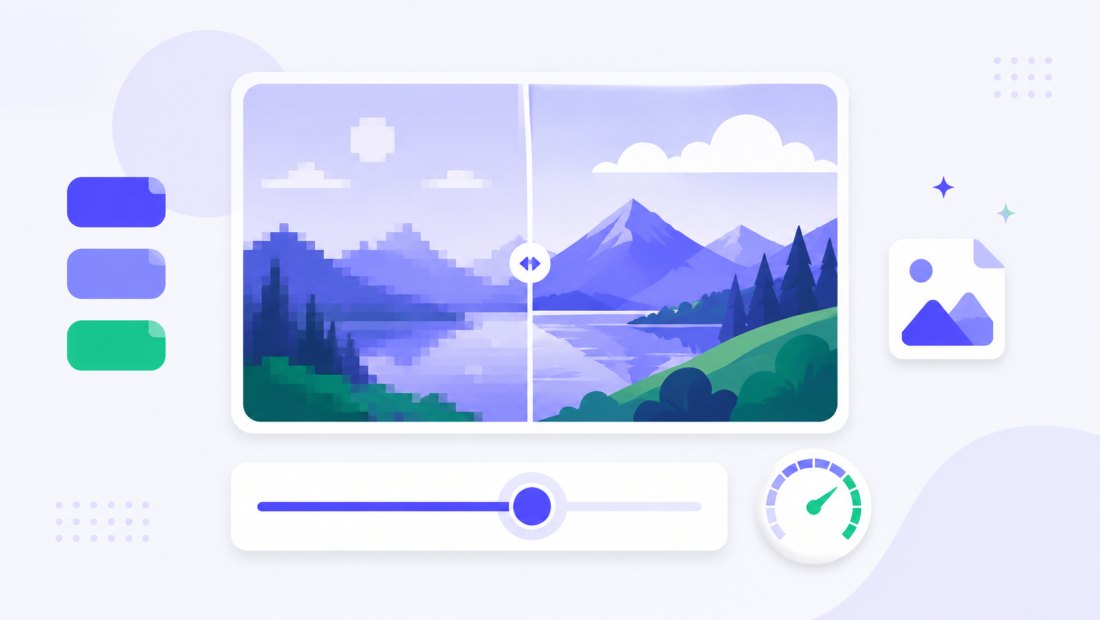
Honest note: a PNG photo will be larger
This is the part most converters skip. Converting a photographic JPG to PNG does not recover any quality — the detail JPG threw away is gone for good, and PNG simply stores the already-degraded image without losing more. Because PNG is lossless, the resulting file is often 2–5× larger than the JPG it came from, even though it looks the same.
So think of JPG → PNG as a working format, not a way to slim files down. Use it when you need a stable, editable, transparency-capable copy — not to make a photo smaller. To shrink a finished image, go the other way with PNG to JPG or use PNG to WebP.
It opens everywhere
A PNG opens on every device, operating system and app — Windows and Mac laptops, phones, email clients, office suites, design tools and any website upload field. Converting to PNG gives you a working file that nothing in the chain will reject.
Convert a whole batch of JPGs at once
Have a folder of JPGs to prepare for editing or transparency work? Drop them all and each is decoded and re-encoded to PNG independently, then downloaded together as a ZIP. Combine the conversion with resizing (cap everything at 1920 px) in the same pass so your working files are ready to go.
Private — nothing is uploaded
Conversion runs entirely in your browser via the Canvas API:
- No upload, no wait — even a large batch starts instantly.
- Private by design — your images never reach a server.
- EXIF removed by default — location and camera data are stripped on export.
- Works offline — once the page has loaded you can disconnect.
Related converters
- PNG to JPG — go the other way to shrink a finished photo for sharing.
- PNG to WebP — small files that still keep transparency.
- bulk resizer — resize the whole batch while you convert.
FAQ
Why convert JPG to PNG?
To get a lossless, editable copy. A PNG does not degrade when you re-save it, supports transparency and keeps edges crisp — ideal before editing, compositing or cutting out a background.
Will converting JPG to PNG improve quality?
No. PNG is lossless but it cannot recover detail the JPG already discarded. The PNG looks the same as the JPG; it just stops any further loss from future saves.
Why is my PNG bigger than the JPG?
Because PNG is lossless. It stores the image without throwing data away, so a photographic PNG is often 2–5× larger than the JPG. Use PNG as a working format, not to reduce file size.
Does converting to PNG add transparency automatically?
No — a JPG has no transparent areas, so the PNG starts fully opaque. Converting gives you a PNG canvas on which you (or an editor) can then add transparency.
Can I convert many JPG files at once?
Yes — 5 at a time for free, 20 with a free account and 100 with Premium. Each JPG is re-encoded to PNG and you download them all as one ZIP.
Are my images uploaded to a server?
No. The conversion uses your browser's Canvas API, so files never leave your device — you can even work offline after the page loads.
Should I use PNG or WebP for editing?
PNG is the safest universal master — every editor reads it and it is strictly lossless. WebP can also be lossless and produces smaller files, but support in older editors is patchier. If you only need a working copy for mainstream tools, PNG is the no-surprises choice.
Is it free?
Yes, converting JPG to PNG is completely free with no watermark. Optional accounts only raise the batch size and unlock AI features.