Convert HEIC to PNG — lossless files for editing and full compatibility
HEIC is the format the iPhone uses to save photos: compact, but unreadable on most Windows PCs and in many editors without extra codecs. Converting HEIC to PNG gives you a lossless file that opens everywhere and survives further editing without quality loss — ideal when the photo is heading into Photoshop, a video timeline or a design tool. ImageResizerly decodes HEIC and re-encodes it entirely in your browser — your photos are never uploaded.
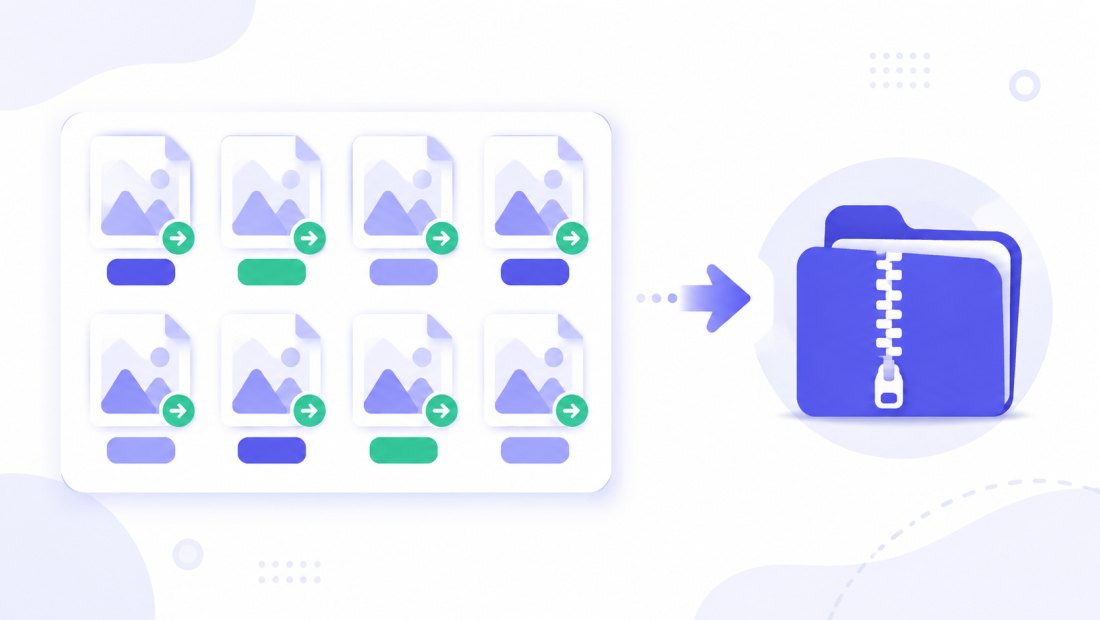
Drop one photo or a whole camera roll, and download a single PNG or the entire batch as a ZIP.
How to convert HEIC to PNG
- Add your HEIC files — drag and drop, click to browse, or paste with
Ctrl+V. Single photos or a whole folder from your iPhone at once. - PNG is the target format — the tool decodes each HEIC and re-encodes it as a standard, lossless PNG.
- Full resolution, corrected orientation — every photo is converted at its native pixel size, and the rotation stored in the HEIC is applied so nothing comes out sideways.
- Convert and download — get one PNG or the whole batch as a ZIP. Resize in the same pass if you like.
No account is needed for up to 5 photos at a time; a free account raises the batch to 20 and Premium to 100. See the pricing page.
Why PNG: lossless quality for editing
PNG is a lossless format, so the file you get back holds every pixel of the decoded photo with no compression artifacts. That matters when the image is going to be edited, layered, cropped or re-exported repeatedly — each step starts from a clean, intact source. PNG also supports transparency, so if you cut out a subject and save it, the transparent areas are preserved.
| PNG | JPG | |
|---|---|---|
| Compression | Lossless | Lossy |
| Best for | Editing, compositing, design work | Sharing, web, email |
| Transparency | Yes | No (flattened) |
| File size | Larger | Smaller |
| Survives re-editing | Yes, no quality loss | Degrades each save |
Being honest: a PNG is larger than the equivalent JPG. If you only need to share or post the photo, HEIC to JPG produces a smaller, universal file. Choose PNG when quality through editing matters more than file size.
HEIC won't open on Windows — PNG fixes that
The most common reason people convert is simple: HEIC doesn't open on Windows without installing Apple's HEIF codecs, and plenty of editors, CMS uploads and older apps reject it outright. PNG is understood by every operating system, browser and image program ever made. Convert once and the photo just opens — on an old Windows laptop, in an email attachment, in your design software or in any website upload field.
Full resolution and auto-corrected orientation
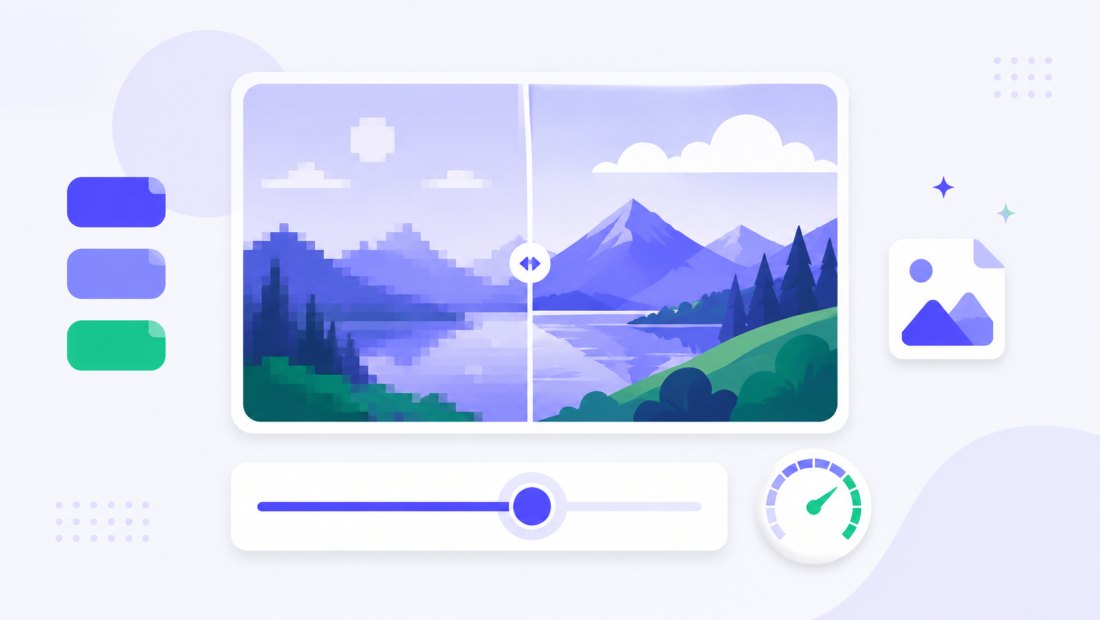
Conversion happens at the photo's native resolution — nothing is downscaled unless you ask for it. HEIC files store an orientation flag (the iPhone records how you held it), and this converter reads that flag and bakes the correct rotation into the PNG, so portraits stay upright instead of flipping sideways the way they do in some viewers.
Keep transparency for cut-outs and compositing
Where JPG flattens everything onto a solid background, PNG stores an alpha channel, so it can hold genuine transparency. That makes it the right target when the iPhone photo is going to be cut out, masked or dropped onto another layer in a design — a product shot for a store listing, a face for a thumbnail, a logo lifted from a photo. Convert HEIC to PNG first and your editor has a clean, lossless canvas with transparency support ready to go, instead of a compressed JPG that bakes in a white box behind the subject.
Convert a whole camera roll at once
Exported a batch of HEIC photos from your iPhone? Drop them all and each is decoded and re-encoded to PNG independently, then downloaded together as a single ZIP. Combine the conversion with resizing — cap everything at, say, 1920 px — in the same pass to keep those lossless files manageable.
Private — nothing is uploaded
Decoding and conversion run entirely in your browser:
- No upload, no wait — even a large camera roll starts processing instantly.
- Private by design — your photos never reach a server.
- EXIF and GPS removed by default — the location, date and camera data baked into iPhone photos are stripped on export, so you don't accidentally share where a picture was taken.
- Works offline — once the page has loaded you can disconnect.
Related converters
- HEIC to JPG — smaller, universal files when you just need to share rather than edit.
- PNG to JPG — already have PNGs and want lighter files for the web.
- WebP to PNG — another route to a lossless PNG for editing.
- bulk resizer — shrink the dimensions of your converted PNGs in the same step.
FAQ
Why convert HEIC to PNG instead of JPG?
Choose PNG when the photo is going to be edited. PNG is lossless, so it survives cropping, layering and re-exporting without quality loss, and it keeps transparency. If you only need to share or post the image, JPG is smaller and just as universal — use HEIC to JPG instead.
Will I lose any quality converting HEIC to PNG?
No. PNG is a lossless format, so the converted file holds every pixel of the decoded photo with no compression artifacts. The only trade-off is a larger file size than JPG.
Why won't my HEIC files open on Windows?
Windows needs Apple's HEIF/HEVC codecs to read HEIC, and many editors and upload forms don't support it at all. Converting to PNG produces a file that opens on every system without any extra software.
Does it keep the full resolution and correct orientation?
Yes. Photos are converted at their native pixel size, and the orientation flag stored in the HEIC is applied so portraits and landscapes come out the right way up.
Are my photos uploaded to a server?
No. The HEIC is decoded and re-encoded right in your browser, so files never leave your device — and EXIF/GPS location data is stripped by default for privacy. You can even work offline after the page loads.
Can I convert many HEIC files at once, and is it free?
Yes — 5 at a time for free, 20 with a free account and 100 with Premium. Each photo becomes a PNG and you download them all as one ZIP. Converting is completely free with no watermark.