Resize an image to 640×480 for thumbnails, webcam frames and tiny uploads
640×480 is the original VGA resolution and a compact 4:3 aspect ratio — the smallest size that still shows a recognizable picture. It is the natural choice for thumbnails, webcam captures, low-weight avatars, scans for small document forms, and any upload field that demands a tiny file. A 640×480 JPG is often just tens of kilobytes, which is exactly what you want when a form caps the size hard or you are populating a grid of previews. ImageResizerly does it all in your browser — your files are never uploaded.
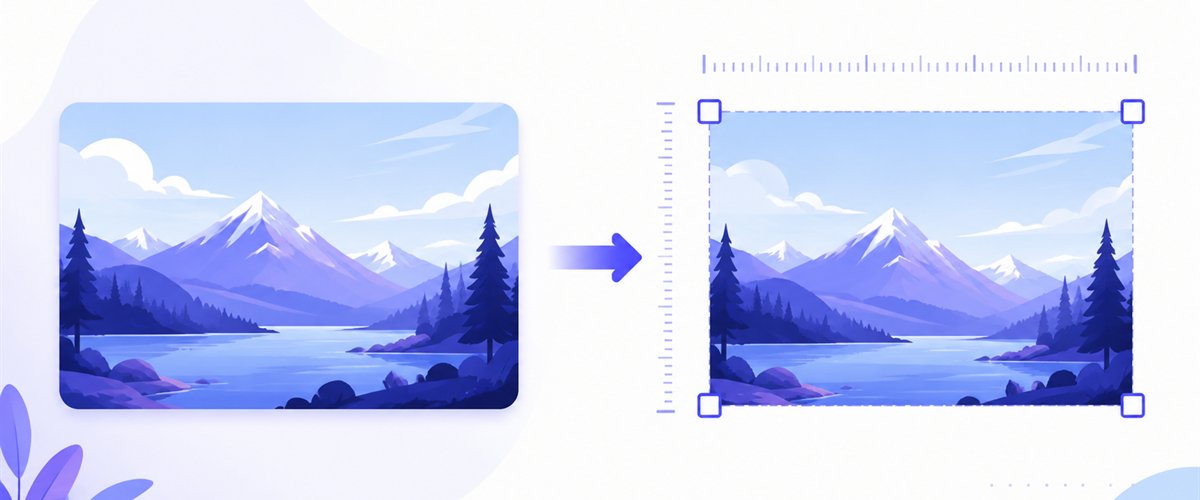
Drop one image or a whole folder, lock the size to 640×480, pick a fit mode, and download.
How to resize an image to 640×480
- Add your images — drag and drop, click to browse, or paste with
Ctrl+V. A single webcam grab or a folder of pictures destined for thumbnails. - Set width 640 and height 480 — type the values once and every image is re-rendered to that exact pixel box.
- Choose a mode — Fit to keep the whole frame visible, Crop to fill 640×480 edge-to-edge, or Stretch to force the exact shape.
- Download — one file or the whole batch as a ZIP, compressing in the same pass to hit a strict weight limit.
No account is needed for up to 5 images at a time; a free account raises the batch to 20 and Premium to 100. See the pricing page.
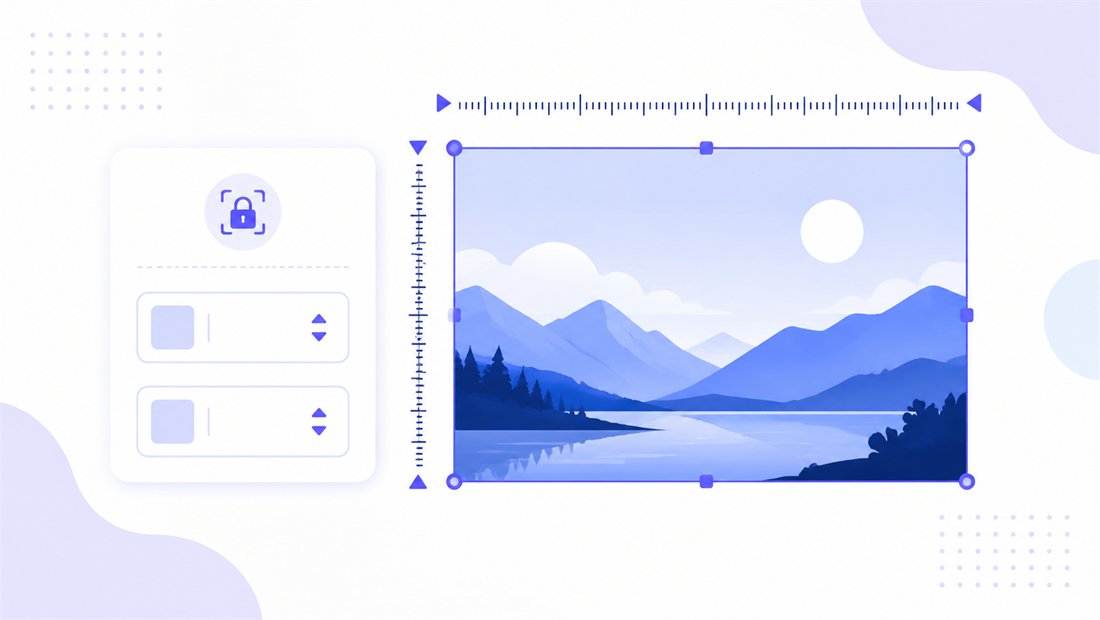
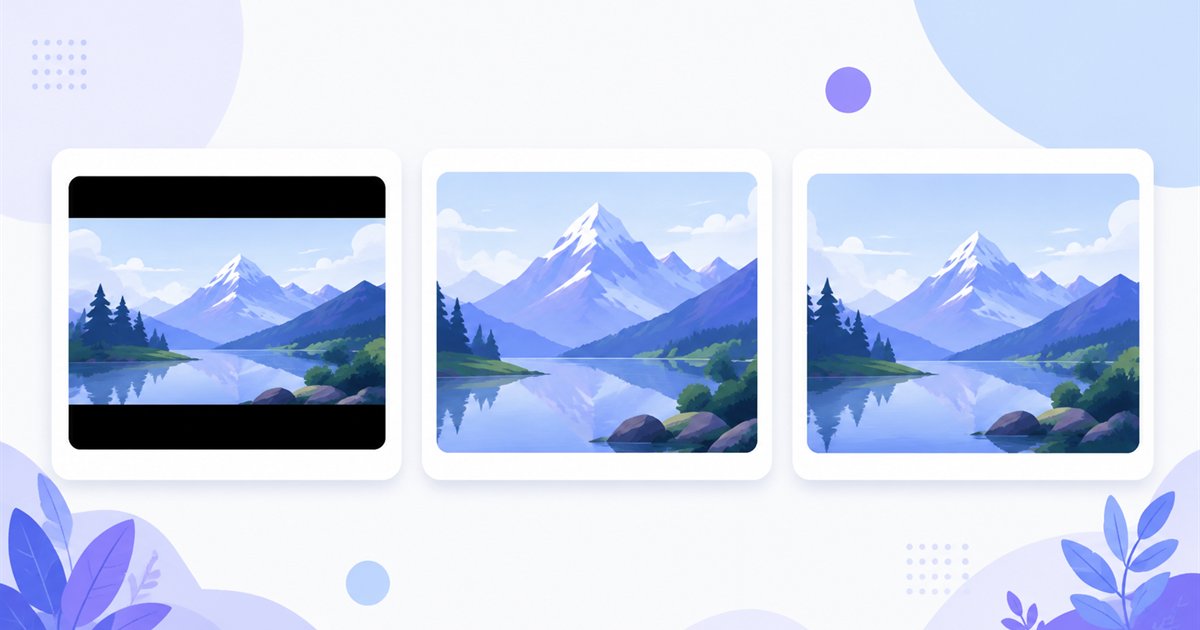
The 4:3 (VGA) shape and how each mode fits
640×480 is 4:3 — the smallest member of the classic 4:3 family, sharing its shape with 800×600 and 1024×768. At this size every pixel counts, so the fit mode you pick really shows. Three modes cover it, and "don't enlarge" is especially useful here: it stops a source that is already small from being upscaled into a blurry block.
| Mode | What it does | Best for 640×480 |
|---|---|---|
| Fit | Scales the whole image inside the box, with bars if the shape differs | Document scans and product shots that must stay complete |
| Crop | Fills 640×480 and trims the overflow (drag the region per thumbnail) | Avatars and gallery thumbnails where a square-ish, full crop reads best |
| Stretch | Forces 640×480 exactly, distorting if needed | A webcam grab already close to 4:3 that just needs the exact box |
For avatars, Crop is the friend you want: drag the region over a face so the small thumbnail stays recognizable instead of lost in a wide background.
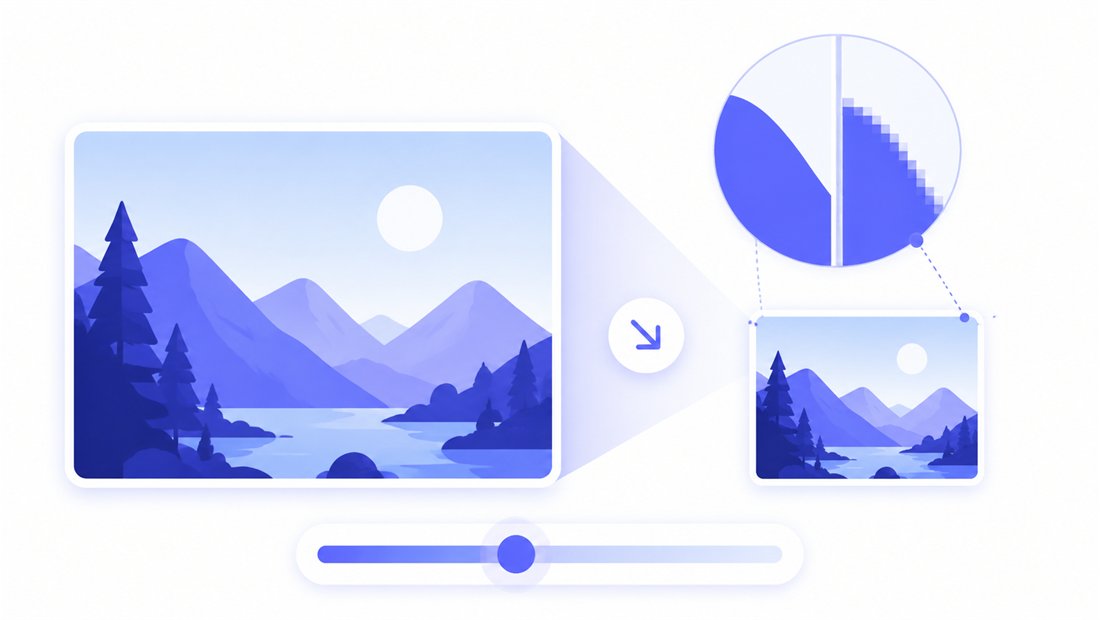
High-quality downscaling at small sizes
Shrinking a big photo all the way down to 640×480 is where naive resizing falls apart — text turns to mush and faces lose detail. ImageResizerly uses Lanczos resampling (via Pica) so even at this small size faces, logos and scanned text stay as crisp as the format allows. The quality slider shows a live size estimate so you can land a tiny file on purpose, and you can export as JPG, PNG, WebP or AVIF — JPG or WebP for the lightest avatar, PNG when a small scan's text must stay legible.
Batch-resize a folder of images to 640×480
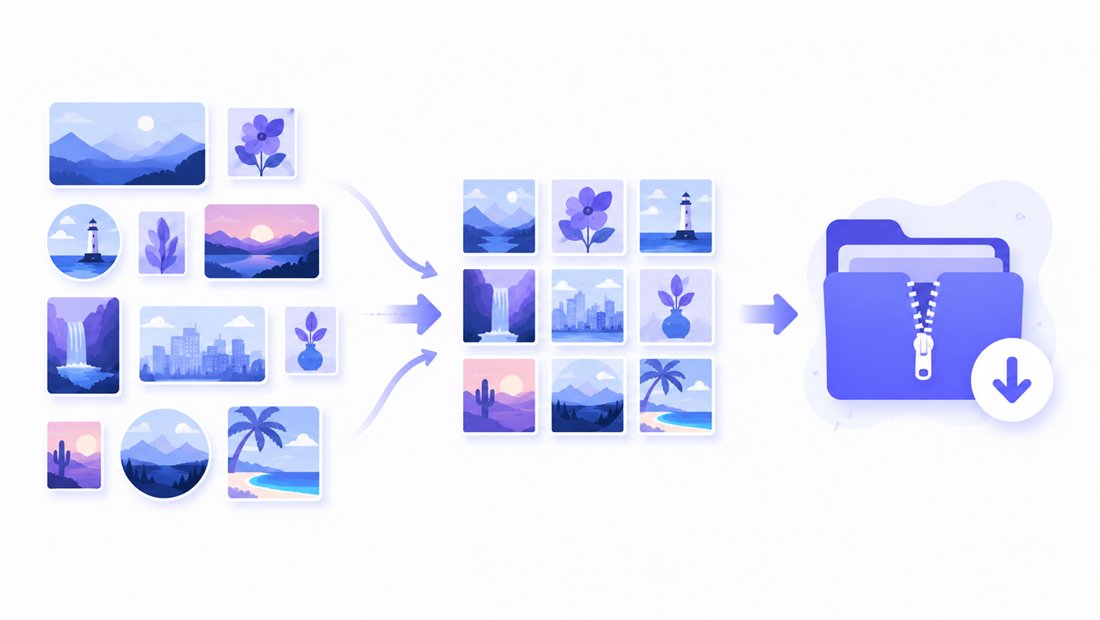
Need a whole gallery of uniform thumbnails, or a set of avatars at the same tiny size? Drop the folder and ImageResizerly renders every picture to 640×480, then hands you a single ZIP. Filename patterns (prefix, suffix, counter) keep thumb-001, thumb-002 ordered for a clean grid. Want each one under a hard cap? Add compression to 100 KB in the same pass, or run the same set through bulk resizing at another size.
Private — nothing is uploaded
Resizing runs entirely in your browser using the Canvas API:
- No upload, no wait — even a big folder of thumbnails starts instantly.
- Private by design — your webcam grabs and scans never reach a server.
- EXIF removed by default — location and camera data are stripped on export, which matters for avatars you share publicly.
- Works offline — once the page has loaded you can disconnect and keep working.
Related tools
- Resize to 800×600 — the larger SVGA sibling when 640×480 is a touch too small.
- Resize to 1024×768 — the full XGA option in the same 4:3 family for projectors and forms.
- Crop tool — frame a face or detail precisely before fitting it to 640×480.
- Compress to 100 KB — drive even these tiny files further down for the strictest upload limits.
FAQ
Why resize to 640×480?
It is the smallest 4:3 size that still shows a clear picture, making it ideal for thumbnails, webcam frames, low-weight avatars, scans for small document forms and any upload field that demands a tiny file. A 640×480 JPG is often only tens of kilobytes.
Will resizing to 640×480 lose quality?
You are shrinking a lot, so some detail naturally goes — but Lanczos resampling keeps the result as sharp as the size allows, with no jagged edges. Keep JPG quality around 85% for a light file, or use PNG when a small scan's text must stay readable.
My photo is 16:9 — how do I make it 4:3?
Use Crop to fill the 640×480 frame and drag the region to keep the key subject (a face for an avatar), or Fit to show the whole image with bars. Stretch only suits a source already close to 4:3.
Can I resize many images to 640×480 at once?
Yes — 5 at a time for free, 20 with a free account and 100 with Premium. Each image is rendered to 640×480 and downloaded as a single ZIP with consistent filenames — perfect for a thumbnail grid.
Are my images uploaded to a server?
No. Everything runs in your browser via the Canvas API, so files never leave your device — handy for private webcam grabs and document scans, and it works offline once loaded.
Is it free?
Yes, resizing to 640×480 is completely free with no watermark. Optional accounts only raise the batch size and unlock AI features.