Resize an image to 200×200 — the tiny square that loads instantly
A 200×200 image is the small square you reach for when space and weight really matter. It is the size of a compact avatar next to a comment, a thumbnail in a dense table, a preview chip, a tiny signature image, or a base source for generating icons. At 200 pixels a square is light enough to render dozens at once without slowing a page, yet still readable. ImageResizerly builds that square entirely in your browser — your photos are never uploaded anywhere.
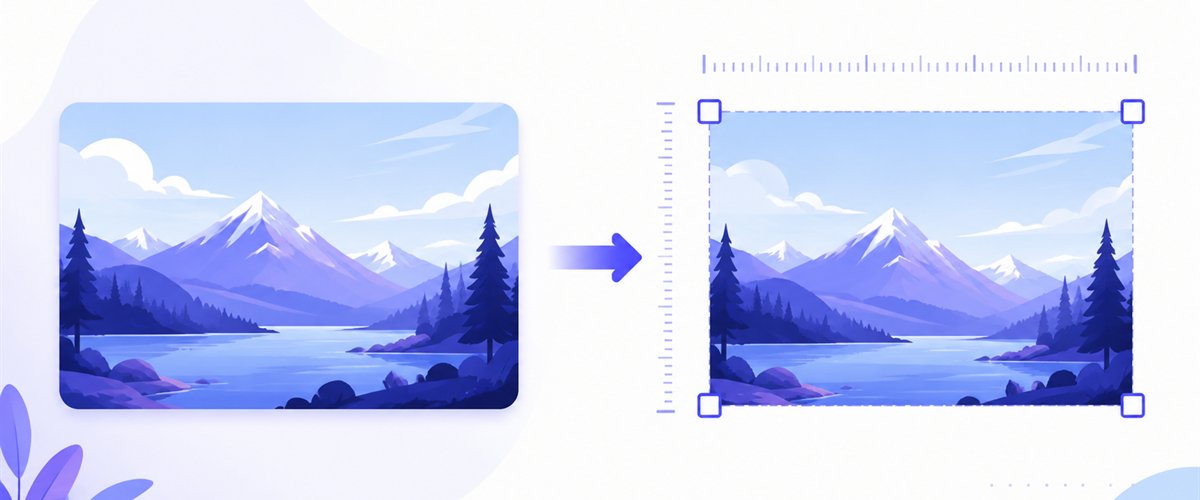
Drop one photo or a whole folder, decide how it fills the little square, and download a single file or the whole set as a ZIP.
How to resize an image to 200×200
- Add your images — drag and drop, click to browse, or paste with
Ctrl+V. One picture or a whole folder; HEIC photos from an iPhone are read too. - Set width and height to 200 × 200 — type the numbers once, or pick the small-square preset, and every image targets the same frame.
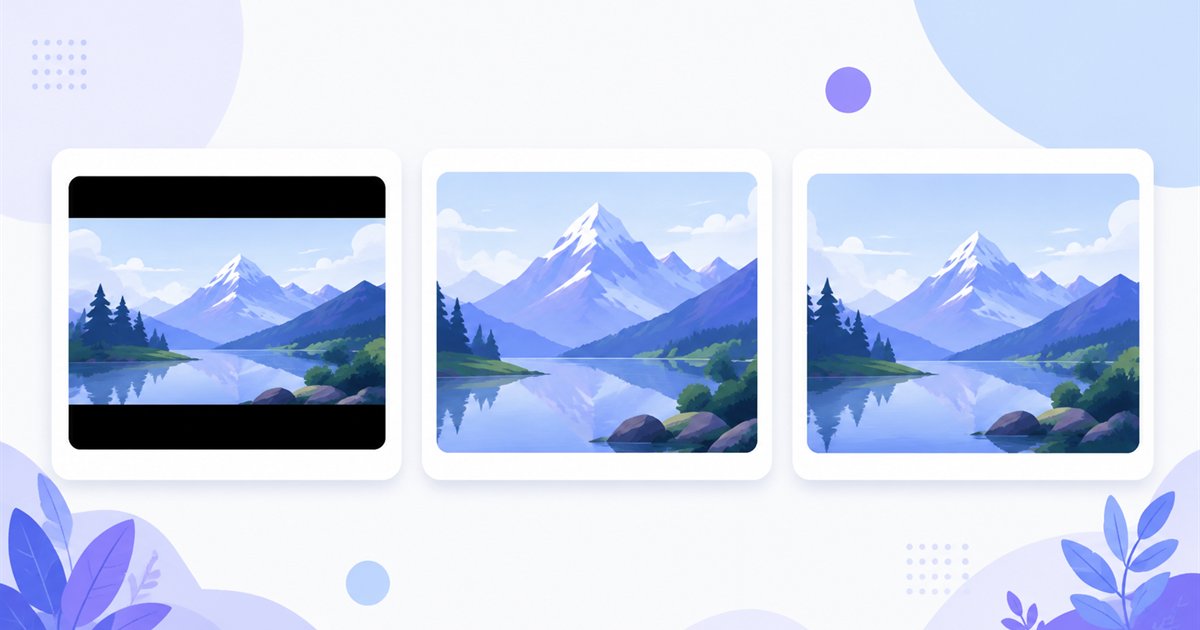
- Choose a mode — Fit shows the whole picture, Crop fills the square edge to edge (drag the crop area on each thumbnail), Stretch forces the exact box.
- Download — save one image or the whole batch as a ZIP.
No account is needed for up to 5 images at a time; a free account raises the batch to 20 and Premium to 100. See the pricing page.
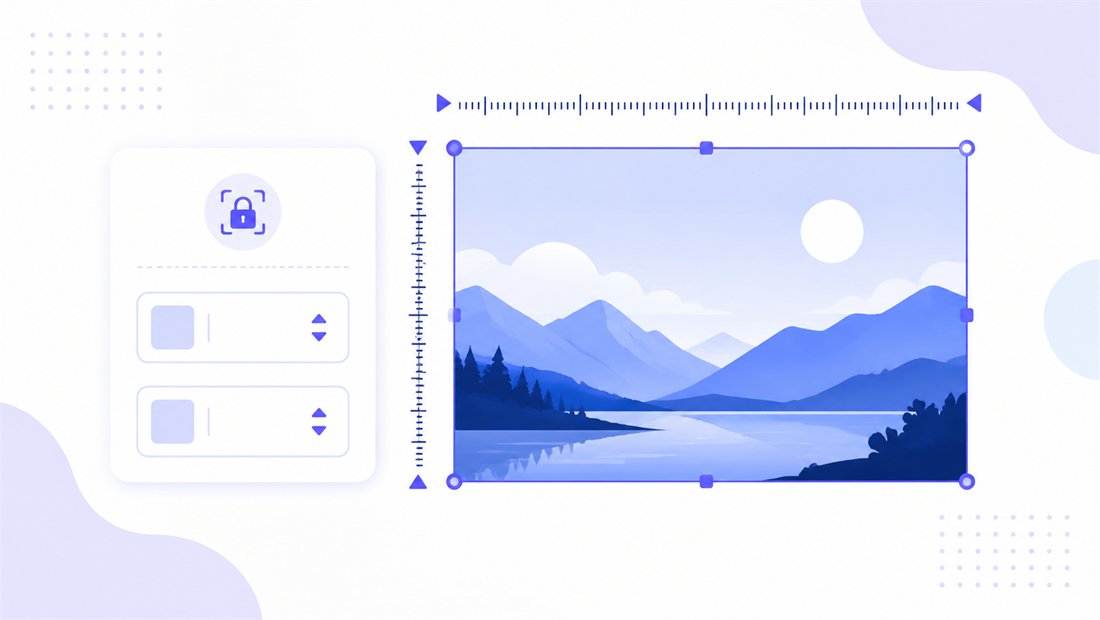
A tiny 1:1 square — and why the mode matters more here
200×200 is a 1:1 square (aspect ratio 1:1). Because the square is so small, the mode you pick is the difference between a clear thumbnail and an unreadable smudge:
| Use | Recommended mode | Why |
|---|---|---|
| Comment / list avatar | Crop | Fills the square, keeps the face front and centre |
| Logo or flat icon | Fit | Shows the whole mark with no clipping |
| Table or preview chip | Crop | Edge-to-edge, no padding to waste tiny space |
| Signature image | Fit | Preserves the whole signature stroke |
Crop is the default choice for avatars and previews — at 200 px every empty margin is wasted space, so an edge-to-edge fill reads best. Use the draggable crop box to centre the subject. Keep "don't enlarge" on so a source smaller than 200 px is never blown up into a fuzzy block.
Readable even at 200 pixels
The smaller the output, the more downscaling quality shows. ImageResizerly uses high-quality Lanczos/Pica resampling, so a 200×200 avatar or preview comes out smooth rather than jagged or blocky. The quality slider with a live size estimate lets you push the file down to a couple of kilobytes — perfect when a page shows many of them at once. Export as JPG, PNG, WebP or AVIF: PNG for a transparent icon source, WebP or JPG for the lightest photographic thumbnails.

Standardise a whole set to 200×200 at once
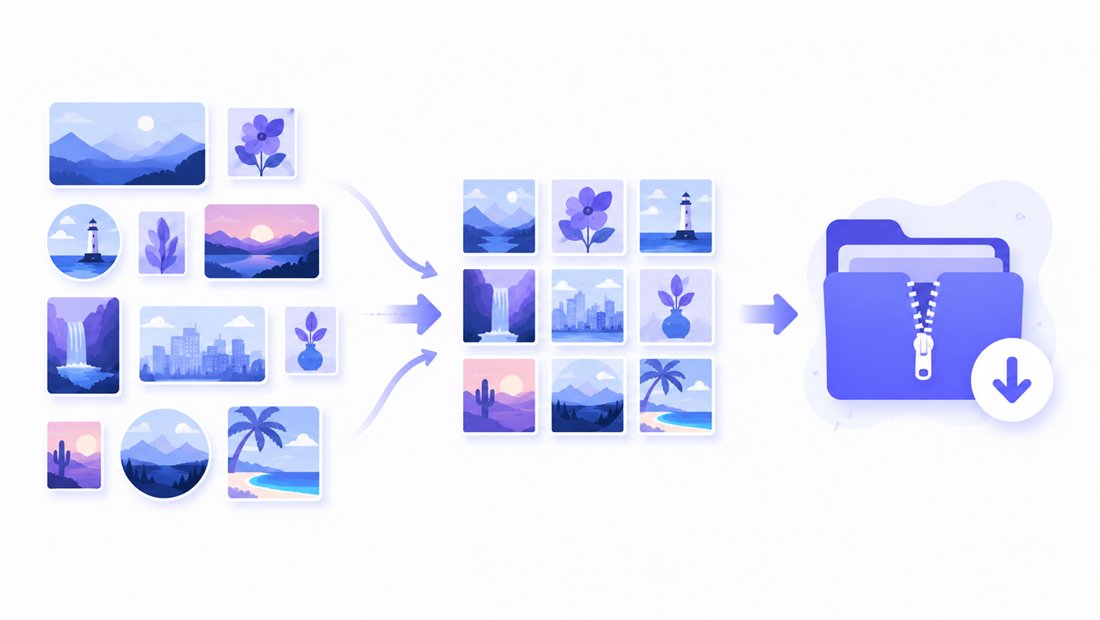
Have a long comment list, a contributor table or a sheet of preview images? Drop every photo and each is cropped and scaled to the same 200×200 frame independently, then zipped together. A name pattern (prefix, suffix or a counter like thumb-001) keeps the export tidy and predictable for templating. Need the same images at a second size too? The bulk resizer does both passes for you.
Private — nothing is uploaded
Resizing runs entirely in your browser via the Canvas API:
- No upload, no wait — even a large batch starts instantly.
- Private by design — your images never reach a server.
- EXIF removed by default — location and camera data are stripped on export.
- Works offline — once the page has loaded you can disconnect.
Related tools
- Resize to 300×300 — a slightly larger square with more room for detail.
- Resize to 400×400 — a crisper square for higher-resolution avatars.
- Crop image — frame the subject precisely before squaring it small.
- Bulk resizer — standardise a whole folder to one size at once.
FAQ
What is a 200×200 image used for?
It is the tiny square for small comment and list avatars, dense table thumbnails, preview chips, signature images, and a base source for generating icons — anywhere you need many small, fast-loading squares.
200×200 or 300×300 — which should I pick?
Use 200×200 when the image is shown small and you want minimal weight, like a list or table. Step up to 300×300 when the avatar or thumbnail is displayed a bit larger and detail matters more.
Will resizing to 200×200 lose quality?
Downscaling to 200×200 looks clean thanks to Lanczos resampling. Just avoid enlarging a smaller image — keep "don't enlarge" on so a tiny source is never inflated into a fuzzy square.
Can I resize many images to 200×200 at once?
Yes — 5 at a time for free, 20 with a free account and 100 with Premium. Each image is squared independently and you download them all as one ZIP.
Are my images uploaded to a server?
No. Resizing uses your browser's Canvas API, so files never leave your device — you can even work offline after the page loads.
Is it free?
Yes, resizing to 200×200 is completely free with no watermark. Optional accounts only raise the batch size and unlock AI features.