Resize multiple images at once — without uploading anything
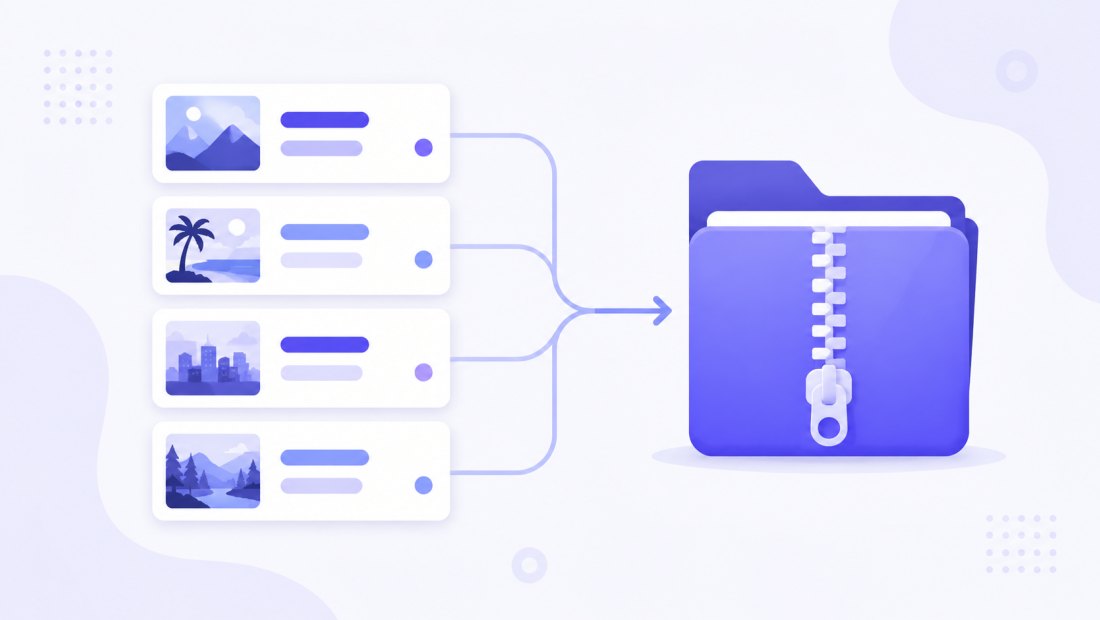
A bulk image resizer lets you change the dimensions of many photos in a single pass instead of opening each file one by one. Drop a whole folder, set one target size, and ImageResizerly resizes the entire batch in parallel and hands you a single ZIP. Everything runs in your browser using the Canvas API, so your photos are never uploaded to a server — there is nothing to wait for and nothing to delete afterwards.
This is the same workflow desktop tools like Light Image Resizer offer, except there is nothing to install and it works on Windows, macOS, Linux, ChromeOS and even a phone. A typical batch of 20–30 photos finishes in a few seconds.
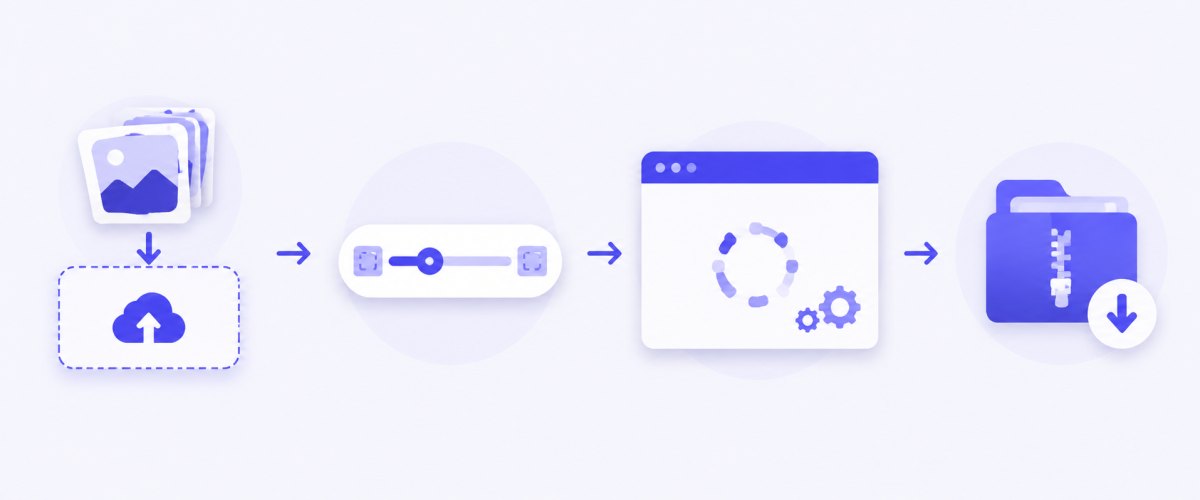
What you can do in a single batch
- Resize by pixels, by percentage, or by the longest side
- Choose a fit mode: fit inside, crop to fill, or stretch
- Convert to JPG, PNG, WebP or AVIF on the way out
- Compress to a target file size — for example under 100 KB
- Add a text or logo watermark to every photo
- Rename files with a prefix, suffix or counter
- Download a single ZIP or one file at a time
How to bulk resize images in your browser
- Add your photos. Drag and drop them onto the drop zone, click to browse, or paste from the clipboard with
Ctrl+V. JPG, PNG, WebP, GIF, BMP and iPhone HEIC are all supported. - Set one size for the whole batch. Type a width and height in pixels, switch to percentage, or cap the longest side — for example 1920 px for the web.
- Pick a fit mode and output format. Keep proportions with Fit, fill the frame with Crop, or force exact dimensions with Stretch.
- Process and download. Hit one button — every image is resized in parallel and packed into a ZIP. Add a watermark or compression in the same pass if you need it.
No account is needed for up to 5 photos at a time; a free account raises the batch to 20 and Premium to 100. See the full comparison on the pricing page.
Resize by pixels, percentage or the longest side
Different jobs call for different ways of specifying size. Three modes cover almost every real situation:
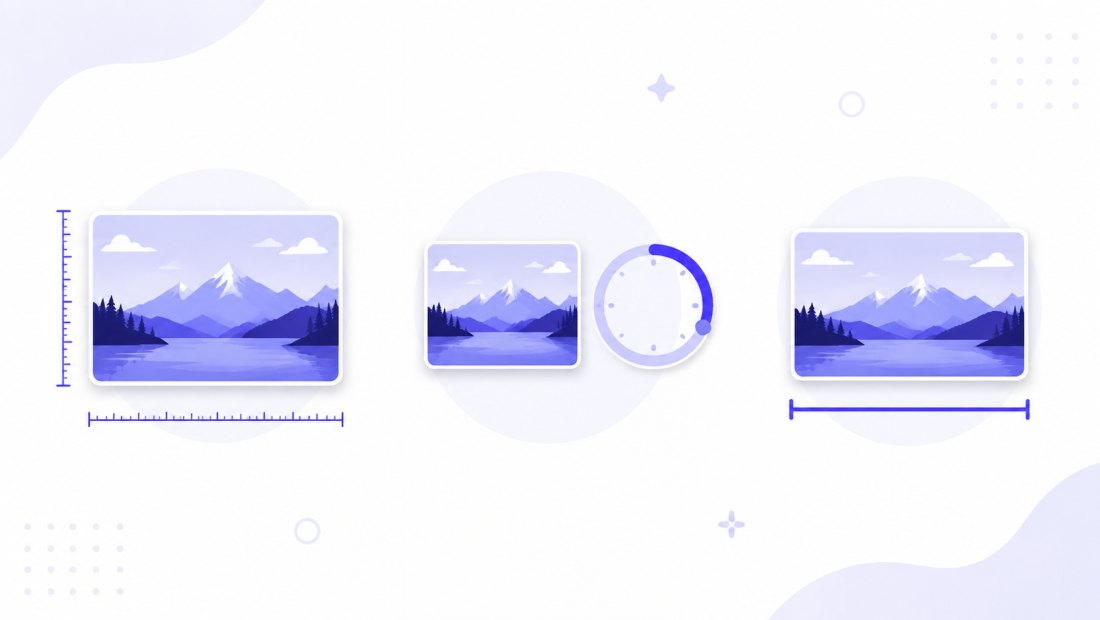
- Exact pixels — when a platform demands a precise size, such as a 1080 × 1080 product image.
- Percentage — shrink everything to, say, 50% of the original while each photo keeps its own aspect ratio.
- Longest side — the best option for mixed batches of portrait and landscape photos: cap the long edge (e.g. 2000 px) and every image scales proportionally, whatever its orientation.
The aspect-ratio lock keeps photos from being squashed. Turn it off only when you deliberately want to stretch an image.
Fit, crop or stretch: choosing the right resize mode
When the target shape doesn't match the original, the fit mode decides what happens to the extra pixels:
| Mode | What it does | Best for | Distortion |
|---|---|---|---|
| Fit | Scales the whole photo to fit inside the box, keeping proportions | Web images, email, archives | None |
| Crop | Fills the box exactly and trims the overflow | Square thumbnails, social posts | None (trims edges) |
| Stretch | Forces the exact width and height | Rare, deliberate cases | Possible |
| Fill | Pads with a background colour instead of cropping | Product photos on white | None |
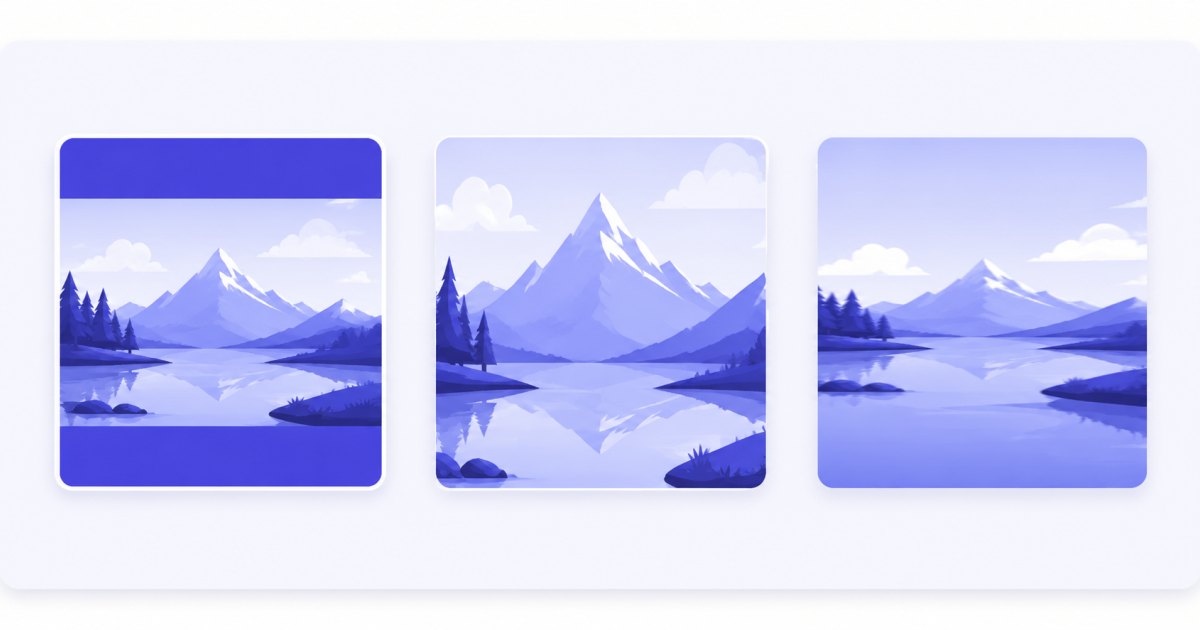
For most batches, Fit is the safe default. Use Crop when every output must be exactly the same shape — a grid of square thumbnails, say — and reach for the draggable crop tool when you want to choose the framing of each photo by hand.
Keep your photos sharp with Lanczos resampling
Shrinking a photo throws away pixels, and a naïve algorithm leaves jagged edges and moiré patterns. ImageResizerly uses Lanczos resampling (via the Pica library) — the same high-quality method desktop software relies on — so downscaled photos stay crisp and clean.
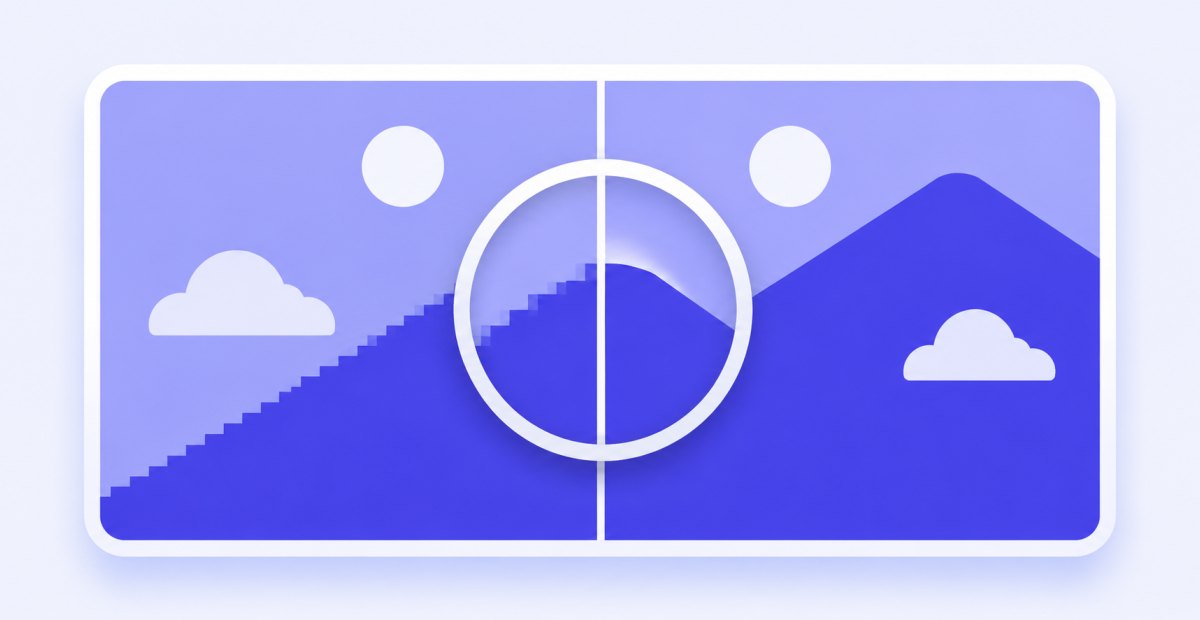
For the best quality-to-size ratio, export to WebP — it typically saves 25–35% over JPG at the same visual quality (see JPG to WebP). When compatibility matters more than size, stick with JPG.
Common image sizes for web, social media and email
Not sure what size to use? These are the most requested targets — type them straight into the width and height fields, or open the matching preset:
| Use case | Recommended size | Notes |
|---|---|---|
| Website hero / blog image | 1920 × 1080 px | Cap the longest side at 1920 px |
| Full-width content image | 1200 px wide | Keeps pages fast |
| Email newsletter | 600 px wide | Safe across mail clients |
| Instagram post (square) | 1080 × 1080 px | Instagram preset |
| Instagram story / Reel | 1080 × 1920 px | 9:16 vertical |
| Marketplace / product photo | 1600 × 1600 px | Zoom-friendly |
| Thumbnail | 300 × 300 px | Use Crop mode for consistency |
For uploads with a strict weight limit — application forms, CMS fields — combine resizing with compression to 50 KB, 100 KB or 200 KB.
Rename and download the whole batch as a ZIP
Resizing 50 files is only half the job — you also want them named sensibly. The renaming patterns mirror Light Image Resizer:
- Prefix / suffix — turn
IMG_4821.jpgintoshop_IMG_4821.jpgorIMG_4821_1080.jpg. - Counter — number a series as
product_001,product_002, … with adjustable padding. - Keep original names — when you only want to change the size or format.
A live preview shows the first filename as you type. With one file you get a direct download; with several, a single imageresizerly.zip.
Batch resize JPG, PNG, WebP, AVIF and HEIC
A single batch can mix formats freely. On input the resizer reads JPG, PNG, WebP, GIF, BMP and HEIC (iPhone photos are decoded automatically). On output you choose the format that fits:
- JPG — universal, and smallest for photographs.
- PNG — lossless, keeps transparency (logos, screenshots).
- WebP — modern, 25–35% smaller than JPG at the same quality.
- AVIF — newest and smallest, shown only where your browser can encode it.
Need a one-way conversion instead? Try WebP to JPG or HEIC to JPG.
Your photos never leave your browser
Because every step runs locally, a bulk resize is both fast and private:
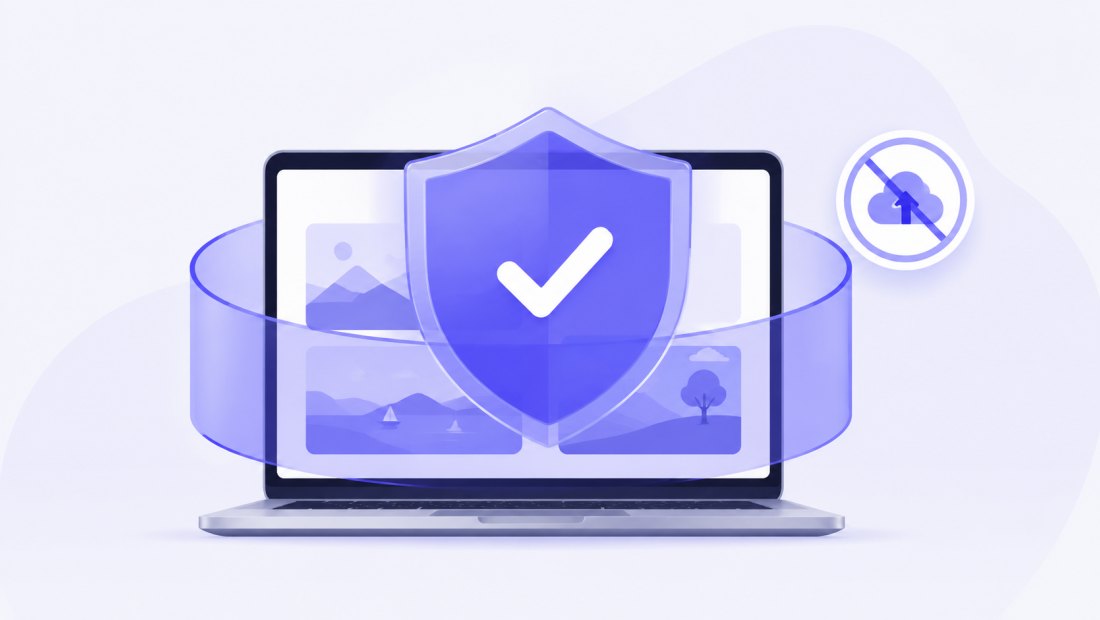
- No upload, no wait — there's no transfer time, even for hundreds of megabytes.
- Privacy by design — ID scans, client work and personal photos stay on your computer.
- EXIF stripped by default — location and camera data are removed on export (keep it with one switch if you need to).
- Works offline — once the page has loaded you can disconnect and keep working.
Who uses a bulk image resizer
- Online sellers standardising hundreds of product photos for Allegro, Etsy or Shopify.
- Bloggers and editors capping every image at 1920 px so pages load fast and rank better.
- Real-estate and photography teams preparing client galleries.
- Developers and designers generating consistent assets and thumbnails.
- Anyone shrinking phone photos to email them or attach them to a form.
Bulk image resizer vs desktop apps and other online tools
| ImageResizerly | Typical online resizer | Desktop app | |
|---|---|---|---|
| Batch processing | Yes, no daily cap on free batches | Often limited | Yes |
| Photos uploaded to a server | Never | Usually | No (local) |
| Install required | No | No | Yes |
| Per-photo crop framing | Yes | Rarely | Sometimes |
| Compress to a target KB | Yes | Sometimes | Yes |
| Price | Free | Free / paid | Paid |
FAQ
How many images can I resize at once?
Up to 5 per batch with no account, 20 with a free account and 100 with Premium. There is no daily cap on free batches, so you can run as many batches as you like.
Is there a file size limit?
Yes — 10 MB per file without an account, 30 MB with a free account and 100 MB with Premium. The limits exist because processing happens in your browser's memory, not because of any upload.
Will resizing reduce image quality?
Downscaling always discards pixels, but Lanczos resampling keeps the result sharp and free of jagged edges. For the best quality at a given file size, export to WebP rather than JPG.
Can I resize photos without uploading them?
Yes. All resizing uses your browser's Canvas API, so files never leave your device. You can even disconnect from the internet after the page loads and keep working.
What image formats are supported?
Input: JPG, PNG, WebP, GIF, BMP and HEIC. Output: JPG, PNG, WebP and, where supported, AVIF. You can convert formats and resize in the same pass.
How do I keep all the photos the same size?
Set an exact width and height and choose the Crop fit mode. Every output then shares identical dimensions — the tool trims overflow instead of distorting the picture.
Can I resize iPhone HEIC photos?
Yes. HEIC files are decoded in the browser and can be resized and exported as JPG or PNG, with orientation corrected automatically.