Enhance image quality with AI upscaling
Old phone shots, tiny thumbnails and slightly soft scans all share one problem: there simply are not enough pixels, so they look mushy the moment you enlarge or print them. ImageResizerly fixes this with an AI upscaler built on the Real-ESRGAN model — it enlarges the photo 2× or 4× while rebuilding edges and texture, so the result looks sharper and cleaner rather than just bigger and blurrier.
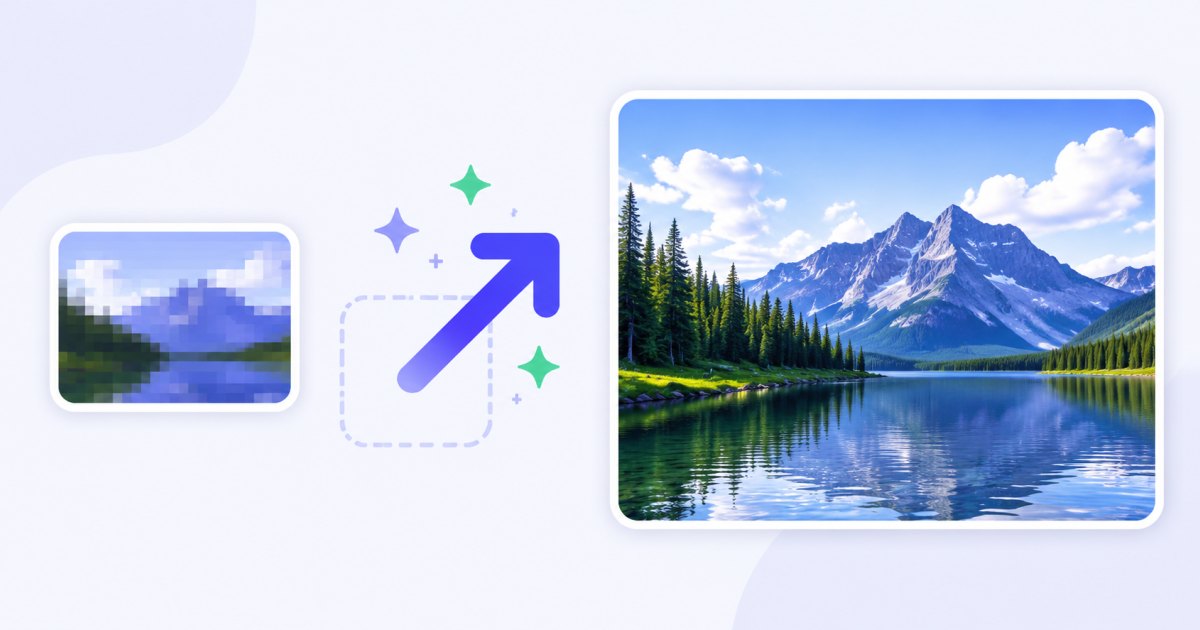
Let's be honest about what this is: AI upscaling is not magic. It cannot invent information that was never captured — a face that is a blur of ten pixels will not become a portrait. What it does brilliantly is clean up moderate softness and low resolution: it removes the jagged, pixelated look, smooths compression noise and reconstructs plausible fine detail, so the photo reads as crisp instead of fuzzy.
Enhancing is an AI feature, so it uses credits (everything else on the site is free and runs locally in your browser). New accounts get 3 trial credits plus 2 free AI operations every day, so you can test it on your own photos before buying anything.
How to enhance and sharpen a photo
- Add your image — drag and drop, browse, or paste with
Ctrl+V. JPG, PNG, WebP and iPhone HEIC are supported, up to the size limit below. - Open the ✨ AI menu on the thumbnail (or the AI button above the grid for several photos).
- Choose Upscale 2× or 4× — 2× is ideal for a gentle quality boost, 4× for tiny images you need much larger.
- Let the AI work — the enhanced image comes back and replaces the original in your batch, so it flows straight into the rest of the pipeline.
- Finish and download — crop, resize, watermark or compress, then download a single image or the whole batch as a ZIP.

You need a free account to use AI features. See credits and packs on the pricing page.
What 2× and 4× cost, and which to pick
The two modes are priced by how much work they do. A small confirmation always shows the total cost and your balance before anything runs.
| Mode | Result | Credit cost | Best for |
|---|---|---|---|
| Upscale 2× | Twice the width and height | 2 credits | Soft photos, mild blur, a gentle sharpen |
| Upscale 4× | Four times the width and height | 3 credits | Thumbnails and very small images you need much larger |
A good rule: start with 2× — it is enough for most "this looks a bit soft" cases and costs less. Reach for 4× only when the source is genuinely tiny and you need a large, printable result.
See the difference up close
The point of enhancing is detail, so it is worth zooming in. Where the original shows blocky pixels and smeared edges, the upscaled version restores clean contours, readable text and believable texture in skin, fabric, foliage and brickwork.
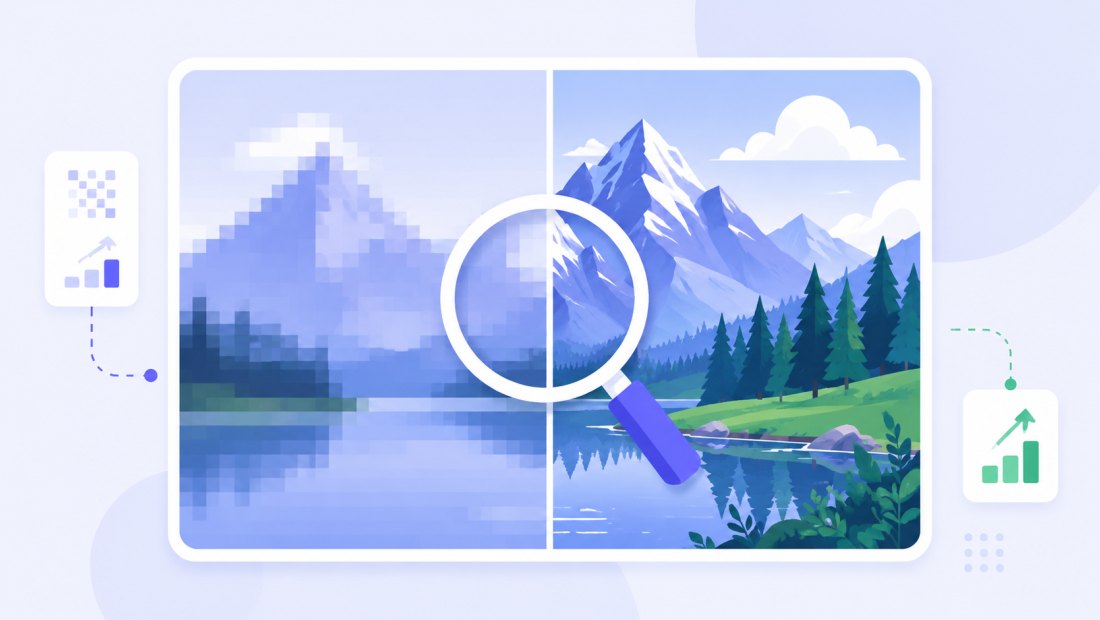
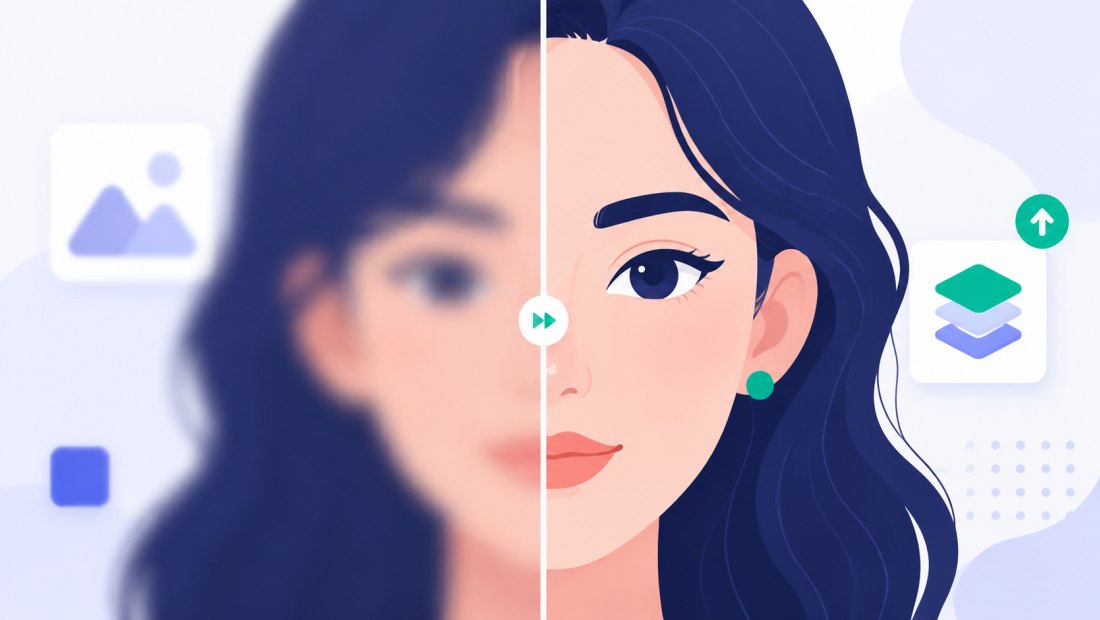
Because the result is a normal image back in your batch, you can keep working on it: crop it, enlarge it further or to an exact size, remove the background, add a watermark or compress it — all locally, with no extra credits.
What enhancing is great for
- Refreshing old photos — bring scanned prints and early-2010s phone shots up to a size that looks good on a modern screen.
- Rescuing thumbnails and avatars — turn a tiny saved image into something usable for a banner or profile.
- Sharpening before print — give a slightly soft photo the extra resolution it needs so it does not look fuzzy on paper.
- Product and listing photos — make a small or soft product shot crisp before you resize the whole set.
For pure enlargement without AI sharpening — when your image is already clean and you only need it bigger — the in-browser enlarge image tool resizes it for free.
Honest limits — what AI upscaling can't do
A sharp result depends on having some real detail to work with. Keep expectations realistic:
- It won't recover what isn't there. Heavy motion blur, severe out-of-focus shots and faces reduced to a few pixels stay unrecoverable — the AI guesses, and on extreme cases the guess looks wrong.
- It can hallucinate on faces and text when the source is very degraded, inventing detail that wasn't in the original.
- There is an input size limit. Very large images are capped to keep processing fast and fair — if yours is over the limit, resize it down a little first.
- It's best on moderate problems. A photo that is slightly soft or a bit small is the sweet spot; a destroyed photo is not.
When in doubt, try 2× on one image first — it only costs a couple of credits, and you will quickly see whether your photo is a good candidate.
Credits and pricing
Enhancing costs 2 credits for 2× and 3 credits for 4× per image. Everything you do afterwards (crop, resize, watermark, compress, ZIP) is free and runs in your browser.
| What you get | |
|---|---|
| New account | 3 trial credits |
| Every day (registered) | 2 free AI operations |
| Upscale 2× | 2 credits |
| Upscale 4× | 3 credits |
| Credit packs | from $4.99 for 100 credits |
| Pack credits | never expire |
Packs scale up (500 and 2000 credits) for high-volume work, and a Premium plan includes a monthly credit allowance. Full details on the pricing page.
Enhance a whole batch
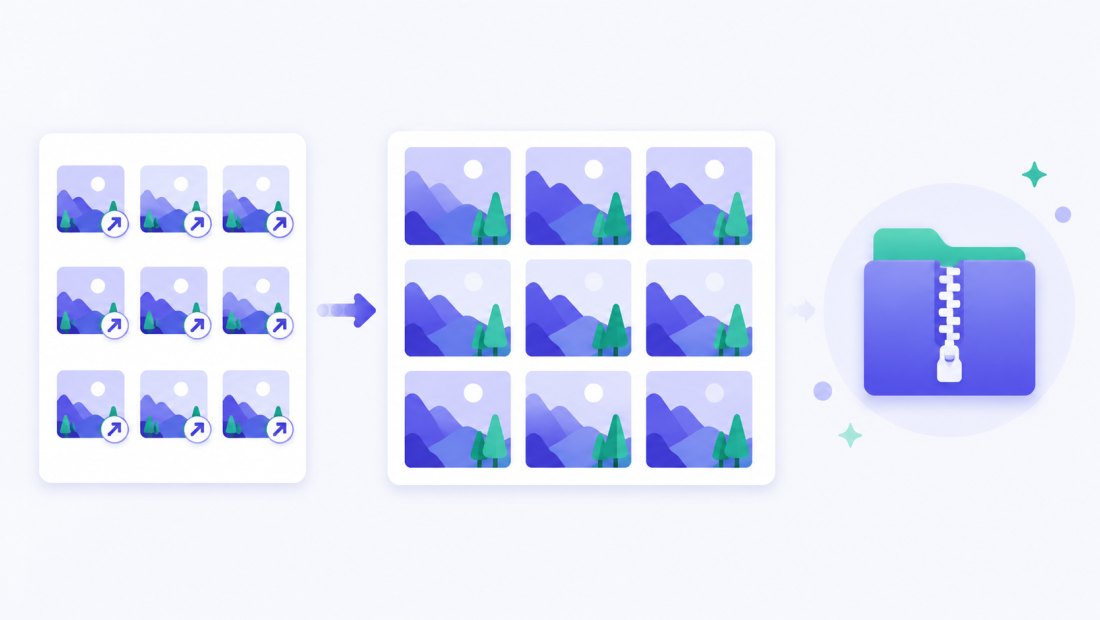
Have a folder of soft or small images to bring up to scratch? Open the AI menu above the grid and the batch is enhanced in a queue, a couple of images at a time. Because each upscale costs credits, you get a confirmation showing the total cost and your balance before anything runs — so there are no surprises, even on a big set.
Your privacy
Enhancing is one of the few features that needs a server, and we keep it tight:
- Only the image you send for AI leaves your browser — it passes through our server to the AI provider, is enhanced and is never stored.
- Everything else stays local — cropping, resizing, watermarking and compression run 100% in your browser.
- EXIF is stripped from exports by default.
FAQ
What does it mean to enhance image quality with AI?
It means enlarging the photo with the Real-ESRGAN model while rebuilding edges and texture, so a soft or low-resolution image looks sharper and cleaner — not just scaled up and blurrier. It works best on moderate softness, mild blur and small images.
How much does enhancing cost?
Upscale 2× costs 2 credits and Upscale 4× costs 3 credits per image. New accounts get 3 free trial credits and 2 free AI operations every day. Credit packs start at $4.99 for 100 credits and never expire.
Can AI fix a very blurry or damaged photo?
Only partly. AI upscaling cleans up moderate softness and low resolution, but it cannot recover detail that was never captured — heavy motion blur or a face that is just a few pixels will stay unrecoverable, and the AI may invent wrong detail. Try 2× on one image to judge your specific photo.
What's the difference between 2× and 4×?
2× doubles the width and height for a gentle sharpen on soft photos (2 credits); 4× quadruples them for tiny images you need much larger (3 credits). Start with 2× unless the source is genuinely small.
Can I enhance many photos at once?
Yes. Use the AI menu above the grid; the batch runs in a queue and you confirm the total credit cost before it starts. The enhanced images download together as a ZIP.
Is there a size limit on the image I upload?
Yes — input images are capped to keep processing fast and fair. If your image is over the limit, resize it down a little first, then run the upscale.
Are my photos private?
Only the specific image you send for AI enhancement leaves your browser — it passes through our server to the provider, is enhanced and is never stored. Everything else (resize, crop, compression) runs entirely on your device.