Resize an image to 1280×720 — the lightweight HD frame
1280×720 is 720p HD: a 16:9 frame that holds the same wide proportions as Full HD but at roughly half the pixels. That makes it the practical size when weight matters more than maximum detail — video thumbnails that have to load fast, a website hero image that should not slow the page, email and newsletter banners that must render quickly in every inbox, lighter desktop wallpapers, and streams or older HD screens that top out at 720p. ImageResizerly resizes to it entirely in your browser — your images are never uploaded.
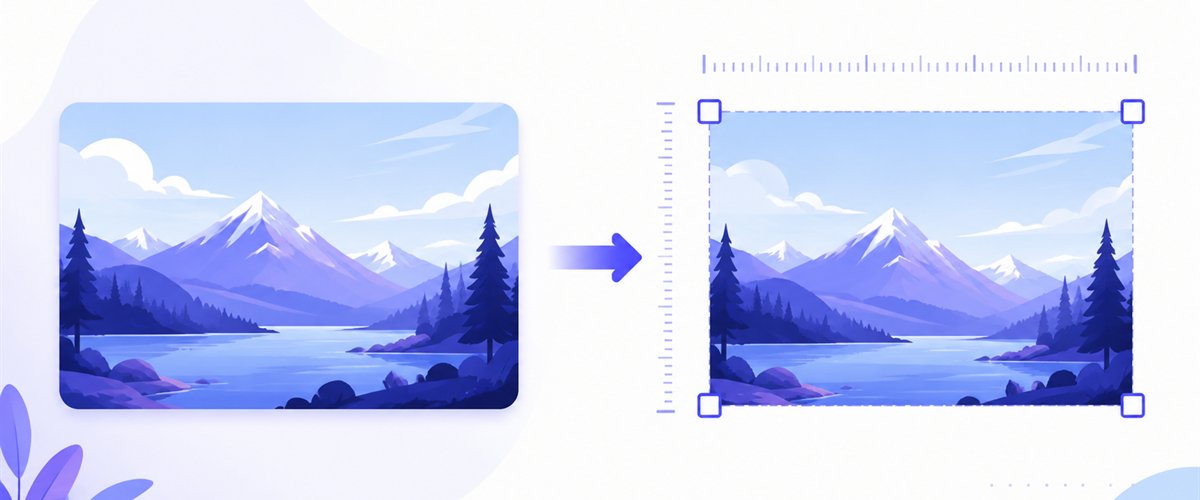
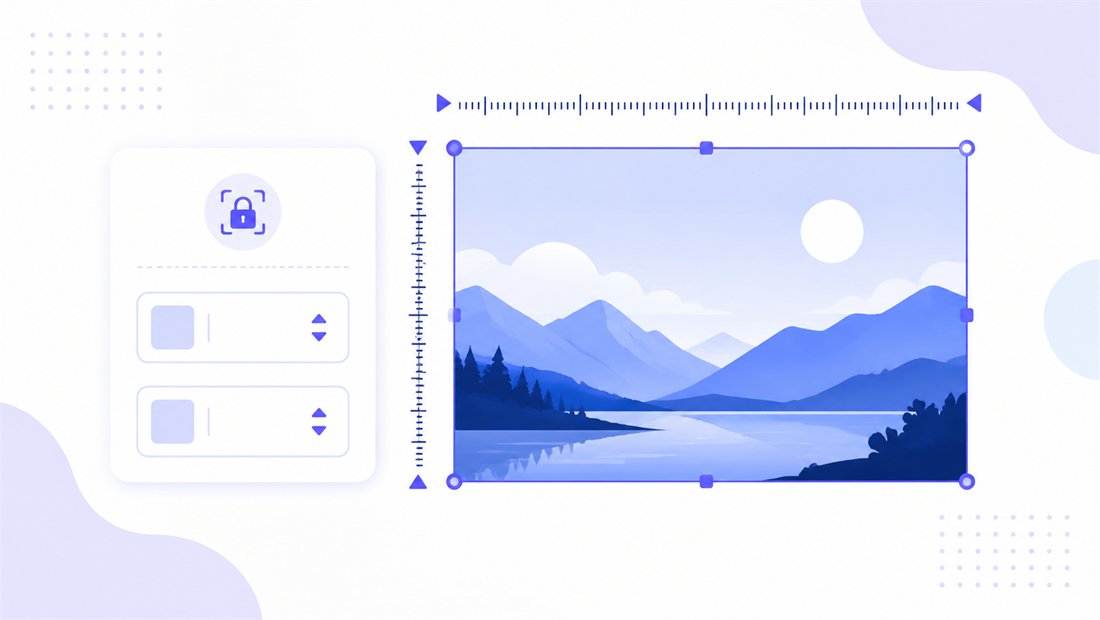
Drop one image or a whole folder, lock the size to 1280×720, choose how it fits the frame, and download.
How to resize an image to 1280×720
- Add your files — drag and drop, click to browse, or paste with
Ctrl+V. One image or a whole folder, including iPhone HEIC photos. - Set width 1280 and height 720 — type the exact pixels, or pick the 16:9 preset so the box is filled for you.
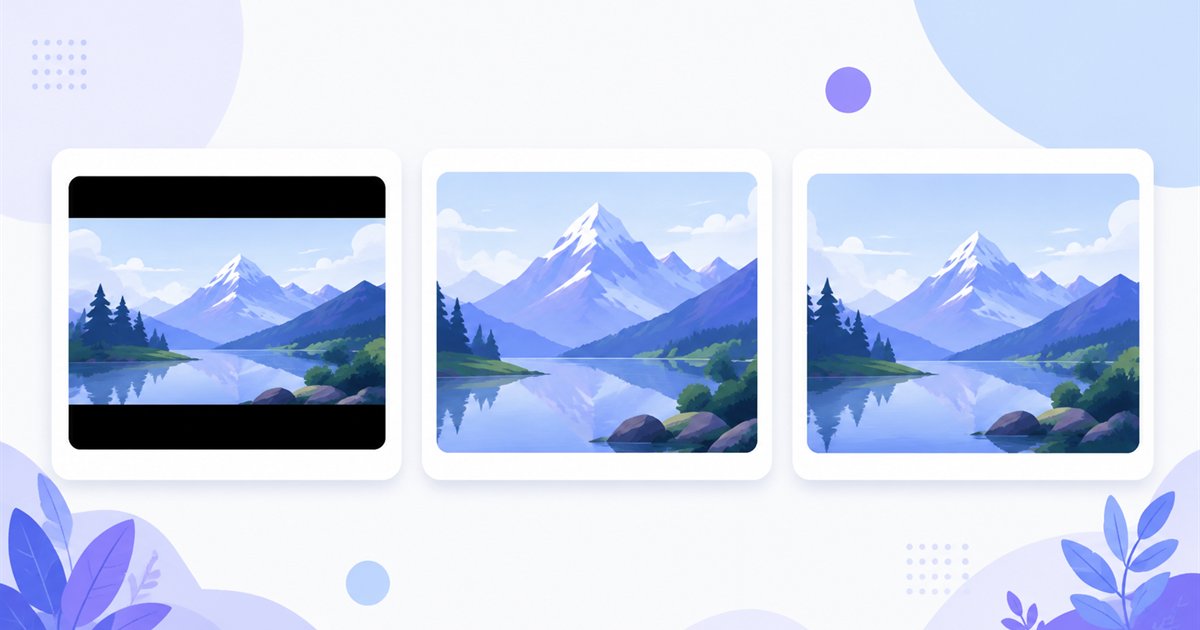
- Choose a mode — Fit to keep the whole image inside the frame, Crop to fill the full 1280×720 with no bars, or Stretch if you accept distortion.
- Download — export a single image or the whole batch as a ZIP, with the quality you set.
Up to 5 images at a time need no account; a free account raises the batch to 20 and Premium to 100. See the pricing page.
16:9 at half the weight: Fit, Crop and Stretch
1280×720 keeps the 16:9 ratio, so it slots straight into any 16:9 layout — a 720p file simply weighs far less than the same picture at 1080p. When the source is not already 16:9, the mode decides the rest:
| Mode | What it does | Best for 1280×720 |
|---|---|---|
| Fit | Scales the whole image inside the frame, adding bars if ratios differ | Newsletter banners where the full image must show |
| Crop | Fills the entire 1280×720 and trims the overflow with a draggable area | Video thumbnails and web heroes that must be edge-to-edge |
| Stretch | Forces the image to 1280×720 exactly | Only when minor distortion is acceptable |
For a thumbnail or a hero, Crop fills the whole frame and lets you drag the crop box so the subject stays centred. Keep don't enlarge on so a small source is never blown up — at 720p a soft, over-enlarged image is especially noticeable on a sharp screen.
Light files that still look sharp
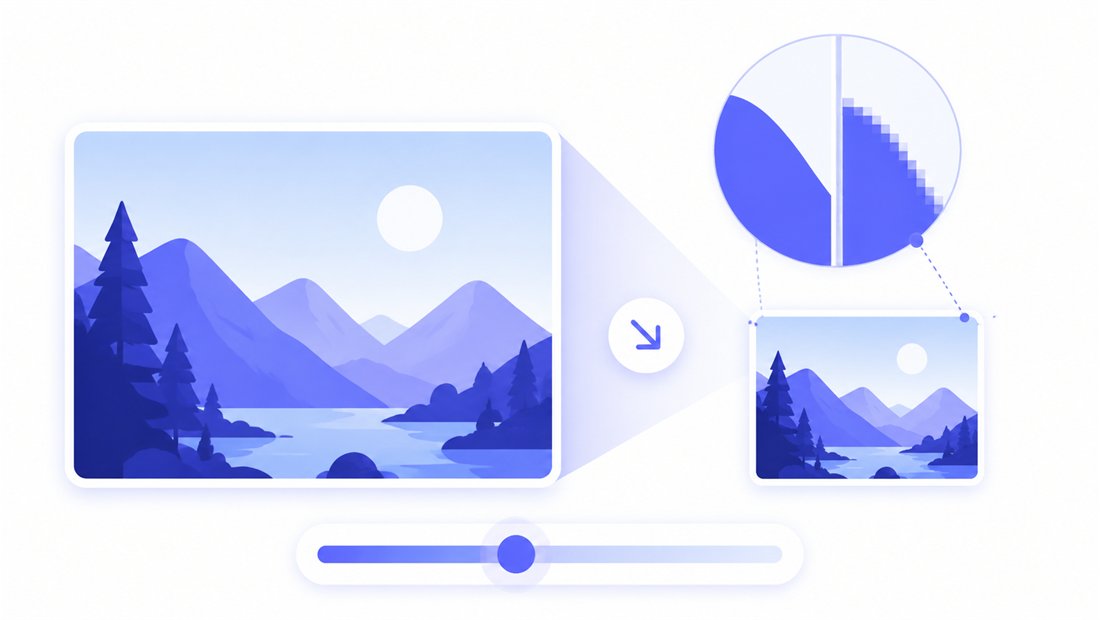
The whole point of 720p is a smaller file, so quality control matters most here. ImageResizerly uses Pica / Lanczos resampling so a downscaled photo stays crisp with no stair-stepping, and the quality slider with its live size estimate lets you push a newsletter banner well under 100 KB or keep a hero around 150 KB without visible loss. Export as JPG, PNG, WebP or AVIF — WebP or AVIF shave the most off a 1280×720 web image, while JPG stays safest for old email clients.
Batch a folder of thumbnails to 1280×720
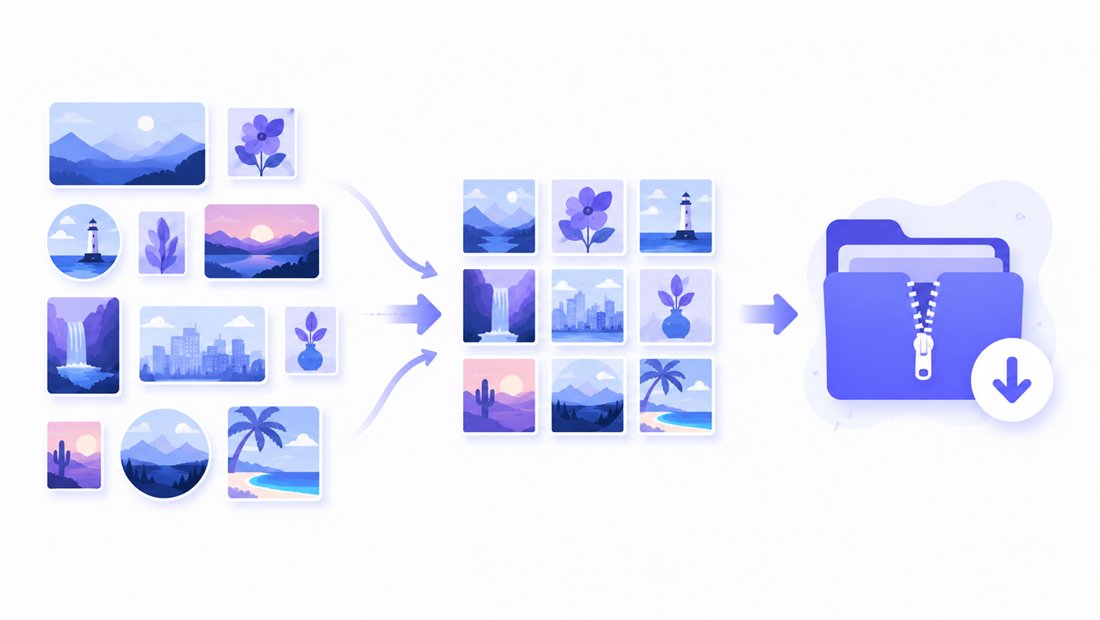
Producing a series of video thumbnails, newsletter images or web cards? Drop them all and each is resized to the same 1280×720 frame independently, then downloaded together as a ZIP. Name patterns (prefix, suffix or counter) keep things ordered — thumb-1280x720-01.jpg, -02, and so on, ready to upload in sequence. For mixed targets or finer control open the bulk resizer, and reach for the crop tool when a single thumbnail needs a different focal point.
Private — nothing is uploaded
Resizing runs entirely in your browser via the Canvas API:
- No upload, no wait — even a long list of thumbnails starts instantly.
- Private by design — your images never reach a server.
- EXIF removed by default — location and camera data are stripped on export.
- Works offline — once the page has loaded you can disconnect.
Related tools
- Resize to 1920×1080 — step up to full 1080p when detail matters more than weight.
- Resize to 3840×2160 — 4K UHD at the other end of the 16:9 range.
- Resize to 2560×1440 — QHD, the 16:9 size between HD and 4K.
- Crop tool — set the exact focal point of a single thumbnail.
FAQ
What is 1280×720 used for?
720p HD, 16:9: video thumbnails, website hero images, email and newsletter banners, lighter desktop wallpapers, live streams and older HD screens. It is the size to choose when fast loading matters more than maximum resolution.
Why pick 1280×720 over 1920×1080?
720p has roughly half the pixels of 1080p, so the file is much lighter and loads faster — ideal for thumbnails, web pages and emails. Choose 1080p instead when the image is shown full-screen and detail outweighs file size.
Will resizing to 1280×720 lose quality?
Downscaling to 720p with Lanczos resampling looks sharp. Avoid enlarging a small source to 1280×720, as softness shows clearly at this size — keep "don't enlarge" on.
Can I resize many images to 1280×720 at once?
Yes — 5 at a time for free, 20 with a free account and 100 with Premium. Each image is resized to the same HD frame and downloaded as one ZIP.
Are my images uploaded to a server?
No. The resize uses your browser's Canvas API, so files never leave your device — you can even work offline once the page has loaded.
Is it free?
Yes, resizing to 1280×720 is completely free with no watermark. Accounts only raise the batch size and unlock extra AI features.