Watermark a whole batch of photos at once
Adding a watermark one photo at a time is tedious. ImageResizerly stamps a text or logo watermark on every photo in the batch in a single pass — positioned consistently, scaled to each image, and exported as a ZIP. Everything runs in your browser, so the photos you are protecting are never uploaded to a server.
Use it to brand product shots, sign your photography, mark proofs you share before payment, or simply add your name to images before posting them online.
Why watermark in the browser
- Private — your unpublished work never leaves your device.
- Consistent — size and margins are relative to each image, so the mark looks right on an 800 px thumbnail and an 8000 px original alike.
- Fast — a whole folder is watermarked in seconds, with a live preview of the first photo.
How to watermark your photos
- Add your photos — drag and drop, browse, or paste with
Ctrl+V. JPG, PNG, WebP, GIF, BMP and iPhone HEIC are supported. - Choose text or a logo — type your watermark text, or upload a transparent PNG logo.
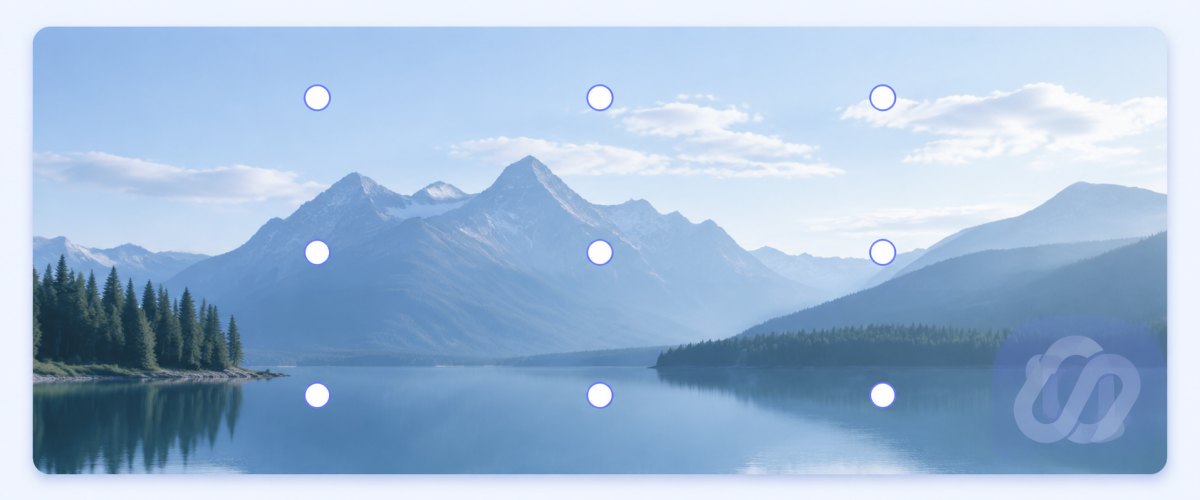
- Place it — pick one of nine spots on the 3×3 grid and set a margin from the edge.
- Style it — adjust size (as a percentage of the image width), opacity and colour; turn on tiling if you want full coverage.
- Export — check the live preview, then download a single image or the whole batch as a ZIP. Resize or compress in the same pass if you like.
No account is needed for up to 5 photos at a time; a free account raises the batch to 20 and Premium to 100. See the pricing page.
Text watermark or logo watermark
Both kinds are built in — pick whichever fits the job, or combine branding with a signature.
| Text watermark | Logo watermark | |
|---|---|---|
| Best for | A name, URL, © notice, “SAMPLE” / “PROOF” | A brand or studio logo |
| Source | Typed directly | Transparent PNG you upload |
| Styling | Font size, colour, outline | Size as % of width, opacity |
| Transparency | Adjustable opacity | Keeps the PNG's own transparency |
| Scales per photo | Yes | Yes |
Text watermark
Type any text — your name, a website, a copyright line, or a status like “SAMPLE”. Set the size, colour and an outline so it stays readable over both light and dark areas of a photo.

Logo watermark (PNG)
Upload a transparent PNG of your logo and place it in a corner. Its size is set as a percentage of the image width, so it scales naturally whether the photo is small or huge, and its built-in transparency is preserved.
Position, size and opacity
Fine-tune exactly how the watermark looks:
- Position — nine anchor points on a 3×3 grid, plus an adjustable margin from the edge.
- Size — set as a percentage of the image width, so it stays proportional across the batch.
- Opacity — from a subtle ghost mark to a bold stamp.
- Colour and outline (text) — keep the mark legible over any background.

A live preview on the first photo updates as you change any setting, so there is no guesswork before you export the whole batch.
Tile mode: a watermark that is hard to crop out
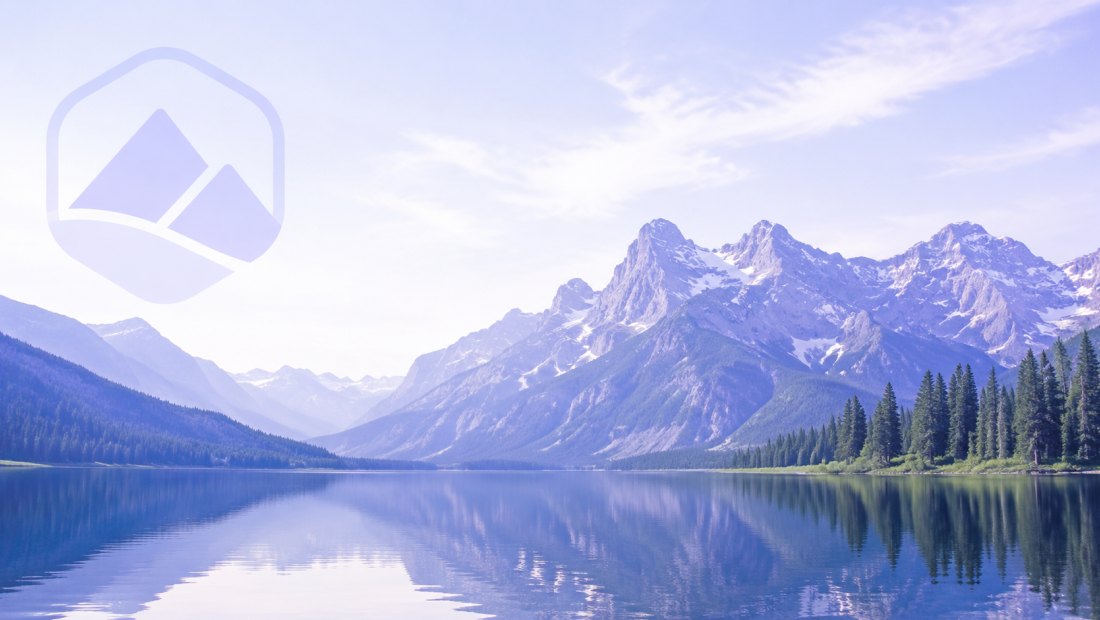
A single corner watermark can be cropped away. Tile mode repeats the mark across the entire image in a staggered, often diagonal pattern, so removing it would destroy the picture — ideal for proofs, previews and portfolios you share before payment.

Keep the opacity moderate so the image stays viewable while still being clearly protected.
Watermark many photos in one go
The watermark settings apply to the entire batch at once. Drop a folder of product shots or a full photo set, set the mark once, and every image comes out branded the same way — then download them all as a single ZIP.

Combine watermarking with the bulk resizer (cap everything at 1920 px) or compress to 200 KB in the same pass, or prepare branded posts with the Instagram size tool.
Who uses a photo watermark tool
- Photographers signing galleries and protecting proofs before delivery.
- Online sellers and brands stamping a logo on product photos.
- Designers and agencies marking concepts as “DRAFT” or “PROOF”.
- Anyone adding their name or site to images before posting them publicly.
Tips for an effective watermark
- Keep it readable but not distracting — moderate opacity (around 30–50%) usually works.
- Use an outline or shadow on text so it stays visible over busy backgrounds.
- Size it relative to the image, not in fixed pixels, so it scales across the batch.
- Tile valuable work — a single corner mark is easy to crop; a mosaic is not.
- A PNG logo with transparency looks far more professional than text alone.
Watermark photos privately — nothing is uploaded
Watermarking happens entirely in your browser via the Canvas API:
- No upload, no wait — even large batches start instantly.
- Private by design — unpublished and client work never leaves your device.
- EXIF removed by default — location and camera data are stripped on export.
- Works offline — once the page has loaded you can disconnect and keep working.
FAQ
Can I use my own logo as a watermark?
Yes — upload a transparent PNG and set its size as a percentage of the image width, so it scales naturally across different photos and keeps its transparency.
Will the watermark look the same on all my photos?
Yes. Size and margins are relative to each image's dimensions, so the watermark keeps the same visual proportion whether a photo is 800 px or 8000 px wide.
Can a watermark be removed by someone else?
A corner watermark can be cropped out. The tiled mosaic mode covers the whole image and is much more resistant — for valuable work, use tiling with moderate opacity.
Can I watermark many photos at once?
Yes. The watermark applies to the whole batch — up to 5 photos at a time for free, 20 with a free account and 100 with Premium — and you download them all as one ZIP.
Are my photos uploaded to a server?
No. All watermarking uses your browser's Canvas API, so files never leave your device — you can even work offline after the page loads.
Can I add both a logo and text?
Add your logo as a PNG watermark, then run the batch again to add a text line — or use the tool that fits each job. Resizing and compression can be combined in the same pass.