Reduce image file size without losing quality
A photo straight off a phone or camera can weigh several megabytes — too heavy for an email attachment, a slow-loading web page, or a form with a strict size cap. ImageResizerly reduces the file size of any image right in your browser, so you can hit the weight you need without sending anything to a server.
There are two ways to get there, and this page explains both: tell the tool the exact size you need (in KB or MB) and let it work backwards, or drag a quality slider and watch the weight update live. Either way, the work happens locally — no upload, no waiting, nothing stored.
Two ways to reduce image size
Different jobs call for different controls. Pick the one that matches what you actually need:
| Goal | Best method | How it works |
|---|---|---|
| "It must be under 50 KB / 100 KB / 2 MB" | Target size | Enter the limit; the tool searches for the highest quality that fits. |
| "Just make it a bit lighter, I'll eyeball it" | Quality slider | Drag quality down; the live size readout tells you when it's small enough. |
| "It's huge because it's 6000 px wide" | Reduce dimensions | Scale the pixel dimensions down — often the biggest single saving. |
| "I need WebP for my website" | Change format | Convert to WebP for the same quality at a smaller weight. |
Most people only need the first row: set a target and download. The rest are there when you want finer control.
How target-size reduction works
Choosing a quality percentage is guesswork — the same 70% setting can produce a 40 KB file from one photo and a 300 KB file from another. Target mode flips this around and works from the file size you actually need:
- It runs a fast binary search on JPEG/WebP quality — just a handful of attempts — to find the highest quality that still fits your target.
- If even the lowest quality can't reach the target at the original dimensions (common with very large photos), it gently reduces the dimensions and tries again.
That order matters: shrinking dimensions only as a last resort preserves far more visual quality than crushing quality on its own.
Or take manual control with the quality slider
Sometimes you don't have a hard number — you just want the file noticeably lighter while it still looks great. Drag the quality slider and the estimated file size updates in real time, so you can stop exactly where the trade-off feels right.

For most photos, quality somewhere in the 70–85 range cuts the weight dramatically while staying visually identical at normal viewing size. The slider is the friendly option; target mode is the precise one.
When reducing dimensions helps most
File size is driven by two things: how much the image is compressed, and how many pixels it contains. A 6000 × 4000 photo holds 24 million pixels — far more than any web page or form needs. Reducing the pixel dimensions is often the single biggest saving you can make:
- For the web, 1600–2000 px on the long edge is plenty for full-width images; thumbnails need far less.
- For email, 1200–1600 px keeps the photo sharp while slashing the weight.
- For a strict KB form, downscaling lets you keep higher quality at a smaller pixel size — much nicer than crushing a full-resolution image.
You can combine downscaling with target-size compression in one pass using the bulk resizer.
How to choose a format: JPG or WebP
Format has a big effect on the final weight. The two that matter for size reduction:
- JPG — universally supported and the safe choice for forms, portals, email, and anywhere you're not sure what's accepted. For a hard KB cap, JPG is the most reliable.
- WebP — fits noticeably more quality into the same number of kilobytes, ideal for your own website where you control what the browser receives. Most modern browsers support it.
As a rule of thumb: use JPG when in doubt, and WebP when you own the destination and want the smallest possible file at a given quality. PNG is best left for graphics with sharp edges or transparency, not photos — it produces much larger files.
Reduce a whole batch at once
Got a folder of images that all need to be lighter? Drop them in together and each one is processed independently to hit the same target or quality, then downloaded as a single ZIP.
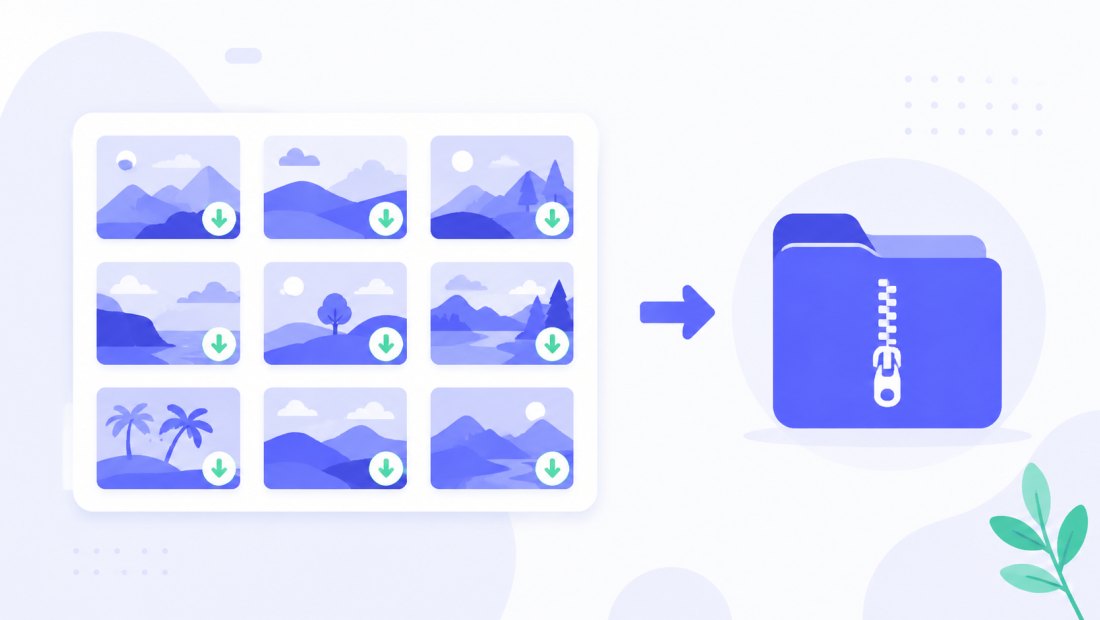
You can handle up to 5 images at a time with no account, and a free account raises the batch to 20; higher tiers go up to 100 in one pass. See the pricing page for the full breakdown. Resizing, format conversion and a watermark can all run in the same batch.
Common targets and what they're for
Not sure how small you need to go? These are the limits people reach for most often — each links to a tool preset that's already dialled in:
| Target | Typical use | Go to |
|---|---|---|
| 50 KB | ID and passport photos, strict government/exam forms | compress to 50 KB |
| 100 KB | The most common web upload and CMS limit | compress to 100 KB |
| 200 KB | Comfortable quality for websites and marketplaces | compress to 200 KB |
| Any size | Lighter email, faster pages, no hard number | set your own target here |
If your destination states an exact cap, pick the matching preset — it saves you typing the number and the per-photo report confirms the result before you download.
Reduce image size on a form with a strict limit
Application portals, exam registrations and job sites often reject anything over a set weight. Because reduction happens locally in your browser, sensitive ID and document photos are never uploaded — which is safer than the typical online compressor that sends your file to a server.
Set the target to the cap the form names, let the tool fit it, and upload with confidence.
Private — nothing is uploaded
All reduction runs entirely in your browser via the Canvas API:
- No upload, no wait — even a large batch starts instantly.
- Private by design — ID, document and personal photos stay on your device.
- EXIF removed by default — location and camera data are stripped on export, which also shaves a few extra kilobytes.
- Works offline — once the page has loaded you can disconnect.
FAQ
How do I reduce an image's file size without losing quality?
Use target mode and set the smallest size you genuinely need. The tool keeps the highest quality that still fits, so the photo looks the same at normal viewing size while weighing a fraction of the original. Only reduce dimensions if you also need fewer pixels.
Should I use the target size or the quality slider?
Use target size when you have a hard number (a form cap, an email limit). Use the quality slider when you just want the file lighter and prefer to judge the result by eye. They reach the same place — one is precise, the other is hands-on.
KB or MB — what target should I pick?
For forms and ID photos, think in KB (often 50–200 KB). For email and general web use, MB is fine (a 1–2 MB photo loads quickly and still looks great). If your destination states a cap, match it exactly.
Does reducing dimensions reduce file size?
Yes — usually a lot. A photo with fewer pixels has far less data to store, so scaling a 6000 px image down to 1600 px can cut the weight dramatically while still looking sharp on screen.
Which format makes the smallest file?
WebP fits more quality into the same kilobytes than JPG, so it's smallest when the destination supports it. JPG is the safe, universal choice for forms and anything you're unsure about. Avoid PNG for photos — it produces much larger files.
Can I reduce many images at once?
Yes — up to 5 at a time for free, 20 with a free account, and up to 100 on higher tiers. Each image is processed independently and downloaded together as a ZIP.
Is it really private?
Yes. Everything runs in your browser; no image is ever uploaded to a server. That makes it safe for ID cards, documents and any personal photos.