Crop every photo on its own — a draggable frame on each image
Most online croppers force the same crop box onto every picture. ImageResizerly works like birme: each thumbnail gets its own draggable, resizable crop frame, so a batch of portraits, products and screenshots can each get exactly the right framing. Drag the box, pull the corners, lock a ratio, and the export matches the preview pixel for pixel. Everything runs in your browser — your photos are never uploaded.
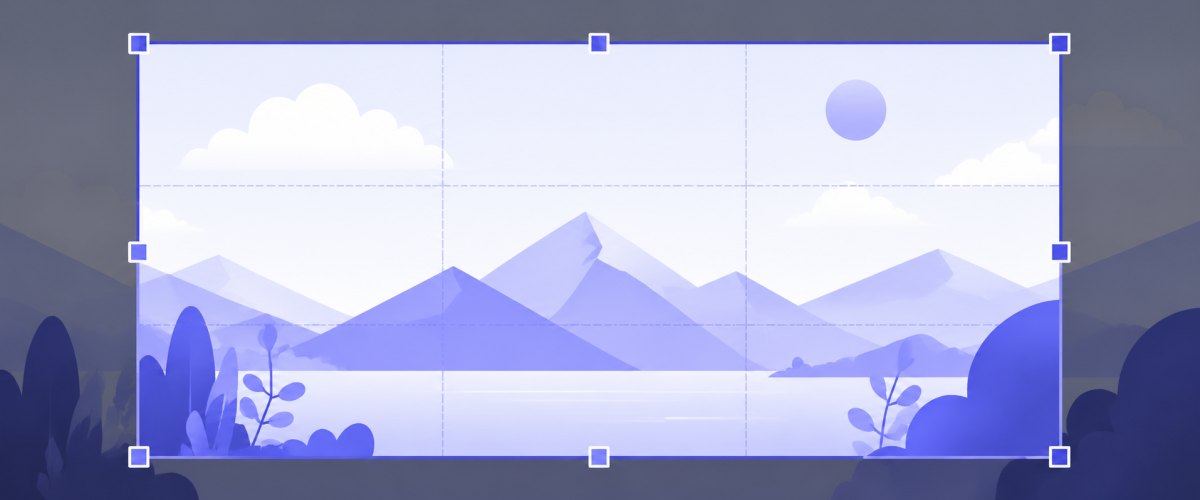
Why a per-photo frame matters
- A product shot needs the item centred; a portrait needs the face higher up — one shared box cannot do both.
- You see the exact result before exporting, with rule-of-thirds guides for composition.
- Frames can share a locked aspect ratio across the whole batch while each one sits where you want it.
How to crop images online
- Add your photos — drag and drop, click to browse, or paste with
Ctrl+V. JPG, PNG, WebP, GIF, BMP and iPhone HEIC are supported. - Position each crop frame — drag the box on every thumbnail, resize from the corners, or click a photo to open a large precise-crop view.
- Lock a ratio or go free — pick 1:1, 4:3, 16:9, a social preset, or type a custom ratio; leave it unlocked for a freehand crop.
- Export — download a single image or the whole batch as a ZIP, optionally converting the format or compressing in the same step.
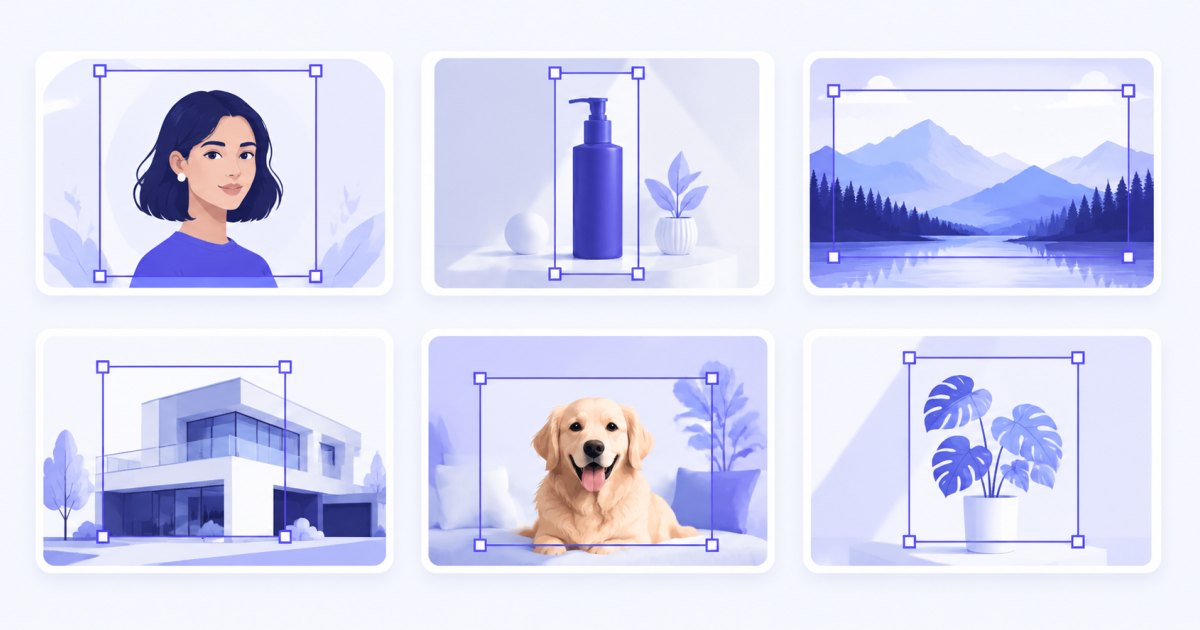
No account is needed for up to 5 photos at a time; a free account raises the batch to 20 and Premium to 100. See the pricing page.
Crop to a fixed aspect ratio: 1:1, 4:3, 16:9 and custom
Locking a ratio keeps every crop consistent — essential for grids, galleries and marketplaces. Pick a preset chip or type your own (for example 3:1 for a banner):
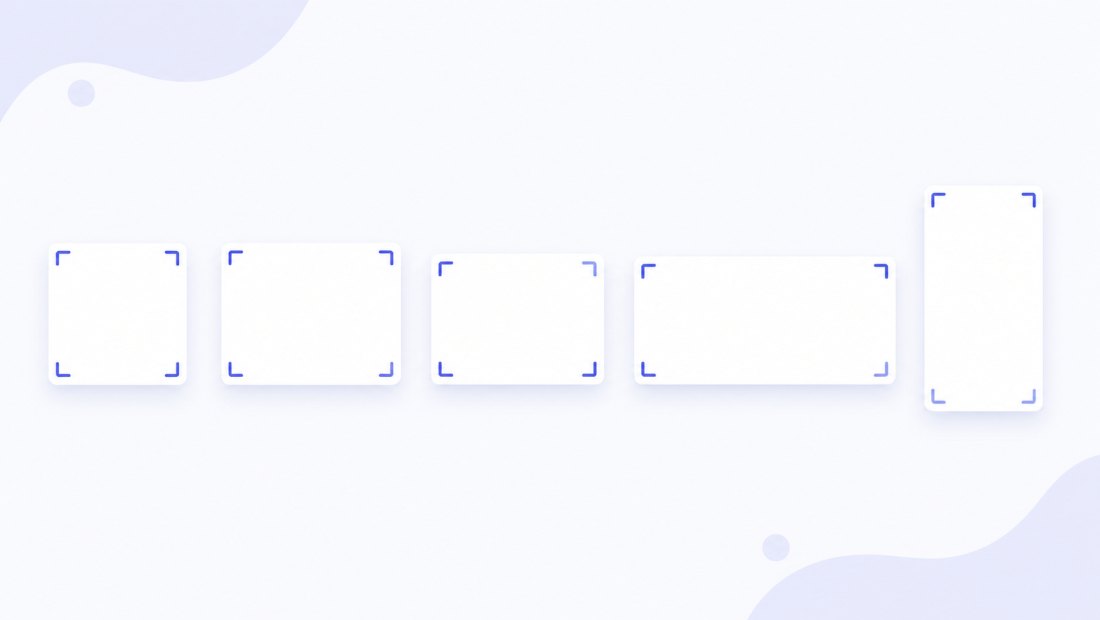
| Ratio | Shape | Typical use |
|---|---|---|
| 1:1 | Square | Profile pictures, product grids, Instagram posts |
| 4:3 | Standard | Presentations, older cameras, prints |
| 3:2 | Classic photo | DSLR photos, 4x6 prints |
| 16:9 | Widescreen | YouTube thumbnails, slides, banners |
| 9:16 | Vertical | Stories, Reels, TikTok |
| Custom | Anything | Headers and banners, e.g. 3:1 or 21:9 |
When you change the ratio, every frame on the grid updates at once, so the whole batch stays uniform.
Smart auto-crop: let it find the subject
Cropping dozens of photos by hand is slow. Smart auto-crop analyses each image locally — detecting faces, edges and areas of high contrast — and places the frame over the most important part. Use “auto all” to position every frame in one click, then fine-tune any that need it.

It runs entirely in your browser, so even auto-cropping is private and instant — there is no server round-trip for each photo.
Social media crop sizes
Cropping for a specific platform? Select a social preset to lock the right ratio on every frame, or type the size directly. The most common targets:
| Platform / type | Size | Ratio |
|---|---|---|
| Instagram post | 1080 x 1080 | 1:1 |
| Instagram story / Reel | 1080 x 1920 | 9:16 |
| Facebook cover | 820 x 312 | ~2.6:1 |
| YouTube thumbnail | 1280 x 720 | 16:9 |
| X / Twitter post | 1600 x 900 | 16:9 |
| LinkedIn banner | 1584 x 396 | 4:1 |
| Pinterest pin | 1000 x 1500 | 2:3 |
Open the dedicated Instagram size tool for a one-click setup, or add a watermark to your cropped images in the same pass.
Rotate, flip and fine-tune before cropping
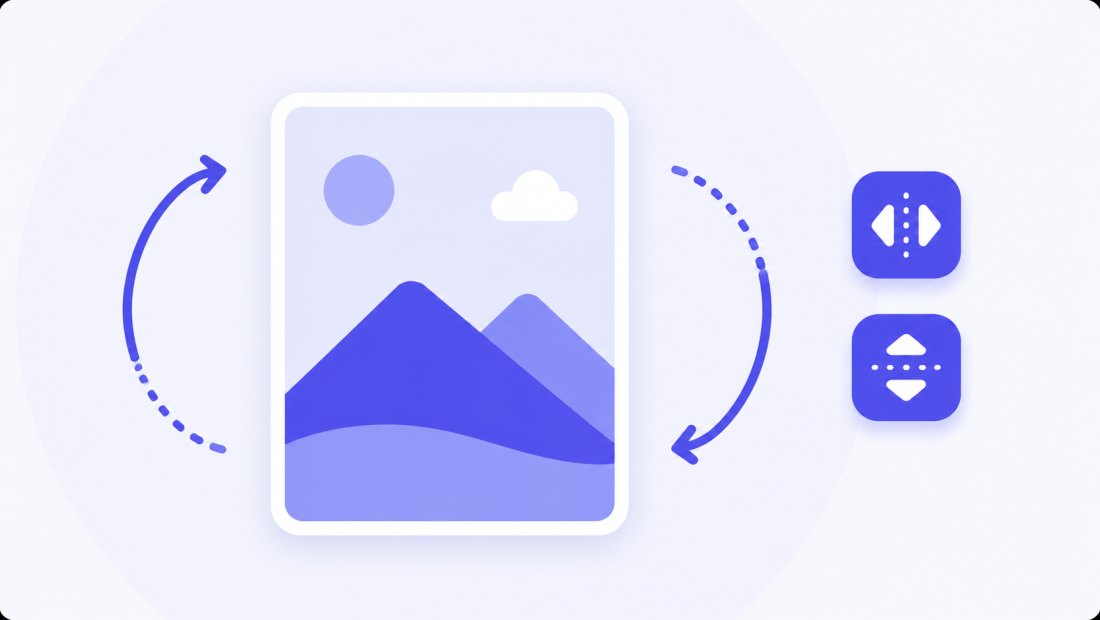
Straighten and orient photos before the crop — per image or for the whole batch:
- Rotate 90° clockwise or counter-clockwise
- Flip horizontally or vertically
- Open the precise-crop modal (click a thumbnail) for pixel-accurate adjustment on a large canvas
Crop or fill: when the shape does not match
Sometimes you want the target shape without losing any of the picture. Instead of cropping, switch to Fill mode: the photo is scaled to fit and the empty space is padded with a background colour of your choice.
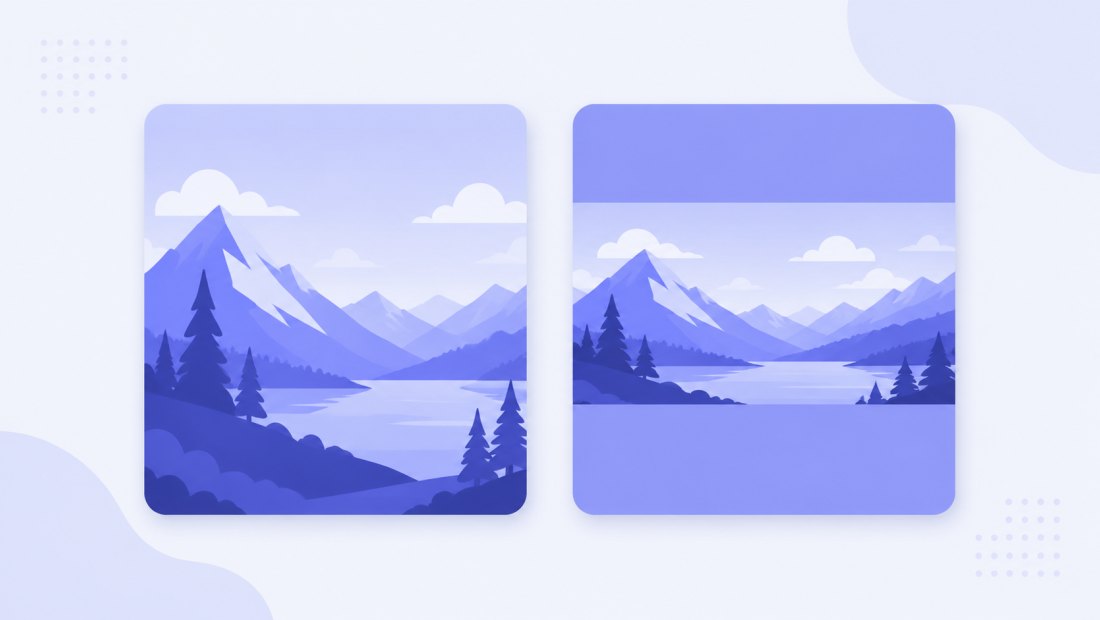
- Crop — fills the frame and trims the overflow (no distortion, edges removed).
- Fill — keeps the whole photo and adds even borders (nothing is lost).
For more output control — exact pixels, formats, compression — combine cropping with the bulk resizer or compress to 100 KB.
Crop images privately — nothing is uploaded
Cropping happens in your browser via the Canvas API:
- No upload, no wait — even large batches start instantly.
- Private by design — ID photos, screenshots and personal pictures stay on your device.
- EXIF removed by default — location and camera data are stripped on export.
- Works offline — once the page has loaded you can disconnect and keep working.
Who uses an online crop tool
- Online sellers cropping product photos to a uniform square for marketplaces.
- Social media managers framing posts, stories and thumbnails to exact ratios.
- Photographers quickly straightening and trimming a shoot before delivery.
- Anyone cutting a face out of a group photo or fixing a crooked snapshot.
FAQ
Can I crop each photo differently in one batch?
Yes — that is the main feature. Every thumbnail has an independent crop frame, so each photo in the batch can be framed its own way before you export them together.
How do I crop to an exact ratio like 16:9?
Pick a preset chip (1:1, 4:3, 16:9, 9:16) or type any custom ratio such as 3:1. Every frame locks to that proportion and the exported files match it exactly.
How does smart auto-crop work?
It analyses each photo locally — faces, edges and contrast — and positions the frame over the most interesting region. You can still adjust any frame by hand afterwards.
Will cropping reduce image quality?
No. Cropping only removes the pixels outside the frame; the area you keep is untouched. If you also resize, Lanczos resampling keeps it sharp.
Can I crop iPhone HEIC photos?
Yes. HEIC files are decoded in the browser, cropped, and exported as JPG or PNG. Use the HEIC to JPG converter if you only need a format change.
Are my photos uploaded to a server?
No. All cropping uses your browser's Canvas API, so files never leave your device — you can even work offline after the page loads.
What is the difference between crop and fill?
Crop trims the photo to the target shape, removing the edges. Fill keeps the entire photo and pads the empty space with a background colour, so nothing is lost.