Convert PNG to WebP — much smaller files that keep transparency
PNG is lossless and reliable, but it produces large files — and that weight slows down web pages. Converting PNG to WebP shrinks the file dramatically while keeping the transparency that PNG is loved for, something a JPG can never do. WebP gives you the best of both worlds: tiny files for fast-loading pages and an intact alpha channel for logos, icons and graphics. ImageResizerly does it entirely in your browser — your images are never uploaded.
Drop one image or a whole folder, set the quality, and download a single WebP or the whole batch as a ZIP.
How to convert PNG to WebP
- Add your PNG files — drag and drop, click to browse, or paste with
Ctrl+V. Single images or a whole folder at once. - WebP is the target format — this tool re-encodes every PNG as a modern WebP, keeping the alpha channel.
- Set the quality — the slider (75–90% is ideal) balances file size against fidelity, with a live size estimate. Drag it to lossless for a pixel-perfect copy.
- Convert and download — get one WebP or the whole batch as a ZIP. Resize or compress in the same pass if you like.
No account is needed for up to 5 images at a time; a free account raises the batch to 20 and Premium to 100. See the pricing page.
PNG vs WebP: when to use which
Both keep transparency, but they trade size for compatibility differently:
| PNG | WebP | |
|---|---|---|
| Compression | Lossless only | Lossy or lossless |
| Transparency | Yes | Yes |
| File size | Large | Much smaller (often 25–50% of the PNG) |
| Best for | Print, legacy software, archival masters | Websites, apps, fast-loading pages |
| Browser support | Universal | All modern browsers |
If the image is destined for the web — a logo, an icon, a hero graphic or a UI sprite — WebP loads far faster with no visible loss. If you need it for print or older software, keep the PNG. To reach a universal photo format instead, use PNG to JPG.
Transparency is preserved
This is the key reason to pick WebP over JPG. When your PNG has transparent areas — a logo with no background, an icon, a sticker — the converter keeps the alpha channel intact. The WebP drops onto any colored background just like the original PNG did, only at a fraction of the weight. No white box, no black halo, no flattening.
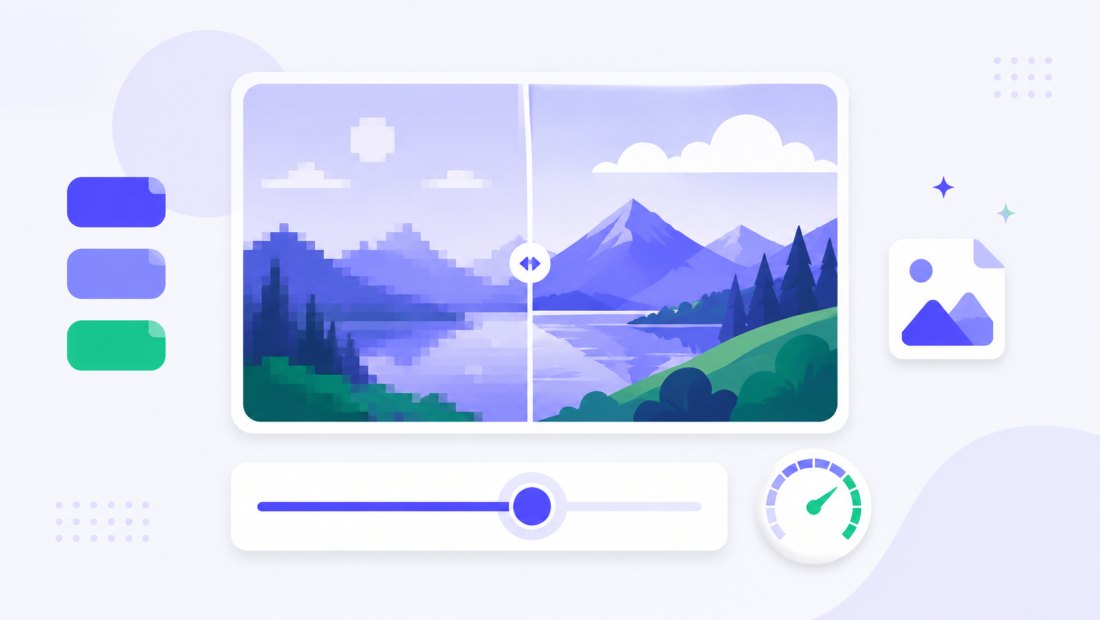
Lighter pages, better Core Web Vitals
Image weight is one of the biggest drags on page speed. Swapping bulky PNGs for WebP cuts the bytes your visitors download, which improves Largest Contentful Paint and your Core Web Vitals scores — and that helps both user experience and search ranking. Convert your icons, illustrations and graphics once and serve them everywhere; every modern browser displays WebP natively.

Lossy or lossless — you choose
WebP is unusual because it supports both modes, and the quality slider lets you pick. Keep it high (75–90%) for lossy WebP — the smallest files, with no difference the eye can spot, perfect for web graphics and illustrations. Drag it all the way to lossless when you need a pixel-perfect copy of the PNG — a screenshot with crisp text, a diagram with thin lines, or a master you will edit again. Even lossless WebP is typically smaller than the source PNG, so you save space either way. The live size estimate updates as you move the slider, so you can find the sweet spot before you export a single file.
Convert a whole batch of PNGs at once
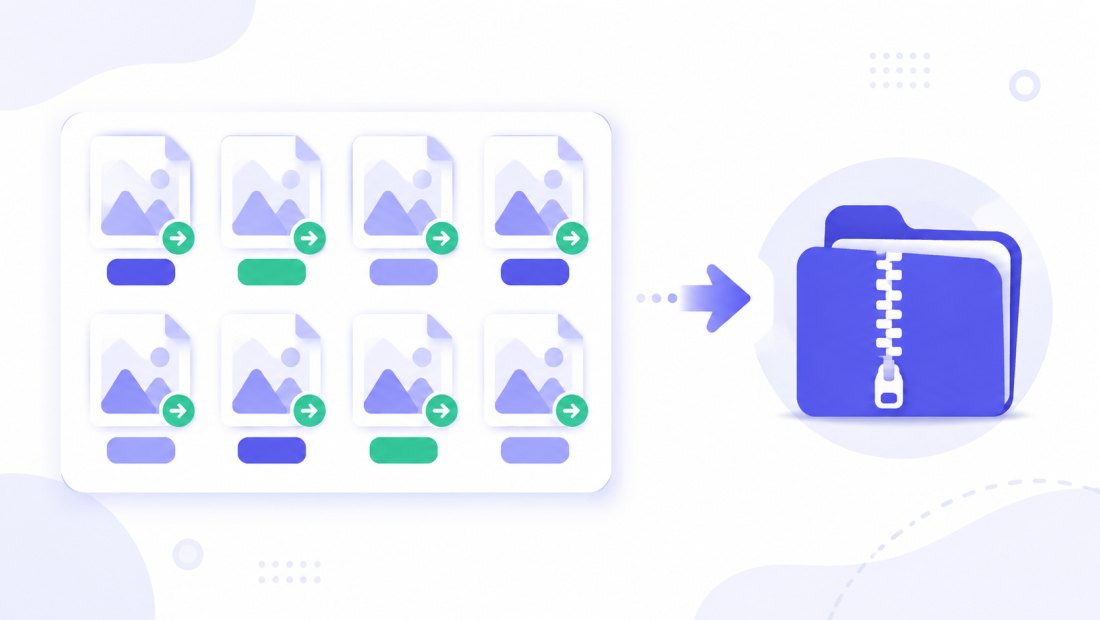
Have a folder of PNG icons or exported graphics to slim down for the web? Drop them all and each is re-encoded to WebP independently, then downloaded together as a ZIP. Combine the conversion with resizing (cap everything at 1920 px) in the same pass so your assets are both small and right-sized.
Private — nothing is uploaded
Conversion runs entirely in your browser via the Canvas API:
- No upload, no wait — even a large batch starts instantly.
- Private by design — your images never reach a server.
- EXIF removed by default — location and camera data are stripped on export.
- Works offline — once the page has loaded you can disconnect.
Related converters
- WebP to PNG — go the other way when you need a lossless PNG or print master.
- JPG to WebP — shrink photos for the web the same way.
- PNG to JPG — reach a universal photo format when transparency is not needed.
FAQ
Why convert PNG to WebP?
WebP files are usually 25–50% the size of the equivalent PNG while keeping transparency intact. Lighter images mean faster pages and better Core Web Vitals, with no visible loss of quality.
Does PNG to WebP keep transparency?
Yes — that is the main advantage over PNG to JPG. The alpha channel is preserved, so logos, icons and graphics drop onto any background exactly as the original PNG did.
Will converting PNG to WebP lose quality?
At 75–90% the result looks identical to the PNG. If you need a pixel-perfect copy, drag the slider to lossless WebP — still smaller than the PNG, with zero quality loss.
Can I convert many PNG files at once?
Yes — 5 at a time for free, 20 with a free account and 100 with Premium. Each PNG is re-encoded to WebP and you download them all as one ZIP.
Do all browsers support WebP?
Every modern browser — Chrome, Firefox, Edge, Safari and their mobile versions — displays WebP natively. For print or very old software, keep the PNG or convert to PNG to JPG instead.
Are my images uploaded to a server?
No. The conversion uses your browser's Canvas API, so files never leave your device — you can even work offline after the page loads.
Is it free?
Yes, converting PNG to WebP is completely free with no watermark. Optional accounts only raise the batch size and unlock AI features.