Resize Image to 500×500 — the everyday square for the web
A 500×500 square is the comfortable middle ground of web imagery. It is the size that looks right as a forum or profile avatar, slots neatly into a blog post as an inline illustration, and works as a product or auction thumbnail without weighing the page down. At roughly half a megapixel it stays razor-sharp on most layouts while keeping files small — a sensible default when you are not sure exactly how big an image needs to be. ImageResizerly resizes to 500×500 entirely in your browser, so nothing is ever uploaded.
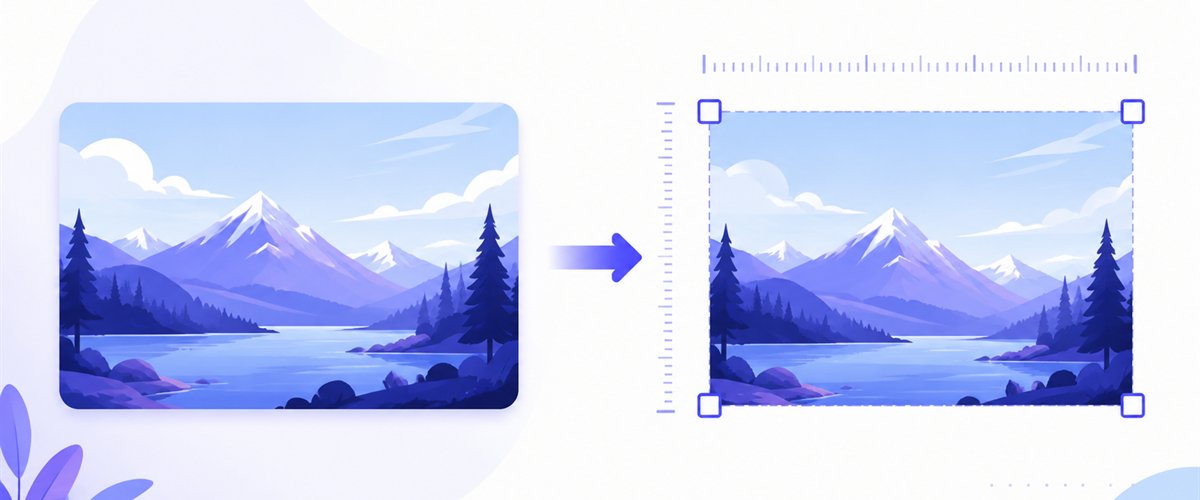
Drop one picture or a folder, lock the square, and download a single file or the whole batch as a ZIP.
How to resize an image to 500×500
- Add your images — drag and drop, click to browse, or paste with
Ctrl+V. A single photo or a whole folder at once. iPhone HEIC files are read automatically. - Set width and height to 500 × 500 — type the numbers once or pick the 1:1 square preset.
- Choose a mode — Fit, Crop or Stretch — Crop with its draggable area is great for avatars, letting you center a face inside the square; Fit keeps a full graphic visible with padding.
- Download — get one 500×500 file or the whole batch as a ZIP.
No account is needed for up to 5 images at a time; a free account raises the batch to 20 and Premium to 100. See the pricing page.
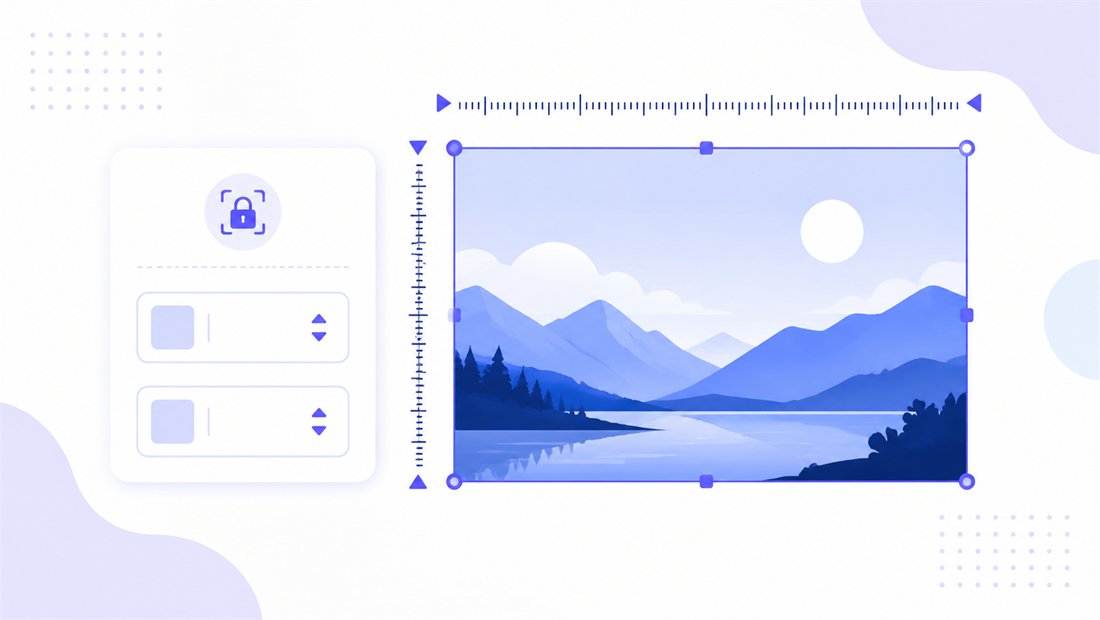
A 1:1 square — Fit, Crop or Stretch
500×500 is a 1:1 square (aspect ratio 1.0). Since avatars, thumbnails and inline blog images come from all sorts of source shapes, the mode decides how each becomes square:
| Use case | Recommended mode | Why |
|---|---|---|
| Forum / profile avatar | Crop | Center the face, fill the circle or square edge to edge |
| Product / auction thumbnail | Crop | Item fills the tile, consistent grid |
| Blog inline illustration | Fit | Show the whole graphic or chart with neat padding |
| Already-square source | Stretch (or Fit) | No reshaping needed |
Crop with the per-image draggable region is the go-to for avatars and thumbnails because it never leaves bars and you control exactly what stays in frame. Use Fit for diagrams and illustrations you want whole. Keep "don't enlarge" on so small source images aren't blown up past their detail.

Sharp avatars and illustrations at 500×500
Whether you are shrinking a phone photo into an avatar or fitting a wide screenshot into a blog post, the downscale needs to stay clean. ImageResizerly uses high-quality Lanczos/Pica resampling, so faces and fine lines stay smooth with no jagged staircase. Choose the output format for the job: PNG for crisp graphics and transparency, JPG for photographic avatars, or WebP/AVIF for the lightest in-article images where supported. The quality slider shows a live size estimate so blog images load fast without visible loss.

Batch hundreds of avatars or thumbnails to 500×500
When you need many images at the same size — a roster of team avatars, a set of auction photos, a folder of blog illustrations — batch resizing does it in one pass. Every file is normalized to 500×500 and downloaded together as a ZIP. Use the bulk resizer with naming patterns (a prefix or counter like user-01, user-02) so the files drop straight into your CMS, forum or listing tool. Need a smaller variant for tiny grid icons too? Re-export at 300×300 in a second pass.
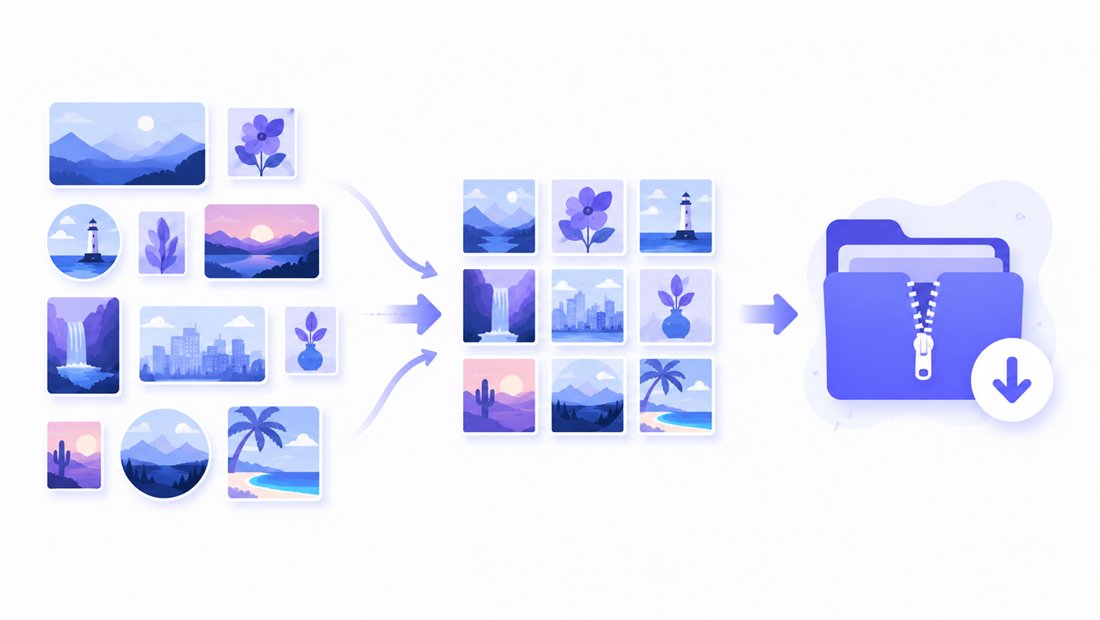
Private — nothing is uploaded
Resizing runs entirely in your browser via the Canvas API:
- No upload, no wait — even a large batch starts instantly.
- Private by design — your photos never reach a server.
- EXIF removed by default — camera and location data are stripped on export.
- Works offline — once the page has loaded you can disconnect.
Related tools
- Resize to 600×600 — a slightly larger square for product grids and newsletter tiles.
- Resize to 400×400 — a smaller square for compact profile pictures and app icons.
- Bulk resizer — normalize a whole set of avatars or thumbnails in one pass.
- Crop tool — center a face by hand before exporting a single avatar.
FAQ
Why resize images to 500×500?
500×500 is a versatile web square: it works as a forum or profile avatar, an inline blog illustration, and a product or auction thumbnail. It is sharp on most layouts yet light enough to keep pages loading quickly.
Will resizing to 500×500 lose quality?
Downscaling with high-quality Lanczos resampling stays crisp. Decide the mode by use case: Crop fills the square (great for avatars), while Fit shows the whole image with padding (great for illustrations). Keep "don't enlarge" on for small sources.
How do I make a square avatar from a non-square photo?
Use Crop and drag the region over the face on each image; the result is a full 500×500 square with the subject centered and no bars. Fit instead pads the photo to a square if you want it whole.
Can I resize many images to 500×500 at once?
Yes — 5 at a time for free, 20 with a free account and 100 with Premium. Use the bulk resizer with a naming pattern and download everything as one ZIP.
Are my images uploaded to a server?
No. Resizing uses your browser's Canvas API, so files never leave your device — you can even work offline once the page has loaded.
Is it free?
Yes, resizing to 500×500 is completely free with no watermark. Optional accounts only raise the batch size and unlock AI features.