Resize an image to 1024×768 for projectors, slides and forms
1024×768 is the classic XGA resolution and a 4:3 aspect ratio that refuses to die — and for good reason. Conference-room projectors, older monitors, interactive whiteboards and a surprising number of e-learning platforms still expect a 4:3 canvas, and several visa and document upload forms list 1024×768 as their maximum accepted size. Hitting that exact pixel box keeps your slide deck crisp on the wall and your document within the form's limit on the first try. ImageResizerly does the whole thing in your browser — your files are never uploaded.
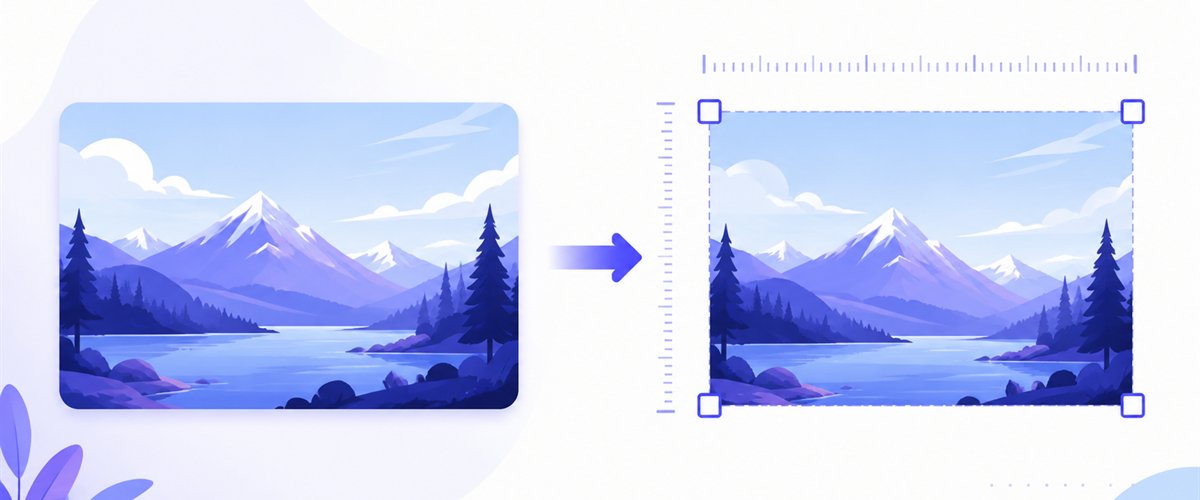
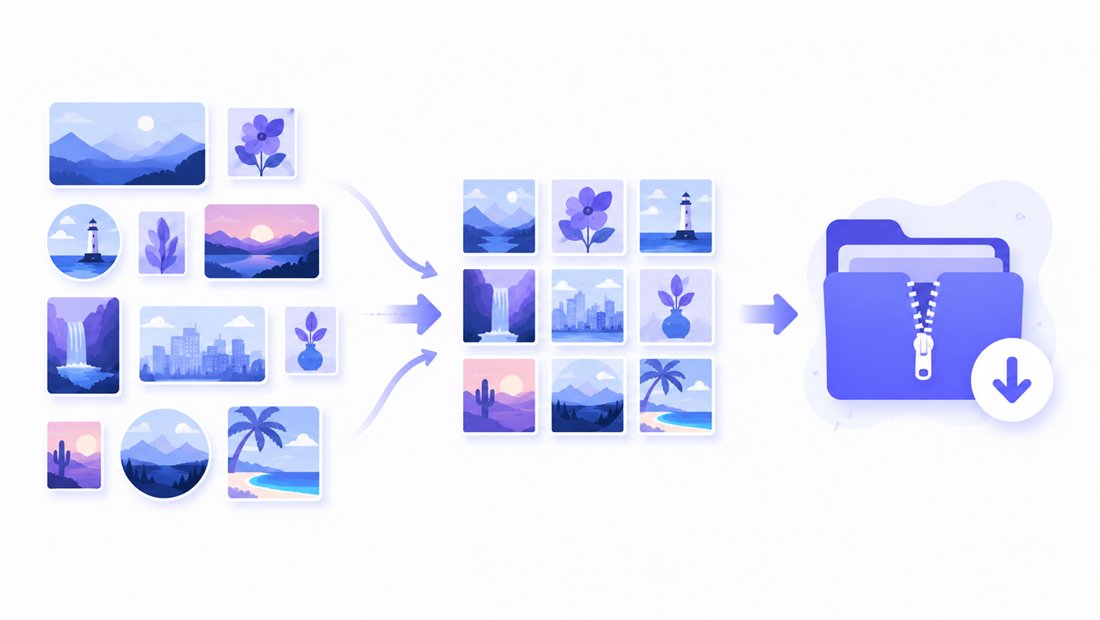
Drop one image or a whole folder, lock the size to 1024×768, choose how it should fit, and download.
How to resize an image to 1024×768
- Add your images — drag and drop, click to browse, or paste with
Ctrl+V. One photo or a folder of slide assets at once. - Set width 1024 and height 768 — type the values once; the tool re-renders every image to that exact pixel box.
- Choose a mode — Fit to letterbox the whole image inside the frame, Crop to fill it edge-to-edge, or Stretch if you truly need to force the shape.
- Download — grab a single file or the whole batch as a ZIP, optionally compressing in the same pass.
No account is needed for up to 5 images at a time; a free account raises the batch to 20 and Premium to 100. See the pricing page.
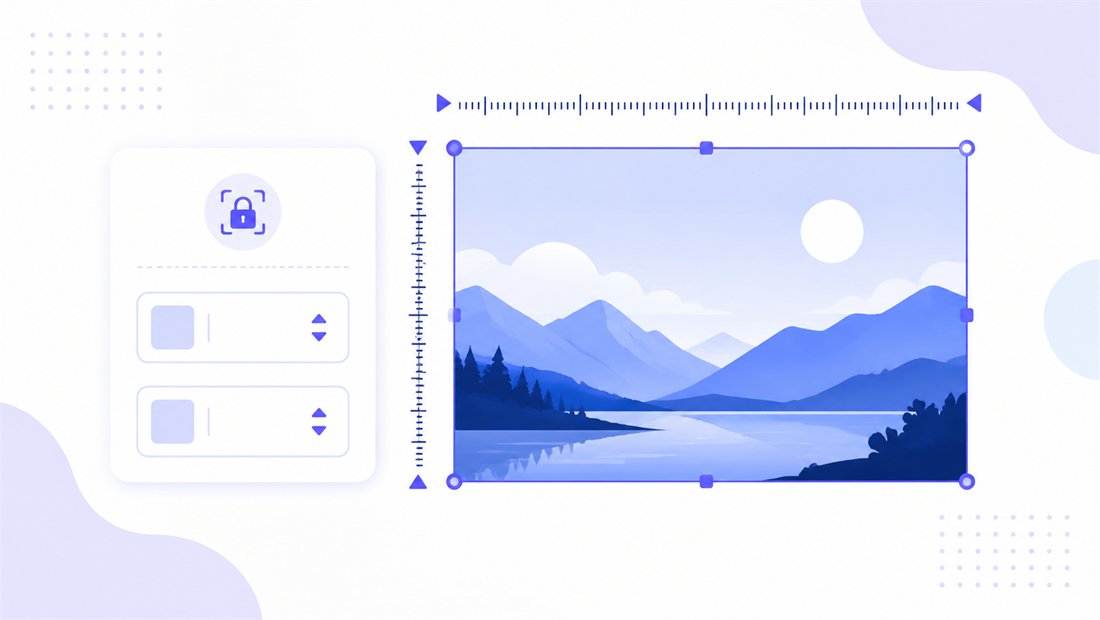
Understanding the 4:3 (XGA) shape and fit modes
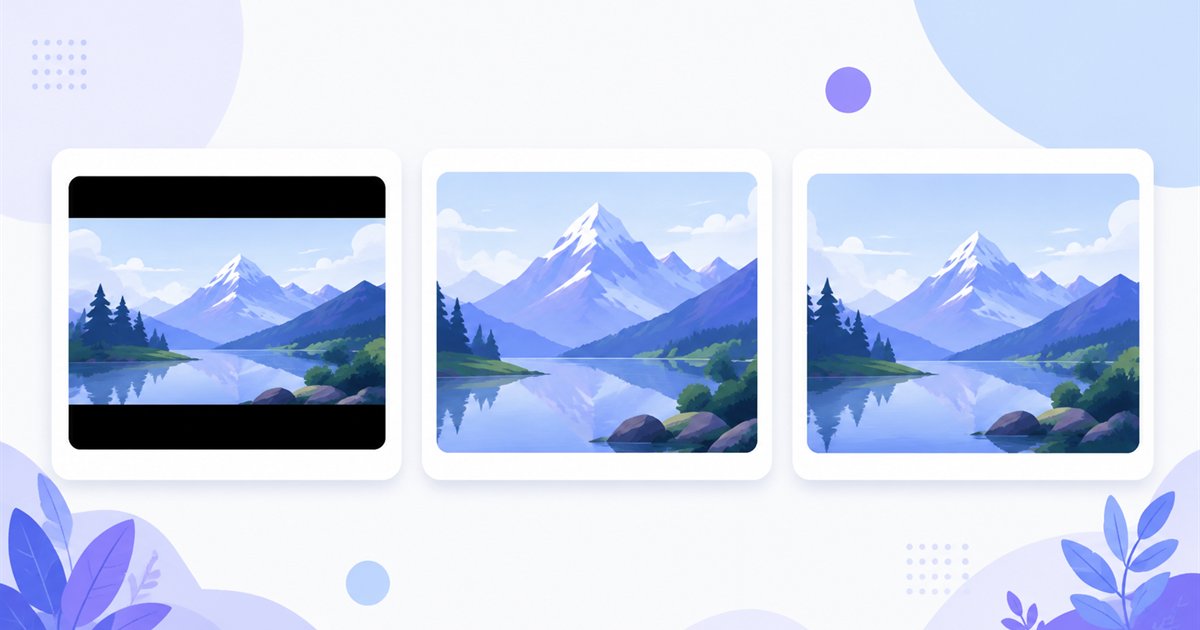
1024×768 simplifies to 4:3 — wider than it is tall, but far squarer than today's 16:9 widescreen. That matters when your source is a modern photo: a 16:9 phone shot dropped into a 4:3 frame leaves a choice to make. Three modes cover every case, and "don't enlarge" prevents a small image from being blown up into a soft, pixelated mess.
| Mode | What it does | Best for 1024×768 |
|---|---|---|
| Fit | Scales the whole image inside the box, adding bars if shapes differ | Photos you must show in full on a 4:3 projector |
| Crop | Fills 1024×768 completely and trims the overflow (drag the region per thumbnail) | Slide backgrounds and document photos that must fill the frame |
| Stretch | Forces the image to 1024×768 exactly, distorting if needed | Re-fitting a near-4:3 source where minor distortion is invisible |
For visa and document photos, Crop usually wins: it fills the required box exactly with no letterbox bars, and the drag-to-position region lets you center a face precisely.
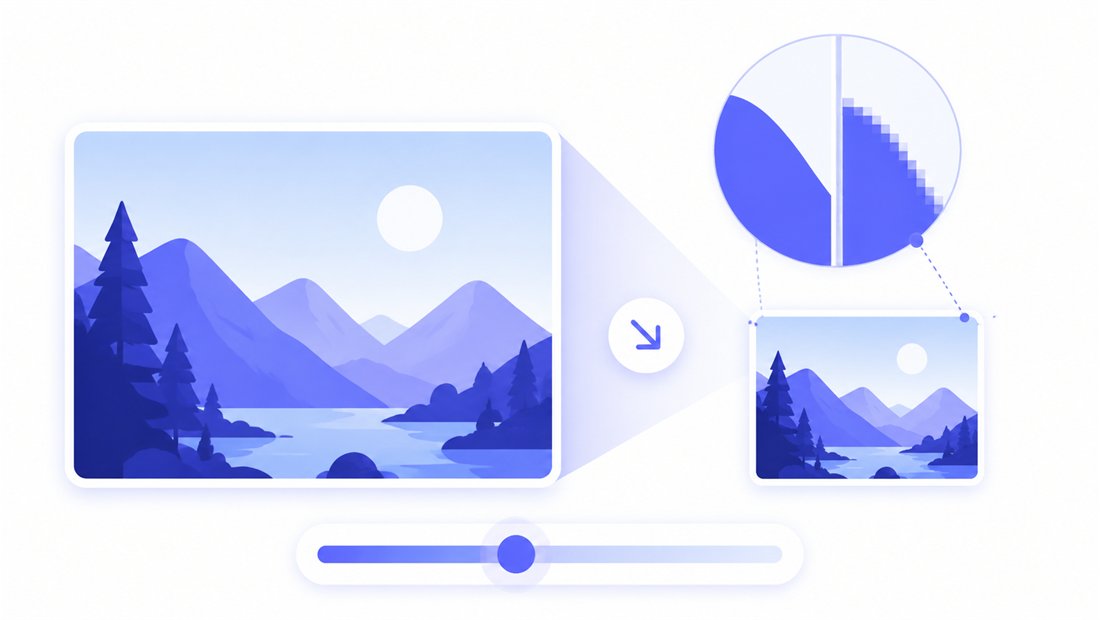
High-quality 4:3 downscaling
Going from a multi-megapixel photo down to 1024×768 is a big reduction, and a naive resize leaves jagged edges and shimmering text. ImageResizerly uses Lanczos resampling (via Pica) so lines stay smooth and small lecture-slide text stays legible. The quality slider shows a live size estimate, and you can export as JPG, PNG, WebP or AVIF — JPG keeps projector slides small, PNG keeps a screenshot's text razor-sharp.
Batch-resize a whole slide deck to 1024×768
Building an e-learning module or a 4:3 presentation? Drop every screenshot, diagram and photo at once and ImageResizerly renders them all to a uniform 1024×768, then packages them as a single ZIP. Filename patterns (prefix, suffix, counter) keep slide-001, slide-002 in order. Need a different shape elsewhere? Send the same batch through bulk resizing at another size, or cap weights with compress to 100 KB.
Private — nothing is uploaded
Resizing runs entirely in your browser using the Canvas API:
- No upload, no wait — even a large folder of slides starts processing instantly.
- Private by design — your images never reach a server.
- EXIF removed by default — location and camera data are stripped on export, which document forms appreciate.
- Works offline — once the page has loaded you can disconnect and keep working.
Related tools
- Resize to 800×600 — the smaller SVGA sibling in the same 4:3 family for lighter web images.
- Resize to 1280×720 — switch to 720p widescreen when your projector or screen is 16:9.
- Bulk resizer — push a whole library through any custom size with one set of rules.
- Compress to 100 KB — shrink the finished 1024×768 files to meet strict upload limits.
FAQ
Why would I still use 1024×768?
Because 4:3 hardware and forms are everywhere: meeting-room projectors, older monitors, interactive whiteboards, e-learning players and many visa or document upload fields that cap images at XGA. Matching 1024×768 exactly avoids cropping surprises and rejected uploads.
Will resizing to 1024×768 lose quality?
Downscaling discards pixels, but Lanczos resampling keeps the result sharp with no jagged edges. Keep the JPG quality slider at 85–95% for slides; use PNG when text and diagrams must stay crisp.
My photo is 16:9 — how do I make it 4:3?
Use Crop to fill the 1024×768 frame and drag the region to keep the important part, or use Fit to show the whole photo with small bars. Stretch is only sensible when the source is already close to 4:3.
Can I resize many images to 1024×768 at once?
Yes — 5 at a time for free, 20 with a free account and 100 with Premium. Every image is rendered to 1024×768 and downloaded as a single ZIP, with consistent filenames.
Are my images uploaded to a server?
No. Everything runs in your browser via the Canvas API, so files never leave your device — you can even work offline once the page has loaded.
Is it free?
Yes, resizing to 1024×768 is completely free with no watermark. Optional accounts only raise the batch size and unlock AI features.