Resize Image to 600×600 — the medium square for catalogs and listings
A 600×600 image is the workhorse square of online retail. It is large enough to look sharp on a retina product grid, yet small enough to load fast in a long catalog or a newsletter. Marketplaces such as Amazon, eBay and many shop themes recommend a square master image around this size for listing thumbnails, and email tools render 600 px wide layouts beautifully — a 600×600 tile fills a single column with room to spare. ImageResizerly resizes to 600×600 entirely in your browser, so your product photos are never uploaded to a server.
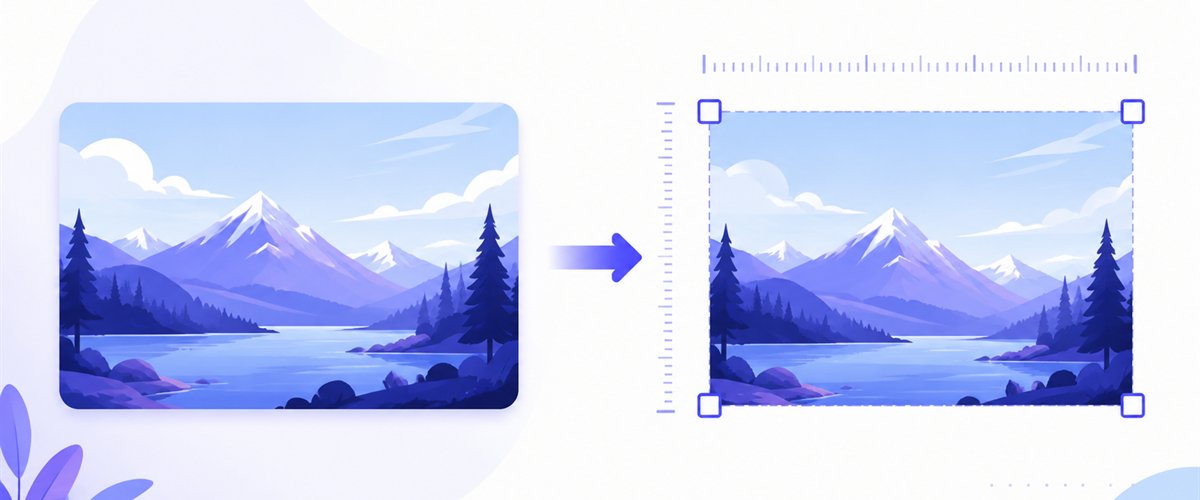
Drop one photo or a whole product folder, lock the square, and download a single PNG or the entire batch as a ZIP.
How to resize an image to 600×600
- Add your images — drag and drop, click to browse, or paste with
Ctrl+V. One photo or a full folder of products at once. iPhone HEIC files are read automatically. - Set width and height to 600 × 600 — type the numbers once or pick the 1:1 square preset.
- Choose a mode — Fit, Crop or Stretch — for product photos that aren't already square, Crop with the draggable area keeps the item centered and fills the tile edge to edge.
- Download — get one 600×600 file or the whole batch as a ZIP.
No account is needed for up to 5 images at a time; a free account raises the batch to 20 and Premium to 100. See the pricing page.
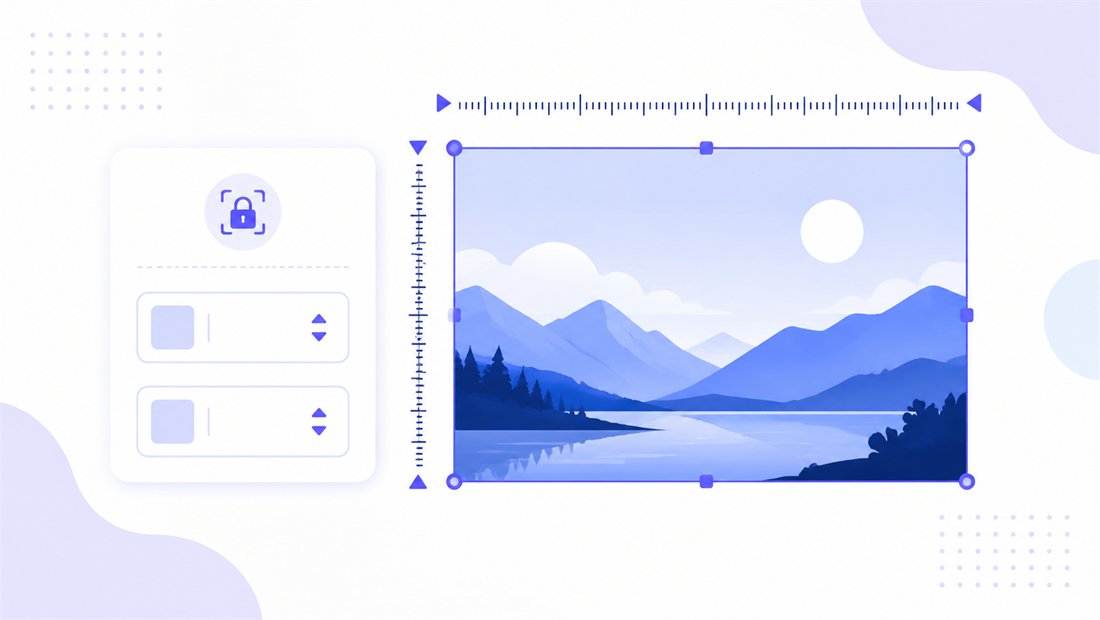
A perfect square: choosing Fit, Crop or Stretch
600×600 is a 1:1 square (aspect ratio 1.0). Most product photos arrive as rectangles, so the mode you pick decides how the photo becomes square:
| Mode | What it does | Best for 600×600 |
|---|---|---|
| Fit | Scales the whole image inside the square, adding padding | Logos or items you want fully visible with margin |
| Crop | Fills the square and trims overflow — draggable region per image | Product photos where the item should fill the tile |
| Stretch | Forces the image to 600×600, distorting if not square | Rarely — only when the source is already square |
For a clean catalog, Crop is usually the right call: it guarantees every tile is edge-to-edge with no letterboxing, and the per-thumbnail draggable region lets you center each product. Keep "don't enlarge" on if some sources are smaller than 600 px so they aren't blown up and softened.

Sharp at 600×600, with a controllable file size
Going from a big camera photo down to 600×600 is a heavy downscale, and naive scaling leaves jagged edges. ImageResizerly uses high-quality Lanczos/Pica resampling, so text on packaging and fine product detail stay smooth — no staircase artifacts. Pick the output format that suits the channel: PNG for graphics and logos, JPG for photos, or WebP/AVIF for the smallest files where supported. The quality slider shows a live size estimate so you can keep newsletter tiles light without visible loss.

Standardize a whole catalog to 600×600
The real time-saver is batch resizing. Drop a folder of mixed product shots and every one is normalized to the same 600×600 tile, then downloaded together as a ZIP — instantly consistent thumbnails across your store. Use the bulk resizer with naming patterns (a prefix, suffix or counter like sku-001, sku-002) so files import cleanly into your shop or marketplace feed. Need a slightly larger hero too? Export the same set at 1000×1000 in a second pass.
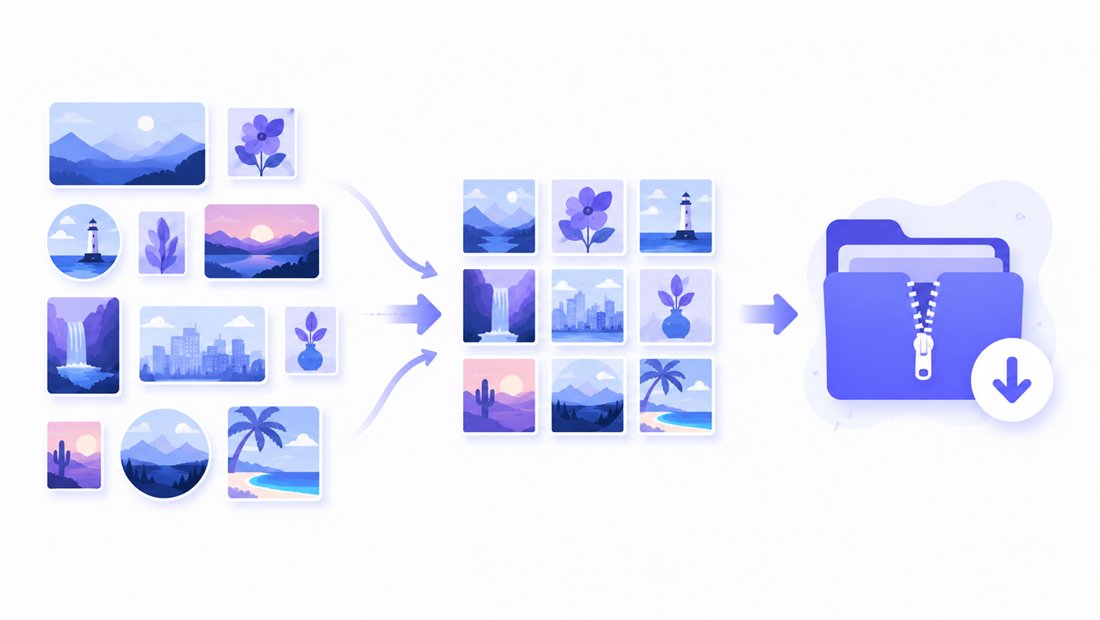
Private — nothing is uploaded
Resizing runs entirely in your browser via the Canvas API:
- No upload, no wait — even a large product batch starts instantly.
- Private by design — your photos never reach a server.
- EXIF removed by default — camera and location data are stripped on export.
- Works offline — once the page has loaded you can disconnect.
Related tools
- Resize to 1000×1000 — a larger square for zoomable hero shots and high-res listings.
- Resize to 500×500 — a slightly smaller square for avatars and compact thumbnails.
- Bulk resizer — normalize an entire catalog to one size in a single pass.
- Crop tool — fine-tune the square framing of a single product photo by hand.
FAQ
Why resize images to 600×600?
600×600 is a popular medium square for product thumbnails, marketplace listing images, newsletter tiles and catalog grids. It is sharp on modern screens yet light enough to keep long lists and emails loading quickly.
Will resizing to 600×600 lose quality?
Downscaling with high-quality Lanczos resampling stays crisp. The main thing to decide is the mode: Crop fills the square (trimming edges), while Fit shows everything with padding. Keep "don't enlarge" on so smaller sources aren't blown up.
My product photos aren't square — what happens?
Use Crop and drag the region on each thumbnail to center the item; the result fills the full 600×600 tile with no bars. Fit instead pads the photo to a square if you'd rather see it whole.
Can I resize many photos to 600×600 at once?
Yes — 5 at a time for free, 20 with a free account and 100 with Premium. Use the bulk resizer with a naming pattern and download everything as one ZIP.
Are my images uploaded to a server?
No. Resizing uses your browser's Canvas API, so files never leave your device — you can even work offline once the page has loaded.
Is it free?
Yes, resizing to 600×600 is completely free with no watermark. Optional accounts only raise the batch size and unlock AI features.