Resize an image to 300×300 — the all-purpose small square
A 300×300 image is one of the most useful little squares on the web. It is big enough to look sharp as a forum avatar, a profile picture or a product thumbnail, yet small enough to load instantly in a list or a grid. The 300-pixel square is also a common source size for app and shop icons: you export once at 300×300 and downscale to 256, 128, 64 or 48 px from there. ImageResizerly produces that exact square entirely in your browser — your photos are never uploaded to any server.
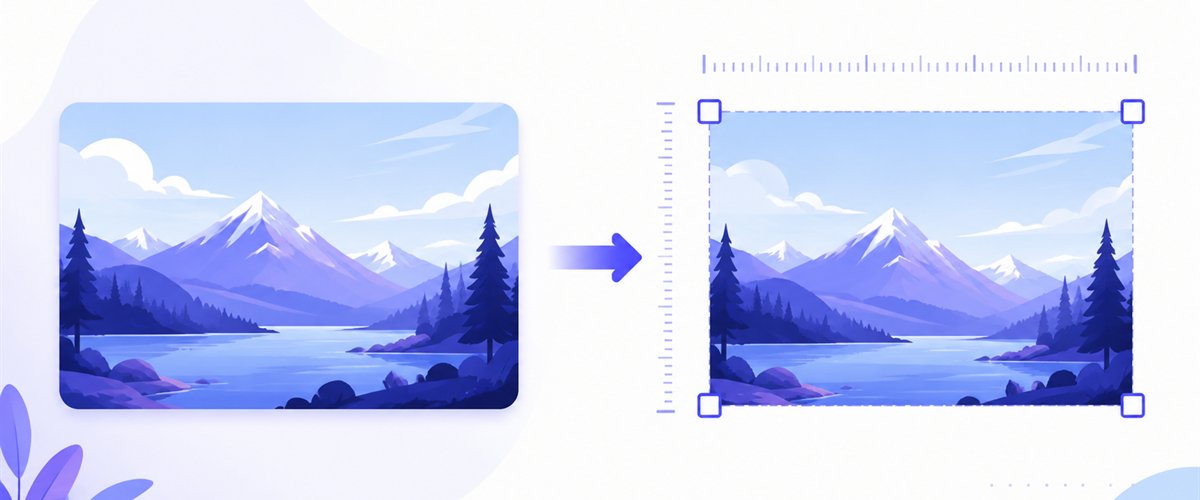
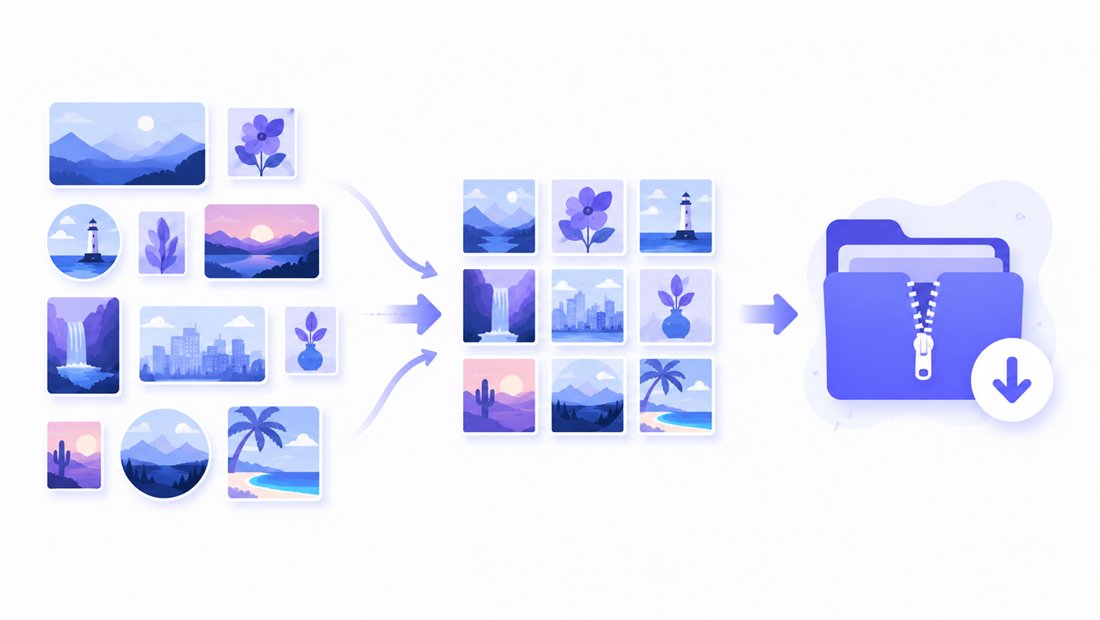
Drop one photo or a whole folder, pick how it should fill the square, and download a single PNG/JPG or the whole set as a ZIP.
How to resize an image to 300×300
- Add your images — drag and drop, click to browse, or paste with
Ctrl+V. One picture or a whole folder at once; HEIC photos from an iPhone are read too. - Set width and height to 300 × 300 — type the numbers once, or pick the square preset, and every image targets the same frame.
- Choose a mode — Fit keeps the whole picture inside the square, Crop fills it edge to edge (drag the crop area on each thumbnail), Stretch forces the exact box.
- Download — save one image or the whole batch as a ZIP.
No account is needed for up to 5 images at a time; a free account raises the batch to 20 and Premium to 100. See the pricing page.
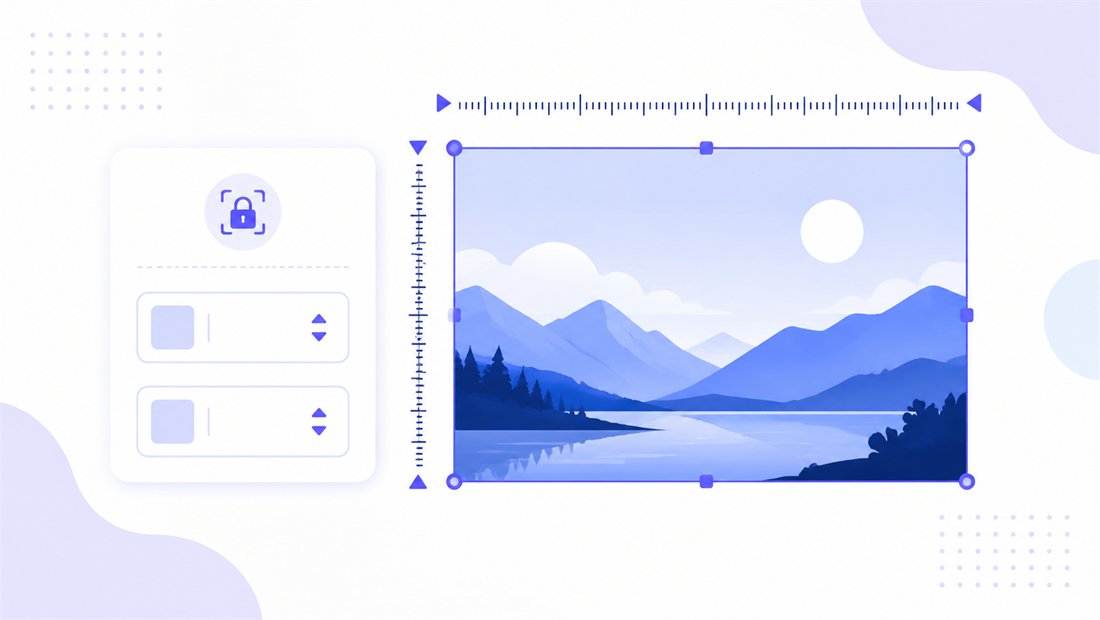
A perfect square: 1:1 and the three fit modes
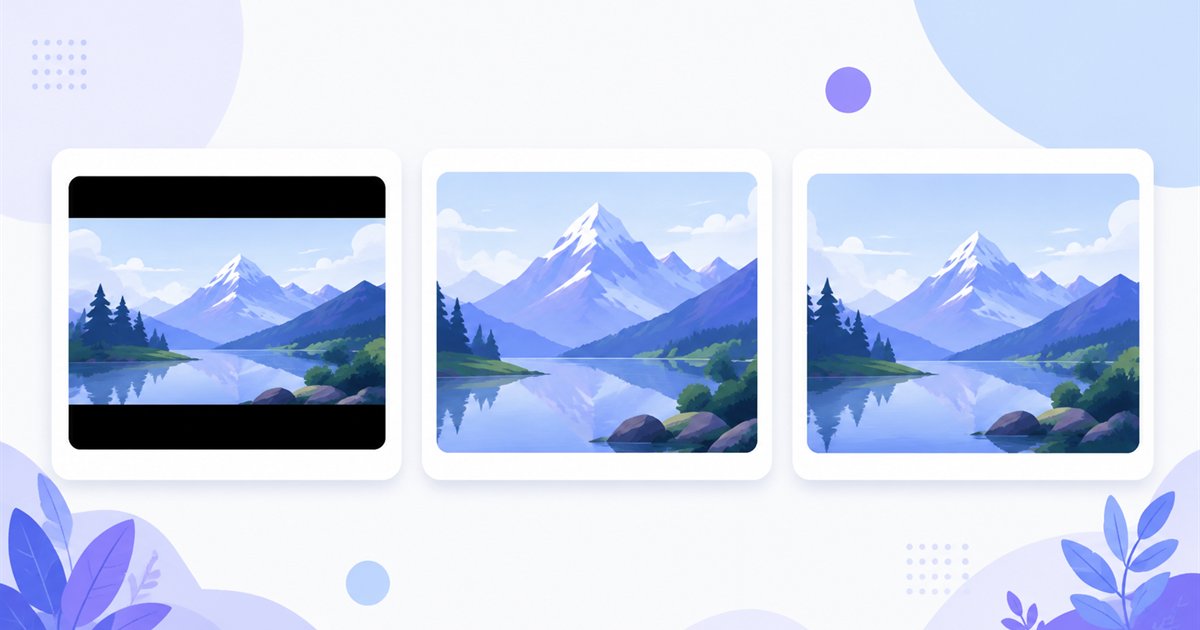
300×300 is a 1:1 square (aspect ratio 1:1), so the challenge is rarely the size — it is what to do with a rectangular photo that does not fit a square. That is what the modes are for:
| Mode | What it does | Best for 300×300 |
|---|---|---|
| Fit | Scales the whole image inside the square, may add padding | Logos and graphics you must show in full |
| Crop | Fills the square edge to edge, trims the overflow | Avatars and profile photos — keep the face centred |
| Stretch | Forces the image into 300×300, may distort | Already-square sources only |
For avatars and profile pictures, Crop almost always wins: it gives a tight, edge-to-edge square with no awkward bars. Use the draggable crop box on each thumbnail to keep the subject centred. Keep "don't enlarge" on if some sources are smaller than 300 px, so a tiny image is never blown up into a blurry square.
Sharp at small sizes
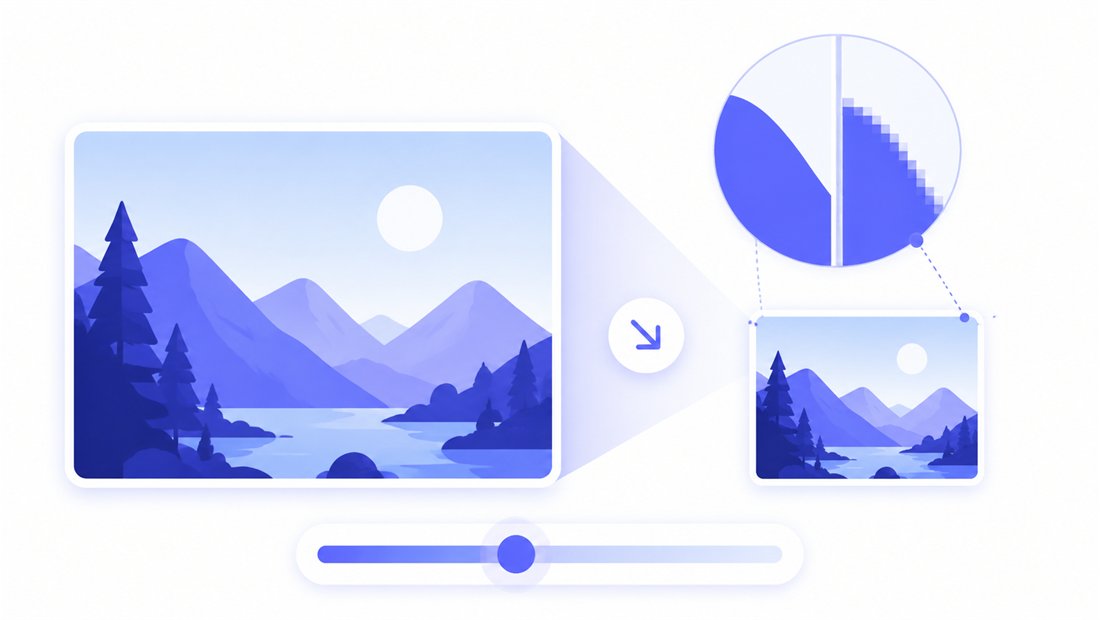
A 300-pixel square is small, so clean downscaling matters: jagged edges and aliasing are very visible at this size. ImageResizerly uses high-quality Lanczos/Pica resampling, so a downscaled avatar looks smooth, not stair-stepped. The quality slider, with a live size estimate, lets you tune the trade-off — a 300×300 JPG at 85% is usually only a few kilobytes, ideal for fast-loading lists. Export as JPG, PNG, WebP or AVIF: PNG if you need a transparent icon source, JPG or WebP for tiny photographic avatars.
Make a whole set of 300×300 thumbnails at once
Building a product grid, a team page or a forum that needs uniform avatars? Drop every photo and each one is cropped and scaled to the same 300×300 frame independently, then downloaded together as a ZIP. Add a name pattern (prefix, suffix or a counter like avatar-001) so the files stay tidy. Need other sizes from the same batch? The bulk resizer handles them in one pass.
Private — nothing is uploaded
Resizing runs entirely in your browser via the Canvas API:
- No upload, no wait — even a large batch starts instantly.
- Private by design — your images never reach a server.
- EXIF removed by default — location and camera data are stripped on export.
- Works offline — once the page has loaded you can disconnect.
Related tools
- Resize to 200×200 — an even smaller square for tiny thumbnails and icon sources.
- Resize to 400×400 — a larger square avatar with more detail.
- Crop image — frame the subject precisely before squaring it.
- Bulk resizer — push a whole folder to one size at once.
FAQ
What is a 300×300 image used for?
It is the go-to small square: forum and chat avatars, profile pictures, product and gallery thumbnails, list and grid images, and a handy source size to downscale app or shop icons from.
Should I use Fit or Crop for an avatar?
Crop. It fills the whole 300×300 square edge to edge with no padding, which is what avatars and profile pictures need. Drag the crop box to keep the face or subject centred.
Will resizing to 300×300 lose quality?
Downscaling a larger photo to 300×300 looks great thanks to Lanczos resampling. Avoid enlarging a smaller image into the square — keep "don't enlarge" on so a tiny source is never blown up and blurred.
Can I resize many images to 300×300 at once?
Yes — 5 at a time for free, 20 with a free account and 100 with Premium. Each image is squared independently and you download them all as one ZIP.
Are my images uploaded to a server?
No. Resizing uses your browser's Canvas API, so files never leave your device — you can even work offline after the page loads.
Is it free?
Yes, resizing to 300×300 is completely free with no watermark. Optional accounts only raise the batch size and unlock AI features.