Enlarge an image without it turning into a blurry mess
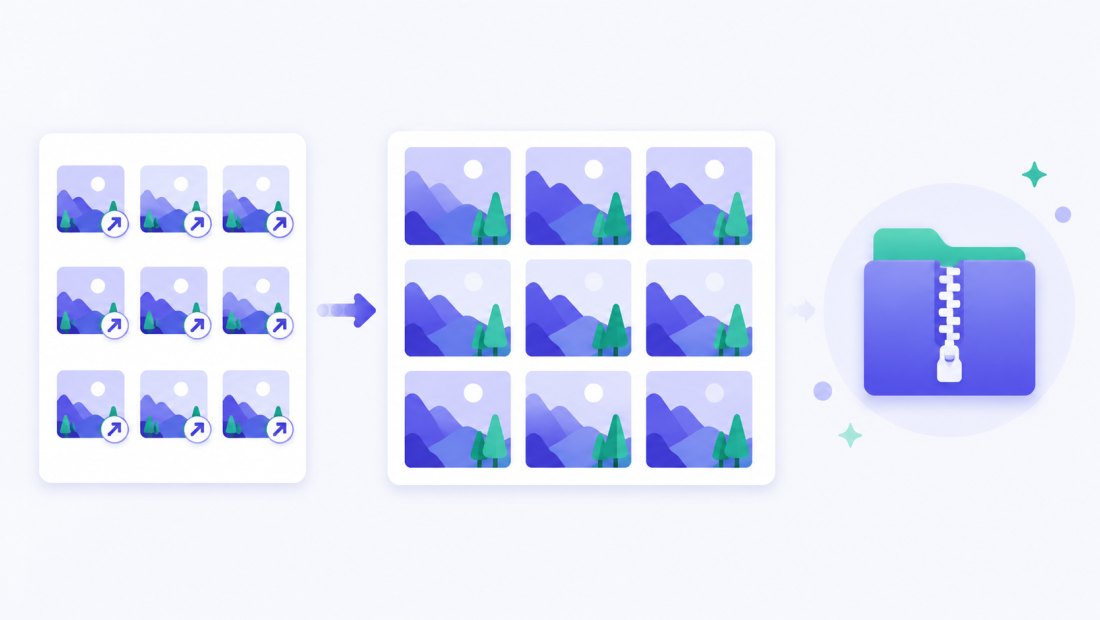
You have a photo that is simply too small — for a print, a banner, a cropped detail or an old picture from years ago. Stretch it the normal way and the result goes soft and pixelated, because ordinary enlarging just spreads the same pixels over more space. ImageResizerly enlarges your image with an AI upscaling model that does the opposite: it reconstructs detail at 2× or 4× the size, so edges stay crisp and textures stay clean. A photo that looked tiny becomes big enough to use — and still looks sharp.
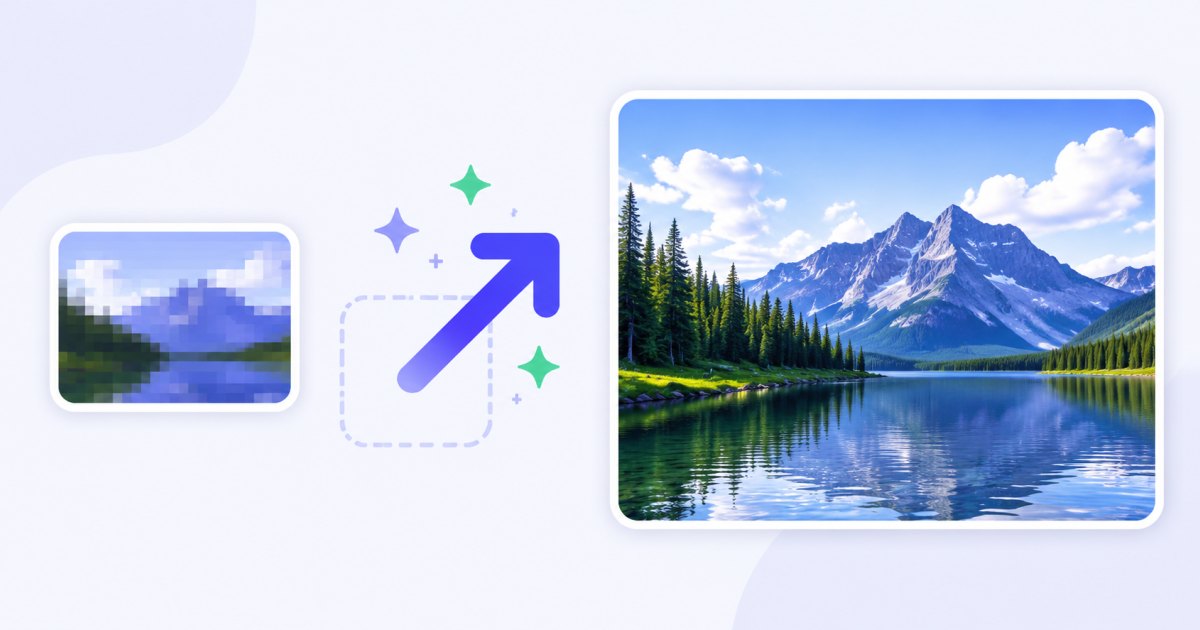
Enlarging is an AI feature, so it uses credits (everything else on the site is free and runs in your browser). New accounts get 3 trial credits plus 2 free AI operations every day, so you can enlarge a few photos before buying anything.
Ordinary enlarging vs AI: blurry vs sharp
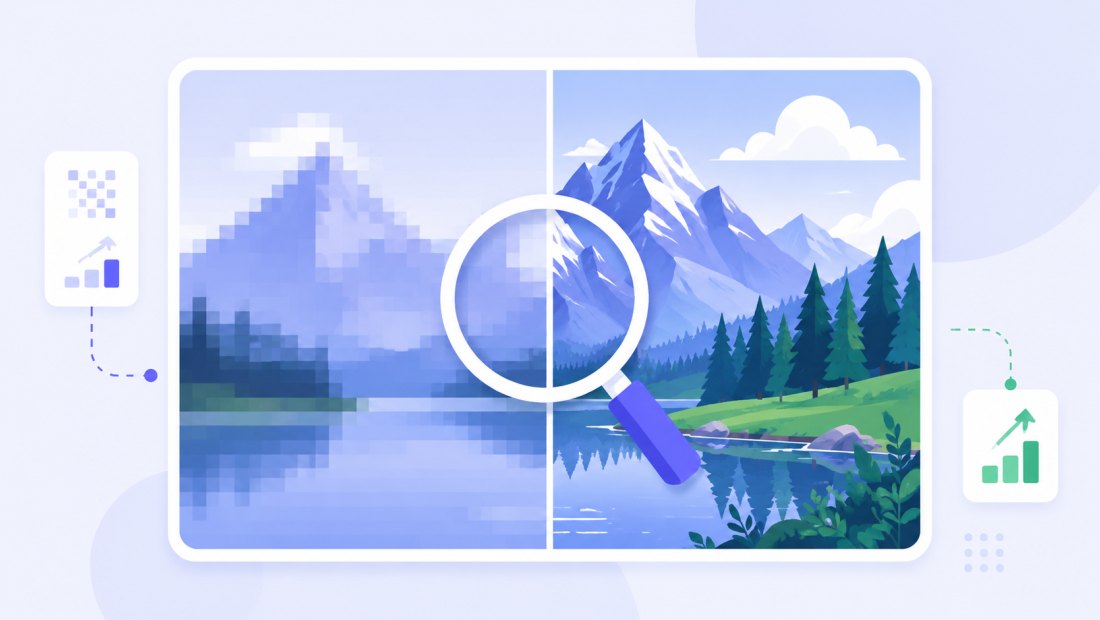
This is the difference that matters. When you scale a small image up the normal way, the software has no new information — it just interpolates, smearing existing pixels across a larger canvas. The bigger you go, the softer and more jagged it looks. AI enlarging is trained on millions of photos, so it predicts what the missing detail should be: hair, fabric weave, brick texture, the edges of letters. The result is a genuinely larger image, not a stretched one.
| Ordinary enlarge (stretch) | AI enlarge (upscale) | |
|---|---|---|
| How it works | Spreads existing pixels | Reconstructs new detail |
| Edges | Soft, jagged | Crisp |
| Fine texture | Blurred away | Restored |
| Good for big sizes | No | Yes (2× / 4×) |
| Best use | Tiny tweaks only | Real enlargement |
How to enlarge an image
- Add your photo — drag and drop, browse, or paste with
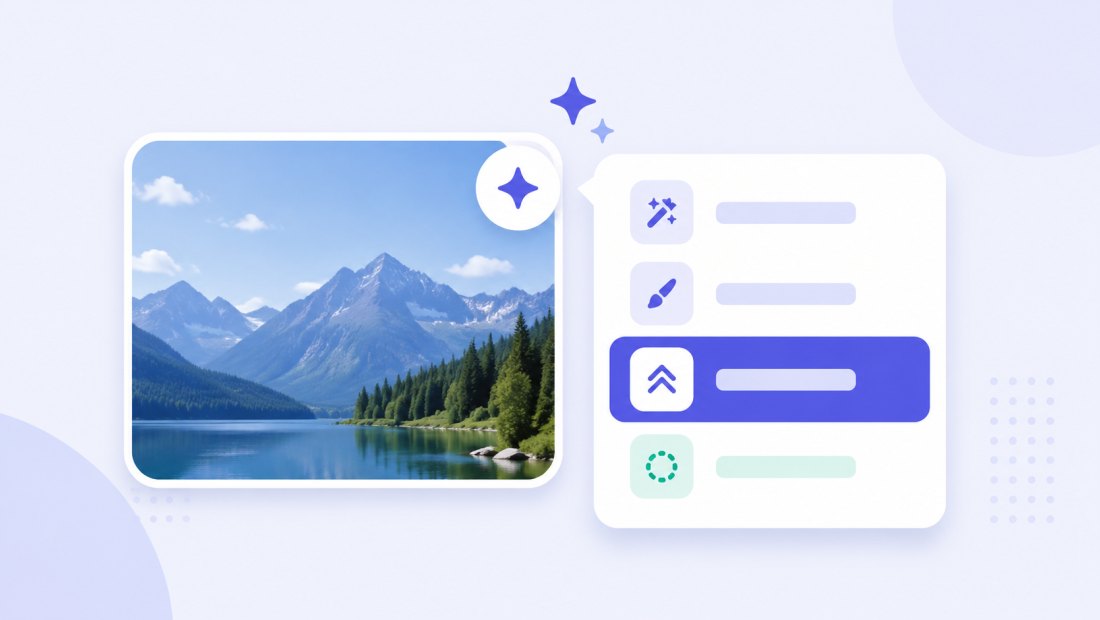
Ctrl+V. JPG, PNG, WebP and iPhone HEIC are supported. - Open the ✨ AI menu on the thumbnail (or the AI button above the grid for several photos).
- Choose Upscale 2× or 4× — the AI image upscaler enlarges your image and the bigger, sharper version replaces the original in your batch.
- Finish and download — crop, resize to an exact size, watermark or compress in the same pass, then download one image or the whole batch as a ZIP.
You need a free account to use AI features. See credits and packs on the pricing page.
What you can do after enlarging
Because the enlarged photo stays in your batch as a normal image, you can keep working on it right away:
- Crop to a detail — now that the image is bigger, you can crop in tighter and still have enough pixels.
- Resize to an exact size — cap a web image at 1920 px or set print dimensions.
- Remove the background — combine with remove background for a clean, high-resolution cutout.
- Compress for the web — shrink the file with compression to 100 KB without re-introducing softness.
- Add a watermark before you publish or hand the file over.
For a bigger jump in one step, go straight to upscale 4x.
When enlarging an image really helps
- Printing from a small photo — a picture that is fine on screen is often too low-resolution for a sharp print. Enlarge it 4× first so it holds up at A4 or poster size.
- Enlarging a crop — you cropped into a photo and the keeper is now tiny. Upscale brings it back to a usable size with the detail intact.
- Old or low-quality photos — scans, screenshots and pictures from old phones are small and soft. AI enlarging makes them big and clean again.
- Product and listing images — meet a marketplace's minimum resolution without reshooting.
- Thumbnails and avatars — turn a small source image into a larger, sharper one.
Credits and pricing
Enlarging uses credits because the AI runs on a server. The cost depends on how big you go:
| Cost | |
|---|---|
| Enlarge 2× | 2 credits |
| Enlarge 4× | 3 credits |
| New account | 3 trial credits |
| Every day (registered) | 2 free AI operations |
| Credit packs | from $4.99 for 100 credits |
| Pack credits | never expire |
Everything you do after enlarging — crop, resize, watermark, compress, ZIP — is free and local. Packs scale up (500 and 2000 credits) for high-volume work, and Premium includes a monthly credit allowance. Full details on the pricing page.
There is a size limit on the input image so the model runs reliably — very large files are best resized down a little first, since enlarging a moderate image 4× gives a better result than feeding in something already huge.
Enlarge a whole batch of images
Have a set of small photos to enlarge? Open the AI menu above the grid and the batch runs in a queue, a couple of images at a time. Because each enlargement costs credits, you get a confirmation showing the total cost and your balance before anything runs — so there are no surprises.
Your privacy
Enlarging is one of the few features that needs a server, and we keep it tight:
- Only the image you send for AI leaves your browser — it passes through our server to the AI provider and is never stored.
- Everything else stays local — cropping, resizing, watermarking and compression run 100% in your browser.
- EXIF is stripped from exports by default.
FAQ
Can I really enlarge an image without losing quality?
Yes — that is the whole point of AI enlarging. Instead of stretching the same pixels (which goes blurry), the model reconstructs detail at 2× or 4×, so the bigger image stays sharp. It works best on real photos rather than flat graphics or text.
How is this different from just resizing an image bigger?
Ordinary resizing interpolates: it spreads existing pixels over more space, so edges go soft and fine texture is lost. AI enlarging predicts the missing detail, so you get a genuinely larger image that looks sharp, not a stretched, blurry one.
How much does it cost to enlarge a photo?
2 credits for 2× and 3 credits for 4×. New accounts get 3 trial credits plus 2 free AI operations every day, and credit packs start at $4.99 for 100 credits and never expire.
Is the enlarged image good enough to print?
For most photos, enlarging 4× gives enough resolution for a sharp A4 or small poster print. Start from the best original you have — the cleaner the input, the better the enlarged result.
Is there a limit on the image size I can upload?
Yes, there is a size limit on the input so the model runs reliably. If a file is very large, resize it down a little first; enlarging a moderate image 4× usually beats feeding in something already huge.
Do I need an account, and are my photos private?
You need a free account for AI features. Only the image you send for enlarging leaves your browser — it passes through our server to the provider and is never stored. Everything else (resize, crop, compression) runs entirely on your device.
Can I enlarge several images at once?
Yes. Use the AI menu above the grid; the batch runs in a queue and you confirm the total credit cost before it starts, then download everything as a ZIP.