Convert BMP to JPG — cut the file size by 90%
BMP is an uncompressed format, which means even a small image stores every single pixel raw — so old Windows files, scans and screen captures saved as BMP are enormous, often ten to twenty times larger than they need to be. Converting BMP to JPG can shrink the file by 90% or more while keeping it visually identical, and produces a modern, universal file that every app, email and printing service accepts. ImageResizerly does it entirely in your browser — your images are never uploaded.
Drop one image or a whole folder, set the quality, and download a single JPG or the whole batch as a ZIP.
How to convert BMP to JPG
- Add your BMP files — drag and drop, click to browse, or paste with
Ctrl+V. Single images or a whole folder at once. - JPG is the target format — this tool decodes every BMP locally and re-encodes it as a standard JPG.
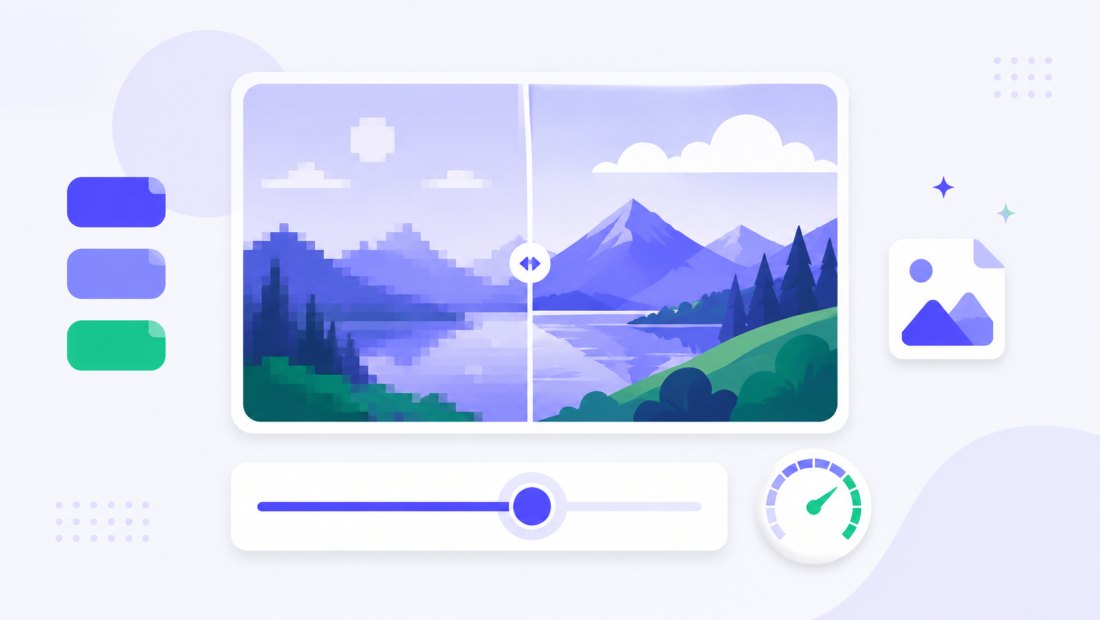
- Set the quality — the slider (85–95% is ideal) lets you balance file size against fidelity, with a live size estimate.
- Convert and download — get one JPG or the whole batch as a ZIP. Resize or compress in the same pass if you like.
No account is needed for up to 5 images at a time; a free account raises the batch to 20 and Premium to 100. See the pricing page.
Why BMP files are so big
A BMP stores raw pixel data with little or no compression, so its size depends only on dimensions, not content. Each pixel typically takes three or four bytes, one per colour channel, and the format writes every one to disk whether the image is a busy photo or a flat blue square — no pattern detection, no entropy coding, no chroma subsampling, just a literal map of the picture. That is why a plain 1920×1080 screenshot can weigh around 6 MB as a BMP, while the same image as a JPG is often under 300 KB.
This also makes a BMP's size predictable: width × height × bytes per pixel is almost the whole file. A 4000×3000 photo from an industrial camera lands near 36 MB before you touch it. That is exactly why BMP fell out of favour for sharing — it eats disk space, clogs email attachments and is rejected by many upload forms that cap files at a few megabytes.
JPG attacks the problem from the other direction: it discards detail the eye barely notices and packs the rest efficiently, so size tracks visual complexity rather than raw dimensions. For photos, scans and screenshots that trade is almost invisible — which is what makes BMP to JPG such a one-sided win.
BMP vs JPG — when to use which
Both formats can hold the same picture, but they are built for opposite goals. BMP keeps every pixel exactly as written, which suits a narrow set of legacy and editing workflows; JPG throws away imperceptible detail to stay small and portable.
| BMP | JPG | |
|---|---|---|
| Compression | None (raw pixels) | Lossy |
| Typical photo size | Very large | Small |
| Best for | Legacy Windows apps, raw editing | Photos, sharing, the web |
| Transparency | No | No (flattened) |
| Universal web support | Limited | Yes |
| Re-saving | Lossless | Slight loss each save |
The rule of thumb is simple: if your BMP is a photo, scan or screenshot you want to send, upload or archive, JPG will be dramatically smaller with no visible difference. Keep BMP only when a specific old program demands it — and even then a format like PNG to JPG shows the same trade-off from the lossless side.
Where BMP files come from
You rarely create a BMP on purpose these days — they arrive from older tools and hardware. Common sources:
- Old Windows software — Microsoft Paint defaulted to BMP for years, and many legacy apps still export it.
- Scanners — many scanning utilities save a raw, uncompressed bitmap before any optimisation step.
- Industrial and machine-vision cameras — capture and inspection systems often dump frames as BMP for speed and fidelity.
- Program exports — CAD tools, medical imaging utilities and older games or emulators often spit out bitmaps.
- Screen captures — some capture tools and scripts still write BMP for ordinary screenshots.
Whatever the origin, the fix is the same: re-encode to JPG once and the file becomes a fraction of the size while staying easy to open everywhere.
No transparency in either format
Neither BMP nor JPG stores an alpha channel, so there is no transparency to lose in this conversion — the image carries over exactly as it looks, just compressed. That is one less thing to worry about than converting from PNG, where transparent areas have to be flattened onto a background. If you ever do need transparency, keep the source as PNG or convert to WebP; for plain BMP photos and scans, JPG is the right destination.
It opens everywhere
A JPG opens on every device, operating system and app — old Windows laptops, email clients, office software, printing labs and any website upload field. BMP, by contrast, is often refused by web forms and ignored by phone galleries. After a single pass through ImageResizerly your bitmaps become files you can attach, post or print without a second thought.

Convert a whole batch of BMPs at once
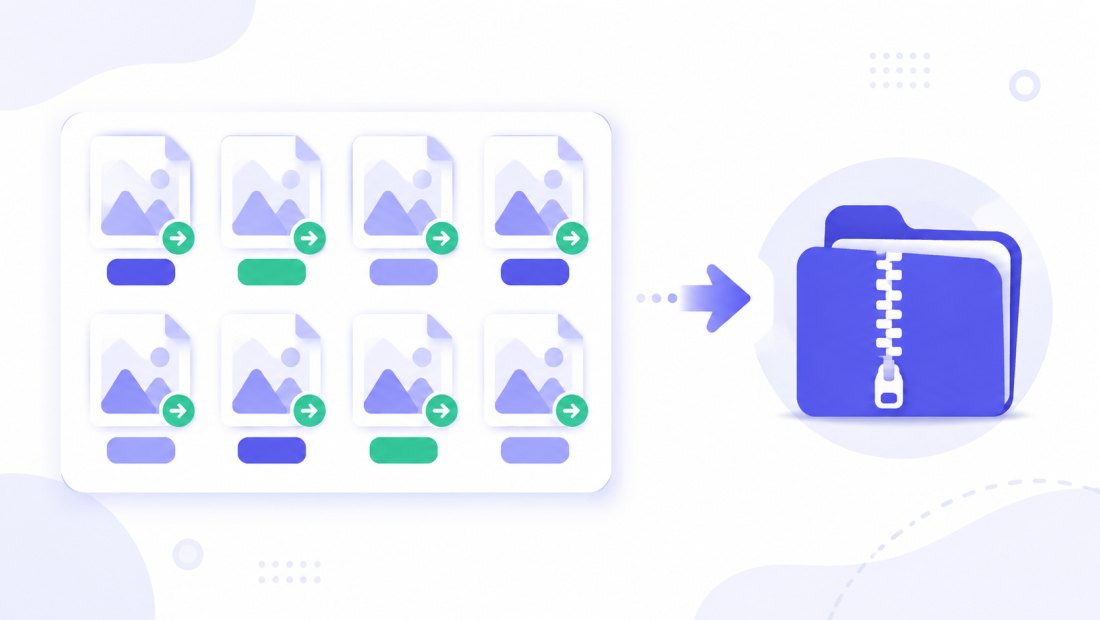
Have a folder of BMP scans or old screen captures to slim down? Drop them all and each is decoded and re-encoded to JPG independently, then downloaded together as a ZIP. Because every file is handled locally, a stack of multi-megabyte bitmaps converts as fast as your machine can work. Combine the conversion with resizing (cap everything at 1920 px) or compression to 100 KB in the same pass — handy when a batch needs to fit an upload limit.
Private — nothing is uploaded
Conversion runs entirely in your browser via the Canvas API:
- No upload, no wait — even a folder of multi-megabyte BMPs starts instantly.
- Private by design — your images never reach a server.
- EXIF removed by default — location and camera data are stripped on export.
- Works offline — once the page has loaded you can disconnect.
Related converters
- PNG to JPG — shrink lossless PNGs the same way.
- WebP to JPG — turn modern WebP into universal JPG.
- compress to 100 KB and the bulk resizer — squeeze converted files to a target size or dimension.
FAQ
Why convert BMP to JPG?
BMP is uncompressed, so files are enormous. Converting a BMP photo, scan or screenshot to JPG can cut the file size by 90% or more with no visible difference, and JPG is accepted by every app, form and printer where BMP often is not.
Will converting BMP to JPG lose quality?
JPG is lossy, but at 85–95% on the quality slider the result looks identical to the BMP while being a fraction of the size. The BMP itself was already a fixed snapshot of pixels, so you only add the gentle JPG compression you choose.
How much smaller will the JPG be?
For a typical photo or screenshot, expect the JPG to be around a tenth of the BMP — sometimes far less. A 6 MB screenshot routinely drops below 300 KB, and a large camera bitmap can shrink from tens of megabytes to a few hundred kilobytes while looking the same on screen.
What happens to transparency?
Neither BMP nor JPG supports transparency, so there is nothing to flatten — the image converts exactly as it appears. If you need an alpha channel, use PNG or WebP instead.
Can I convert many BMP files at once?
Yes — 5 at a time for free, 20 with a free account and 100 with Premium. Each BMP is decoded and re-encoded to JPG, and you download them all as one ZIP.
Are my images uploaded to a server?
No. The conversion uses your browser's Canvas API, so files never leave your device — you can even work offline after the page loads.
Is it free?
Yes, converting BMP to JPG is completely free with no watermark. Optional accounts only raise the batch size and unlock AI features.