AI image upscaler — enlarge photos without the blur
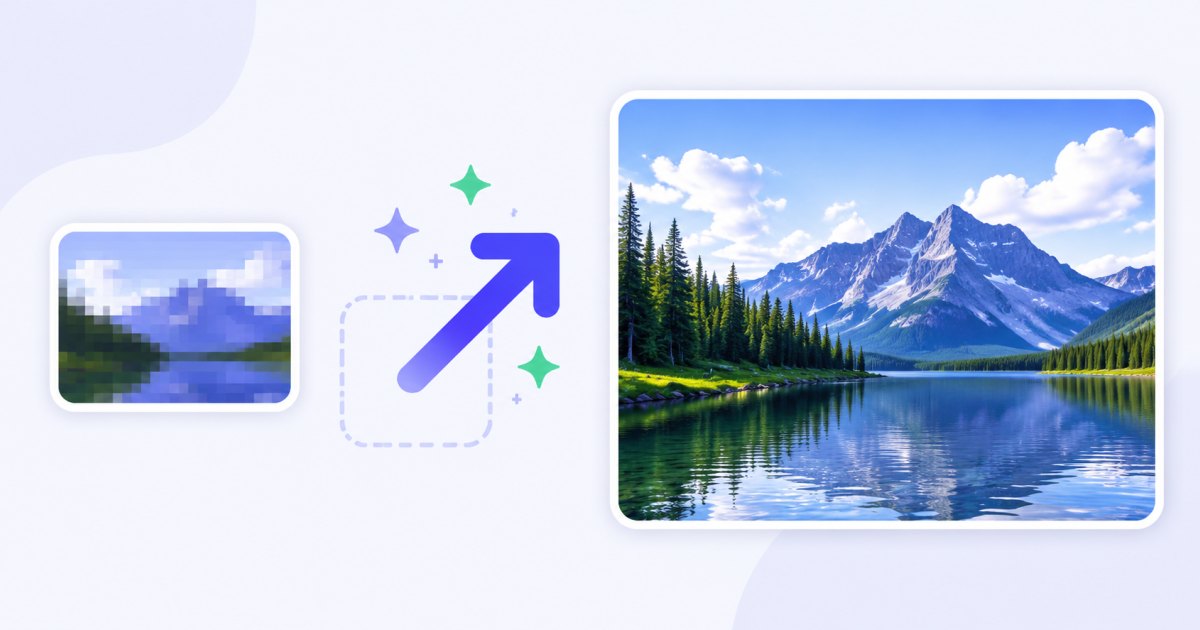
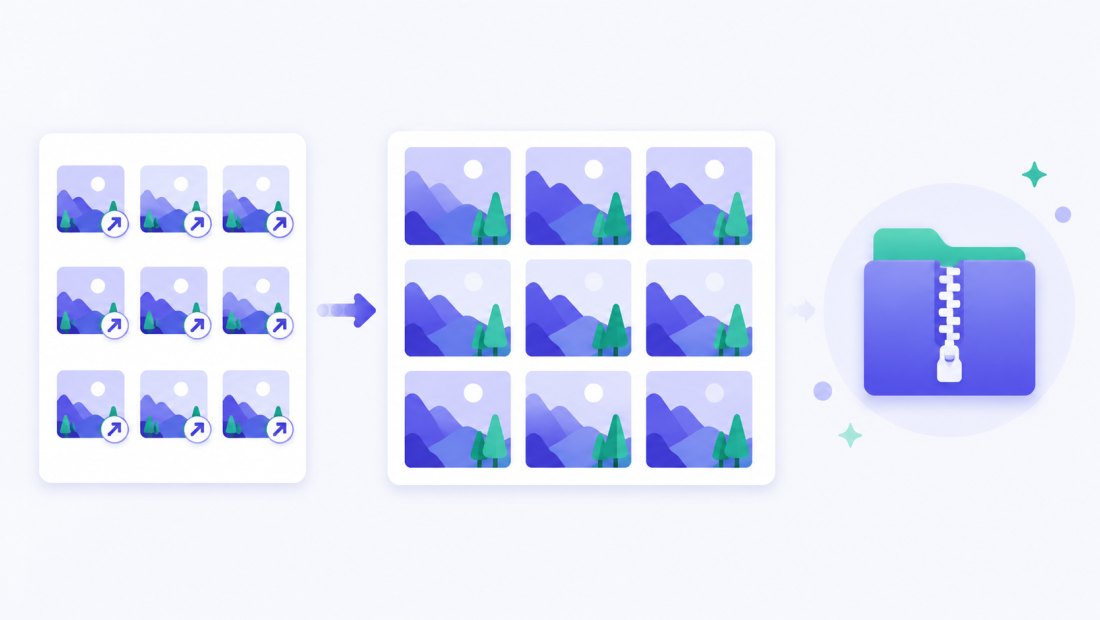
Stretching a small picture in any normal editor just makes it bigger and blurrier. An AI image upscaler is different: instead of smearing the pixels you already have, a trained model reconstructs detail — sharpening edges, recovering texture and adding plausible fine structure — so a low-resolution photo comes back larger and genuinely clearer. ImageResizerly runs this through the proven Real-ESRGAN model and drops the bigger image straight back into your batch, where the rest of the work (crop, resize, compress, ZIP) happens locally.
Upscaling is an AI feature, so it uses credits (everything else on the site is free and runs in your browser). New accounts get 3 trial credits plus free daily AI operations, so you can try the upscaler before buying anything.
How to upscale an image
- Add your photo — drag and drop, browse, or paste with
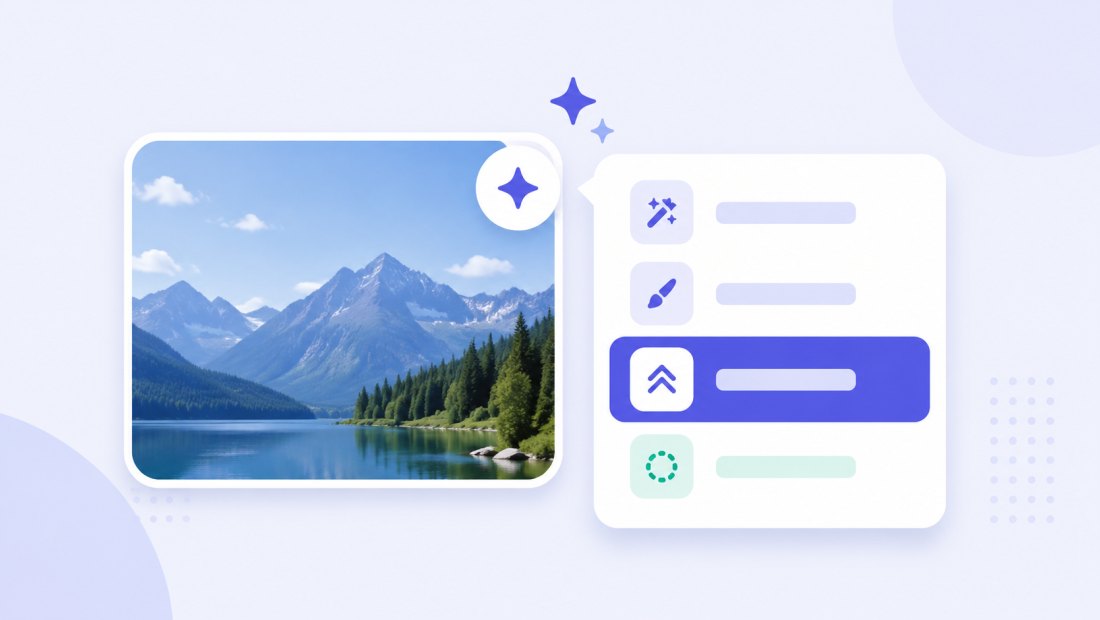
Ctrl+V. JPG, PNG, WebP and iPhone HEIC are supported. - Open the ✨ AI menu on the thumbnail (or the AI button above the grid for several photos).
- Choose “Upscale 2×” or “Upscale 4×” — the image is sent to the AI model and comes back larger and sharper, replacing the original in your batch.
- Finish and download — crop, resize to an exact size, watermark or compress, then download a single image or the whole batch as a ZIP.
You need a free account to use AI features. See credits and packs on the pricing page.
2× vs 4×: how much bigger, and what it costs
The multiplier is how much the AI enlarges each side. 2× doubles width and height (four times the pixels); 4× quadruples each side (sixteen times the pixels). Bigger isn't always better — pick the smallest factor that gets you the resolution you need.
| Option | Result size | Best for | Credit cost |
|---|---|---|---|
| Upscale 2× | Each side doubled | Web photos, mild enlargement, cleaning up compression | 2 credits |
| Upscale 4× | Each side quadrupled | Tiny thumbnails, old scans, print-size output | 3 credits |
| New account | — | 3 trial credits to start | — |
| Every day (registered) | — | 2 free AI operations | — |
A handy rule: if a photo looks fine on screen but you need it larger for print, 2× is usually enough. If it is a genuinely small or low-resolution source, 4× gives the model more room to rebuild detail.
What the AI upscaler reconstructs
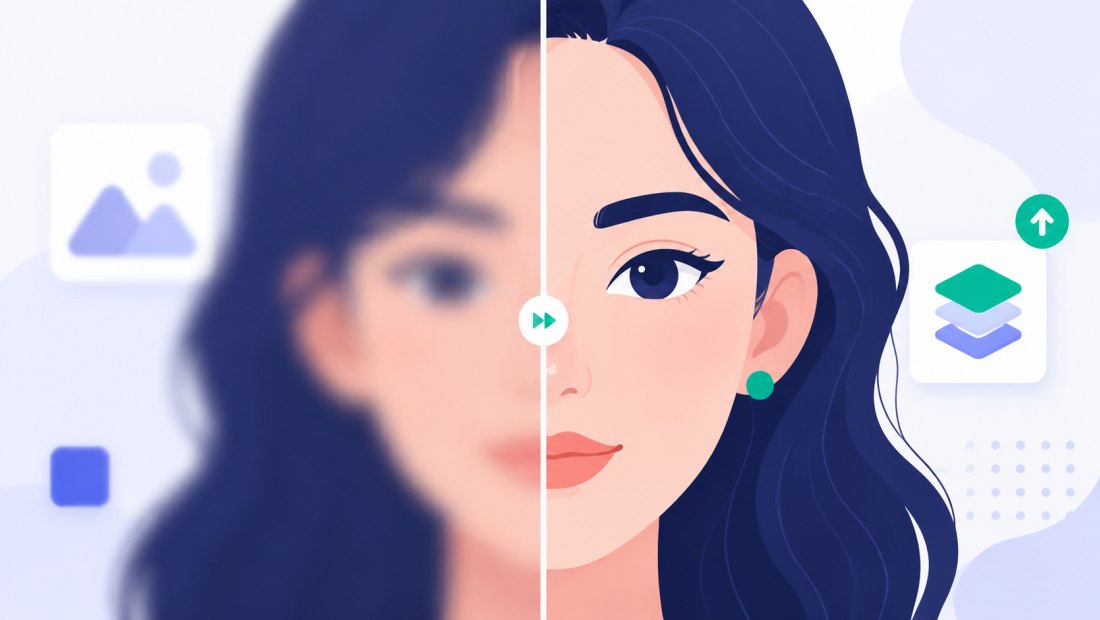
Real-ESRGAN was trained on huge numbers of image pairs, so it learned what real detail looks like. On a face it can restore eyes, hair and skin texture; on a landscape it sharpens foliage and edges; on a product shot it tightens labels and outlines.
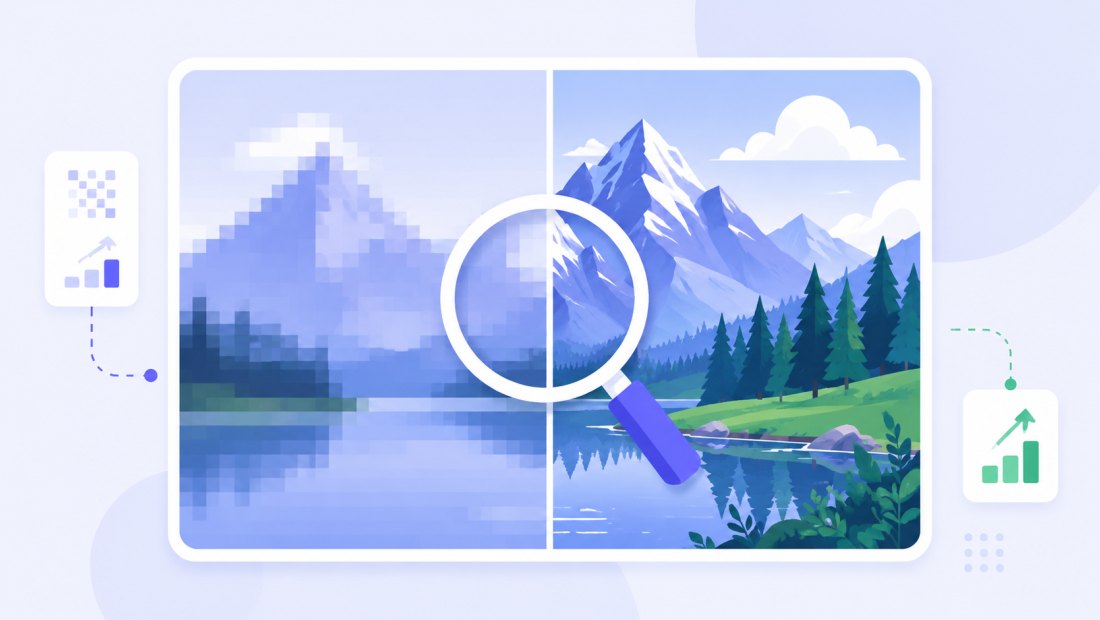
It is especially good at undoing the soft, mushy look of heavily compressed or downsized images. Because it adds plausible detail rather than copying what was there, results are excellent on photos; for crisp logos or flat graphics, a vector or a clean re-export is still the better route.
What you can do after upscaling
Because the enlarged image stays in your batch as a normal photo, you keep working on it right away — all locally:
- Resize to an exact size — upscale to gain detail, then bulk resize down to a precise width like 1920 px for crisp web output.
- Crop and reframe the now-larger image without losing sharpness.
- Add a watermark or compress for the web in the same pass.
- Combine with remove background — upscale a small product photo, then cut it out cleanly.
- Download a single image or the whole batch as a ZIP.
For simply making an image bigger without AI (a fast, local enlarge), the in-browser enlarge image tool is free and instant — use the AI upscaler when you need recovered detail, not just more pixels.
Input size limits
Very large source images are capped before upscaling to keep the model stable — a huge photo multiplied by 4× would produce an enormous output and can cause the model to fail or time out. If your input is already big, the tool scales it sensibly so you still get a clean, larger result without errors. For tiny, low-resolution sources there is plenty of headroom, which is exactly where the upscaler shines.
Great for
- Old and scanned photos — bring small family scans up to a printable, sharper size.
- Low-res downloads — rescue an image that's too small for your layout.
- E-commerce — enlarge a tiny supplier photo to a usable product image.
- Social and print — turn a thumbnail-sized picture into something you can actually use big.
Batch upscaling
Need a whole set enlarged? Open the AI menu above the grid and the batch is processed in a queue, a couple of images at a time. Because each upscale costs credits, you get a confirmation showing the total cost and your balance before anything runs — so there are no surprises.
Your privacy
Upscaling is one of the few features that needs a server, and we keep it tight:
- Only the image you send for AI leaves your browser — it passes through our server to the AI provider and is never stored.
- Everything else stays local — cropping, resizing, watermarking and compression run 100% in your browser.
- EXIF is stripped from exports by default.
FAQ
What is an AI image upscaler?
It's a tool that enlarges an image using a trained AI model (Real-ESRGAN) that reconstructs detail — sharpening edges and recovering texture — instead of just stretching the pixels you already have. The result is a larger photo that actually looks clearer.
How much does it cost to upscale an image?
Upscale 2× costs 2 credits and Upscale 4× costs 3 credits. New accounts get 3 trial credits, and registered users also get 2 free AI operations every day. Credit packs and Premium are on the pricing page.
What's the difference between 2× and 4×?
2× doubles each side; 4× quadruples each side. Use 2× for mild enlargement and cleaning up compression, and 4× for very small or low-resolution sources that need more detail rebuilt.
Does it work on faces and old photos?
Yes — the model is strong on faces, hair and skin texture, and on softening from compression or downsizing. It works best on photographs; for crisp logos or flat graphics a vector or clean re-export is better.
Is there a limit on image size?
Very large inputs are capped before upscaling to avoid model errors and oversized outputs. Small, low-resolution sources have plenty of room — that's where the upscaler gives the biggest improvement.
Can I upscale many photos at once?
Yes. Use the AI menu above the grid; the batch runs in a queue and you confirm the total credit cost before it starts, then download everything as a ZIP.
Are my photos private?
Only the specific image you send for AI upscaling leaves your browser — it passes through our server to the provider and is never stored. Everything else (resize, crop, compression) runs entirely on your device.