Resize an image to 800×600 for the web, forums and email
800×600 is the SVGA resolution and a tidy 4:3 aspect ratio that has quietly become the web's default "small but still useful" size. It is large enough to read a screenshot or appreciate a photo, yet small enough to load fast, attach to an email without bouncing, and post to a forum that caps image dimensions. Many older CMS themes and forum engines still size their content column around 800 px, so an 800×600 image drops in without breaking the layout. ImageResizerly does it all in your browser — your files are never uploaded.
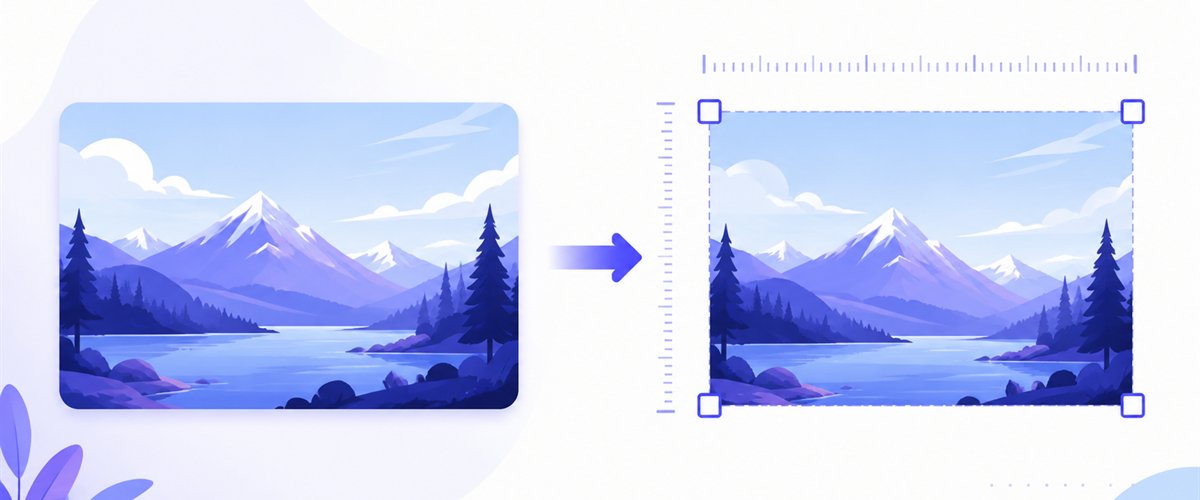
Drop one image or a whole folder, lock the size to 800×600, pick a fit mode, and download.
How to resize an image to 800×600
- Add your images — drag and drop, click to browse, or paste with
Ctrl+V. A single screenshot or a folder of blog illustrations at once. - Set width 800 and height 600 — type the values once and every image is re-rendered to that exact pixel box.
- Choose a mode — Fit to keep the whole image visible, Crop to fill the frame edge-to-edge, or Stretch to force the exact shape.
- Download — one file or the whole batch as a ZIP, compressing in the same pass if the forum has a weight limit too.
No account is needed for up to 5 images at a time; a free account raises the batch to 20 and Premium to 100. See the pricing page.

The 4:3 (SVGA) shape and how each mode fits
800×600 is 4:3 — the same gentle, slightly square shape as 1024×768, just lighter. Because so many web photos arrive as 16:9 or 3:2, you usually need to decide how the source meets this squarer frame. Three modes handle it, and "don't enlarge" stops a thumbnail-sized source from being upscaled into mush.
| Mode | What it does | Best for 800×600 |
|---|---|---|
| Fit | Scales the whole image inside the box, with bars if the shape differs | Screenshots and diagrams that must stay complete |
| Crop | Fills 800×600 and trims the overflow (drag the region per thumbnail) | Blog header images and forum thumbnails that should fill the slot |
| Stretch | Forces 800×600 exactly, distorting if needed | A near-4:3 source where slight distortion won't show |
For a blog illustration that sits inside a fixed-width column, Crop gives you a clean, full-bleed 800×600 with no awkward letterbox bars around it.

High-quality downscaling for crisp web images
Most images you push to 800×600 are being shrunk a lot, and a quick browser resize leaves jagged text and shimmering lines — exactly what you don't want in a screenshot. ImageResizerly uses Lanczos resampling (via Pica) so edges stay smooth and UI text stays readable. The quality slider shows a live size estimate, and you can export as JPG, PNG, WebP or AVIF — WebP often hits the smallest size for a fast-loading page, while PNG keeps a screenshot pixel-perfect.

Batch-resize a folder of images to 800×600
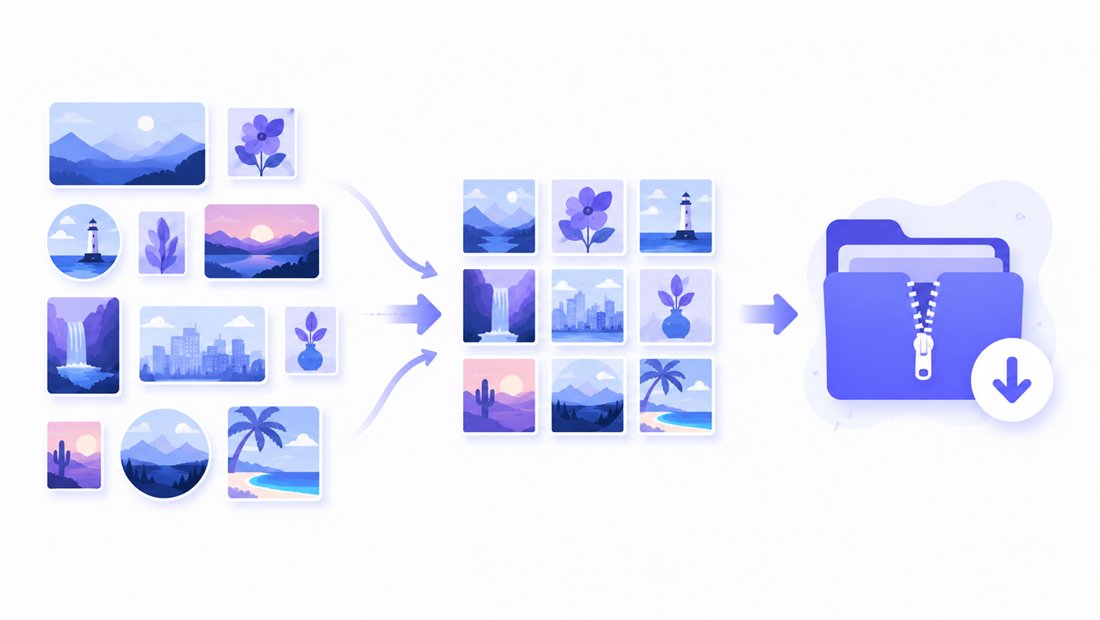
Got a folder of screenshots for a tutorial, or a set of blog photos to standardize? Drop them all and ImageResizerly renders each to a uniform 800×600, then hands you a single ZIP. Filename patterns (prefix, suffix, counter) keep fig-01, fig-02 tidy and in order. Want every file under a weight limit too? Chain in compression to 100 KB, or send the same set through bulk resizing at another size.
Private — nothing is uploaded
Resizing runs entirely in your browser using the Canvas API:
- No upload, no wait — even a big folder of screenshots starts instantly.
- Private by design — your images never reach a server.
- EXIF removed by default — location and camera data are stripped on export before you post.
- Works offline — once the page has loaded you can disconnect and keep working.
Related tools
- Resize to 640×480 — the smaller VGA sibling for thumbnails and very light uploads.
- Resize to 1024×768 — the larger XGA option in the same 4:3 family for projectors and forms.
- Compress to 100 KB — squeeze the finished 800×600 files under a forum or email limit.
- Bulk resizer — process a whole library through any custom size in one go.
FAQ
Why resize to 800×600?
It is the sweet spot for "small but readable": fast-loading web images, forum posts within dimension caps, email attachments that won't bounce, and inline blog illustrations. Many older CMS themes and forum engines are built around an 800 px content width, so 800×600 fits perfectly.
Will resizing to 800×600 lose quality?
You are usually shrinking, and Lanczos resampling keeps the result sharp with no jagged edges. Keep JPG quality at 85–95%, or use WebP for the smallest file and PNG when a screenshot's text must stay crisp.
My photo is 16:9 — how do I make it 4:3?
Use Crop to fill the 800×600 frame and drag the region to keep the key part, or Fit to show the whole image with thin bars. Stretch only makes sense when the source is already close to 4:3.
Can I resize many images to 800×600 at once?
Yes — 5 at a time for free, 20 with a free account and 100 with Premium. Each image is rendered to 800×600 and downloaded as a single ZIP with consistent filenames.
Are my images uploaded to a server?
No. Everything runs in your browser via the Canvas API, so files never leave your device — you can even work offline once the page has loaded.
Is it free?
Yes, resizing to 800×600 is completely free with no watermark. Optional accounts only raise the batch size and unlock AI features.