Convert WebP to JPG in your browser
Stuck with a .webp file that an older program, an office suite or a print service simply won't open? ImageResizerly converts WebP to JPG right here in your browser — the WebP is decoded and re-encoded as a universal JPG on your own device. Nothing is uploaded, so even private photos and document scans never leave your computer.
WebP is a great modern format, but its support is still uneven. The moment you hand a .webp to an old photo viewer, a school portal, a printing lab or a colleague on an older laptop, you can hit a wall. Changing the format to JPG fixes that instantly — JPG opens everywhere.
How to convert WebP to JPG
- Add your WebP files — drag and drop, browse, or paste with
Ctrl+V. Single images or a whole folder at once. - JPG is the target format — this tool re-encodes every WebP as a standard JPG.
- Set the quality — leave the slider around 85–95 for results that look identical to the original.
- Convert and download — grab one JPG, or download the whole batch as a single ZIP.
No account is needed for up to 5 images at a time; a free account raises the batch to 20, and a paid plan goes up to 100. See the pricing page.
Why change the format from WebP to JPG
WebP saves space on the web, but not every program understands it. Converting to JPG trades a little file size for the broadest compatibility on the planet:

- Older software — legacy photo viewers, scanners and image editors often can't read WebP.
- Office suites — many versions of Word, PowerPoint and older office tools reject WebP on insert.
- Print services — photo labs and print shops still expect JPG; WebP uploads get bounced.
- Apps and portals — some upload forms, marketplaces and CMS plugins accept JPG only.
When in doubt, JPG is the safe answer. It's the most widely supported image format there is.
When JPG beats WebP (and when it doesn't)
Neither format is "better" everywhere — it depends on where the file is going. This table makes the choice quick:
| Situation | Best format | Why |
|---|---|---|
| Opening on old software or office tools | JPG | Universal support; WebP may not open at all |
| Sending to a print service | JPG | Print labs expect JPG; many reject WebP |
| Email attachment to anyone | JPG | Recipient's device always opens it |
| Uploading to a strict web form | JPG | More forms accept JPG than WebP |
| Photos on your own modern website | WebP | Smaller files, faster page loads |
| You need transparency | PNG / WebP | JPG has no transparency (alpha) |
If your goal is the opposite direction — modern, lighter files for your own site — use JPG to WebP instead.
Quality that looks identical
A JPG saved at high quality is visually indistinguishable from the WebP it came from. The slider lets you balance quality against file size:

- 85–95 — the sweet spot. The JPG looks the same as the WebP at normal viewing size.
- Below 80 — you start to trade visible quality for a smaller file; useful only when size matters more than fidelity.
- Live preview — check the result before you download, so there are no surprises.
Because the conversion is a real decode-and-re-encode, you get a clean, standard JPG that any program will accept.
Transparency and animated WebP
Two things to know before you convert, because JPG can't do everything WebP can:
- Transparency is flattened. JPG has no alpha channel, so any transparent areas in your WebP are placed on a solid white background during conversion. If you need to keep transparency, export to PNG instead — or keep the file as WebP.
- Animated WebP keeps only the first frame. JPG is a single still image, so an animated WebP is converted to its first frame only. For a moving result you'd need a video or GIF format, not JPG.
These aren't bugs — they're the natural limits of the JPG format, and the tool handles both predictably so the result is never a surprise.
Convert many WebP files at once
Got a folder full of .webp files from a download, a camera app or a website export? Drop them all in and every one is converted to JPG in a single pass, then packed into one ZIP:
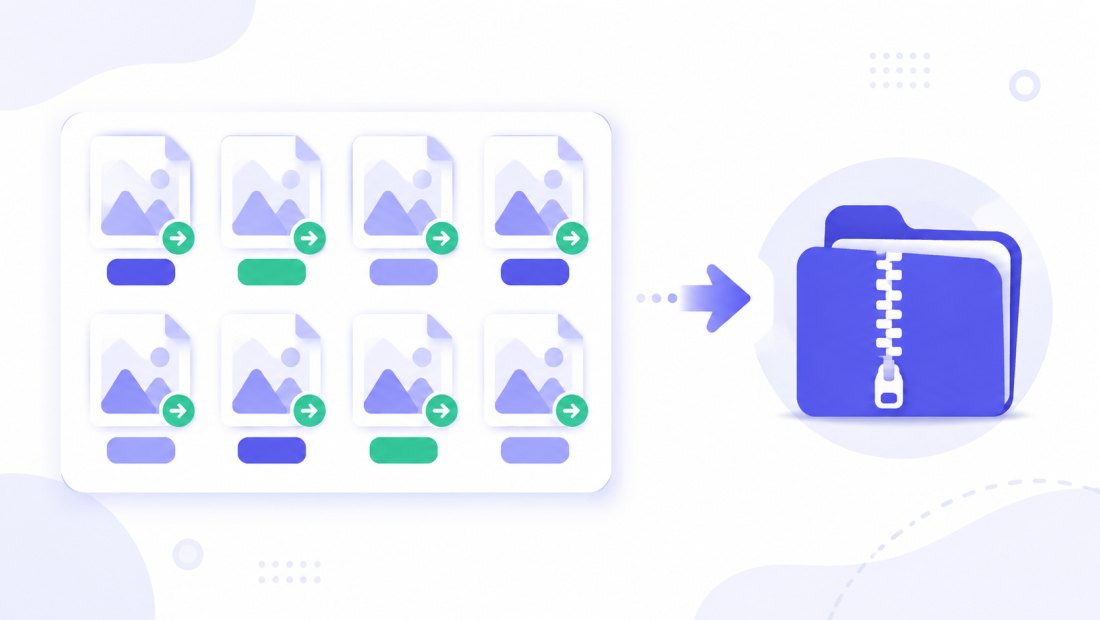
You can mix formats in the same batch too — WebP, PNG and even iPhone HEIC to JPG all convert to clean JPGs together. Combine the conversion with resizing in the same pass if you also need smaller dimensions.
One file or a hundred formats
ImageResizerly handles the whole family of everyday formats, so you rarely need a second tool:
JPG, PNG, WebP and HEIC all convert between one another in the browser. If you later need the file smaller for a strict upload limit, run it through compress to 100 KB after converting.
Private — nothing is uploaded
Conversion runs entirely in your browser using the Canvas API:
- No upload, no wait — the WebP is decoded and the JPG written on your own device, so even a batch starts instantly.
- Private by design — document scans and personal photos stay on your computer.
- EXIF removed by default — location and camera data are stripped from the JPG on export.
- Works offline — once the page has loaded you can disconnect from the internet.
This is safer than the typical online converter, which uploads your file to a server you don't control.
FAQ
Will the JPG look as good as the original WebP?
At quality 85–95 it's visually identical at normal viewing size. JPG uses a different compression, but at high quality the difference isn't noticeable. Drop the slider only when a smaller file matters more than perfect fidelity.
Why convert WebP to JPG at all — isn't WebP better?
WebP is smaller and great for websites, but it isn't supported everywhere. Older software, office suites, print labs and some apps can't open it. JPG opens on every device and service, so it's the safe choice when you need to share, print or upload.
What happens to a transparent WebP?
JPG has no transparency, so transparent areas are flattened onto a solid white background during conversion. If you must keep transparency, export to PNG or keep the WebP.
Can it convert an animated WebP?
Only the first frame is kept, because JPG is a single still image. For motion you'd need a video or GIF format instead.
How many WebP files can I convert at once?
Up to 5 at a time with no account, 20 with a free account, and 100 on a paid plan. Each file is converted independently and downloaded together as a ZIP.
Is it safe for private documents?
Yes — conversion happens locally in your browser and nothing is uploaded. EXIF metadata is also stripped from the JPG by default, which is a privacy bonus.
Can I convert other formats too?
Yes. The same tool handles JPG, PNG, WebP and HEIC in any direction, including HEIC to JPG for iPhone photos and JPG to WebP for the web.