How to Extract Text From an Image (OCR): A Step-by-Step Guide
Retyping text from a photo by hand is a waste of time. See how OCR works, when free in-browser recognition is enough, and when AI OCR pays off — plus how to do it privately, without uploading your files to any server.
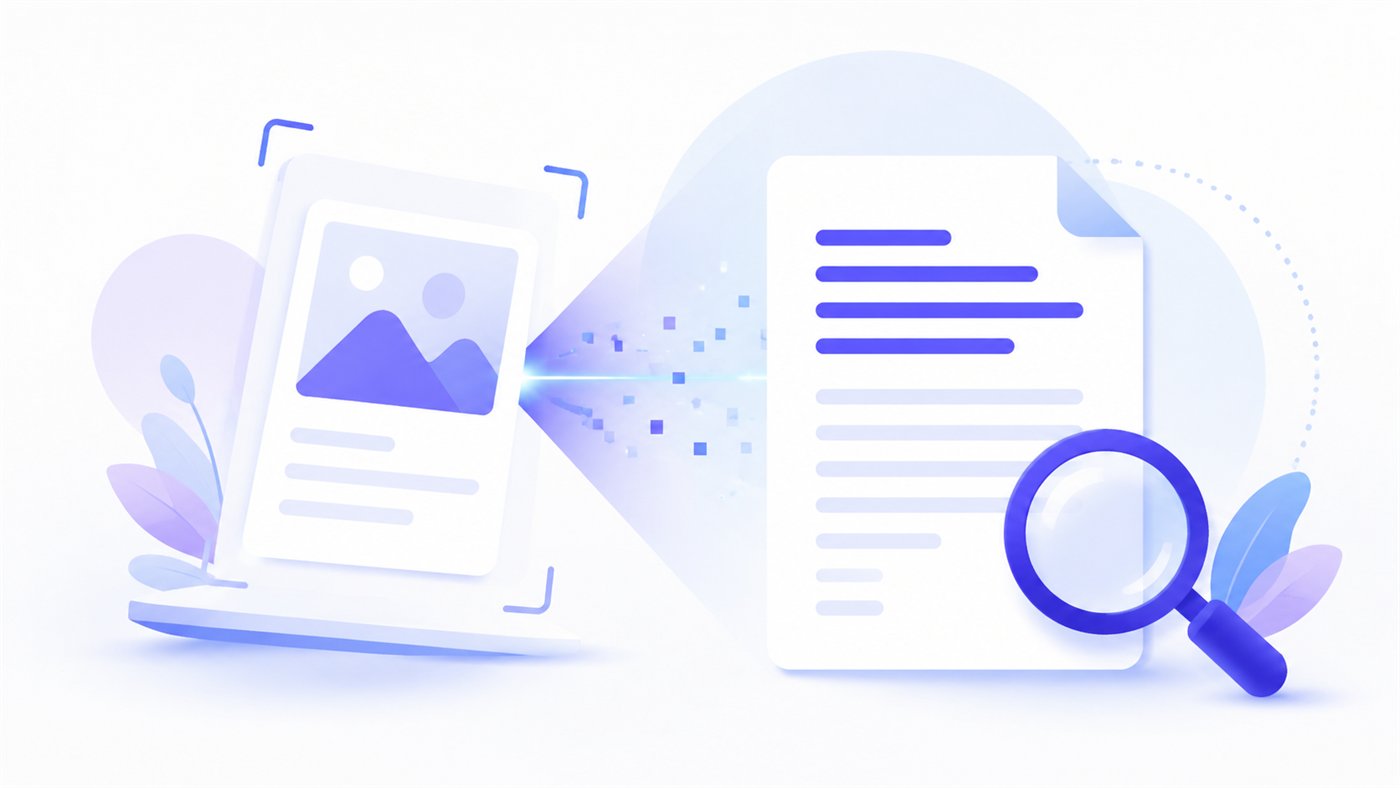
Someone sends a photo of a contract, there is a receipt on the desk waiting to be filed, and a lecture slide holds a paragraph that needs to be quoted. Retyping all of that, character by character, is one of the most tedious jobs at a computer. Luckily, machines have handled it for a long time — the technology that turns an image of letters into editable text is called OCR, and today it runs right inside the browser, with nothing to install.
This guide explains what extracting text from an image actually is, where it helps, how to frame a shot so accuracy stays high, and when free in-browser OCR is more than enough versus when an AI-assisted variant is worth it. A good chunk of the article is devoted to privacy, because that is one area where the way a tool works makes an enormous difference.
What OCR Actually Is
OCR stands for optical character recognition. In practice it is a process in which software analyzes an image — a photo, a scan, a screenshot — finds shapes that look like letters and digits, and then converts them into real, editable text. The result is no longer a picture but a string of characters you can copy, search, correct, or paste into a document.
It helps to separate two situations. A photo of text is, to a computer, just a set of pixels — you cannot select or search it. Only OCR gives those pixels meaning. That is why a scanned PDF without a text layer is useless for searching, while the same document, once run through character recognition, becomes fully searchable.
The mechanism, simplified, looks like this: the tool first locates the regions that contain text and separates them from the background, then splits them into lines and individual characters, and finally matches each shape to the most likely letter, taking neighboring characters into account. The cleaner the input, the less guessing — and the more accurate the result.
Common Uses for Text Recognition
The list of situations where turning an image into text helps is long. These are the ones that come up most often at work and at home:
- Retyping text from a photo or scan — a passage from a book, an article, or a contract you would rather not type by hand.
- A screenshot — text from an app that will not let you copy it normally, or an error message you need to pass along.
- A receipt or invoice — pulling amounts, dates, and line items into a spreadsheet or an expense report.
- A handwritten note or a whiteboard — a snapshot from a meeting, a mind map, or a to-do list jotted on paper.
- A business card — moving a name, phone number, and email into your contacts without retyping.
- A sign, a label, a package — reading an ingredient list, a serial number, or instructions from a photo taken on the go.
In every one of these cases the goal is the same: instead of typing, you take a photo or load an existing file, and the tool returns ready text to copy. If the image happens to be too large, you can first crop it down to just the part with text — less background often means better recognition.
Free In-Browser OCR Versus AI-Assisted OCR
ImageResizerly offers two paths for text recognition, and it is worth understanding the difference, because the choice affects both accuracy and privacy.
Free OCR That Runs Locally
Basic text recognition runs entirely in the browser, free and without limits. The file is never uploaded anywhere — the OCR engine starts on the user's device and processes the image right there. This approach handles printed material beautifully: scans, photos of pages, screenshots, receipts with a readable font, simple documents. It supports English and Polish, so typical documents with accented characters are no obstacle.
For the vast majority of everyday tasks this option is entirely sufficient. It is fast, private, and costs nothing. The most convenient way to start is with the image-to-text tool.
AI OCR for the Harder Cases
There are, however, materials where the classic engine struggles. Handwriting, a badly skewed photo shot at an angle, weak contrast, a complex multi-column layout, or a table full of data — all of these can be a challenge. In situations like these, AI-based OCR helps; it is available as a credit-based option. The model is better at reading the character of handwriting, can infer missing fragments from context, and reproduces the structure of a table or list more faithfully.
The rule is simple: start with free in-browser recognition, and reach for the AI variant only when the material is genuinely difficult and the basic result is not good enough. There is no point spending credits on an ordinary, readable scan that the free engine reads just as well.
How to Improve Recognition Accuracy
The quality of an OCR result depends enormously on the quality of the input. A few simple steps can turn an error-riddled recognition into a nearly flawless one.
- Get it sharp. A blurry photo is OCR's nightmare — letters blend together. Hold the phone steady, tap the screen to focus on the text, and avoid digital zoom.
- Aim for contrast. Dark text on a light background reads best. Avoid overexposed shots and ones where the letters are barely visible against the background.
- Light it evenly. Shadows, reflections, and lamp glare can obscure parts of characters. Soft, diffused daylight works best.
- Keep the frame straight. The more the text is skewed or shot at an angle, the harder it is to read. Hold the camera parallel to the page.
- Choose a good crop. Fit just the text in the frame, without extra background. If the photo is busy, crop it down to the part that matters before recognition.
- Favor a simple layout. A single column of plain text recognizes far more reliably than a dense table or a page with graphics around it.
These tips apply to both free OCR and the AI variant — good input improves the result in either case, and with the free engine it can be the difference between success and failure.
Supported Languages and Characters
Documents with accented letters have their own rules — the tails, strokes, and dots above letters must be recognized correctly, or the text has to be fixed by hand anyway. The free in-browser OCR supports English and Polish, so it handles both an English manual and a Polish contract with diacritics.
With bilingual material — say, a flyer where English and Polish text sit side by side — a clean, printed font works best. The more decorative the typeface, the higher the risk of mistakes on less common characters. If the text contains diacritics from other languages, it is worth checking the result by eye, since those are the most frequent source of small errors.
Copying and Exporting to a File
Recognized text is not an end in itself — the point is to be able to use it further. After the image is processed, the result appears as plain, editable text that you can immediately copy to the clipboard with one click and paste into a document, a message, or a spreadsheet.
When there is more text, exporting to a .txt file is often more convenient. A plain text file opens everywhere, carries no formatting or metadata, and is ideal for further processing — for instance, importing into another program. Before saving, it is always worth reviewing the result and fixing any typos, especially in numbers, dates, and proper names, where a mistake is the most costly.
Privacy — Why How OCR Works Matters
This is the most important thread of this guide. The documents you run through OCR are often sensitive: contracts, receipts with personal data, correspondence, work notes. In many free online tools the uploaded file goes to the provider's server, where it is processed — and the user has no real control over what happens to that data afterward.
At ImageResizerly, free OCR runs locally, in the browser. The image never leaves the device — it is not sent to any server, not stored there, and not analyzed there. The entire recognition happens on the user's side, and the text it produces also never travels anywhere beyond the screen. That is a fundamental difference: a private document stays private.
If someone deliberately chooses the AI OCR option, part of the processing uses the service's computing power — and the user is told about it before any credits are spent. The choice is always theirs. More about how the tool handles data is described in the privacy policy.
The same principle of local processing applies to the rest of the site's features — from removing the background from a photo to compressing an image to 100 KB. Files stay on the device, and the user does not have to agree to uploading them just to run a simple operation.
Common Mistakes and How to Avoid Them
A few traps come up especially often. The first is trying to recognize an oversized, background-heavy photo — the engine gets lost among elements that are not text. Cropping the frame down to the content first helps. The second is expecting flawless handwriting recognition from the free engine — here AI OCR usually does better. The third is skipping verification of the result: even a good recognition can confuse a zero with the letter O or a one with a lowercase l, which matters in account numbers or invoices. A quick glance at the figures before using the text saves trouble later.
Summary
OCR turns tedious retyping into a few seconds of work. For most tasks — scans, photos of pages, receipts, screenshots — free text recognition that runs locally in the browser, in English and Polish, with nothing sent to a server, is enough. Harder cases, such as handwriting or tables, are handled by credit-based AI OCR. The key to a good result is clean, well-framed, sharp input. The easiest way to see it for yourself is to load a photo into the image-to-text tool and check the result.
FAQ
Does the free OCR really not upload my image to a server?
Yes. Free text recognition runs entirely in the browser, on the user's device. The image is not transmitted or stored anywhere — all processing happens locally, and the resulting text also stays on the screen. This is described in the privacy policy as well.
Which languages does the free text recognition support?
The free in-browser OCR supports English and Polish, including Polish diacritics. It handles both an English document or screenshot and a Polish contract.
When should I choose AI OCR over the free one?
When the material is hard: handwriting, a badly skewed photo, weak contrast, or a complex table. In those cases the credit-based AI OCR gives a clearly better result. For ordinary, readable scans the free engine is entirely sufficient.
How do I improve text recognition accuracy?
Sharpness, good contrast, and even light matter most. Hold the camera parallel to the page, fit just the text in the frame, and favor a simple single-column layout. An oversized photo can be cropped to the part you care about first.
How do I save the recognized text?
You can copy the result to the clipboard with one click or export it to a .txt file. A plain text file opens everywhere and is ready for further work. Before saving, review the text and fix any typos, especially in numbers and proper names.